Wood Cutting Mode
Wood Cutting mode is a specialized version of 1D linear cutting designed specifically for timber, structural lumber, and dressed wood. It adds cross-section matching and dimension-aware grouping that makes it the right tool for carpentry, timber framing, joinery, and furniture making.
What Makes Wood Mode Different
Timber cutting has a few constraints that generic 1D cutting does not handle:
- Cross-section matching — A 90×45 mm stud and a 190×45 mm joist are both linear pieces, but they cannot come from the same stock. Wood mode lets you define cross-sections and ensures pieces only come from matching stock.
- Grain direction — For structural and appearance-grade timber, pieces must be cut with the grain running along the length. In Wood mode this is inherent: parts are cut to length along the bar and never rotated.
- Timber profile visualisation — The canvas shows each timber with its cross-section shape, making it easy to verify that the right profile is being used.
For non-timber linear materials (steel, aluminium, plastic, cable), use 1D Linear Cutting mode. Wood mode adds timber-specific fields that are unnecessary and may create confusion for non-timber materials.
Cross-Sections
Wood mode organises timber by cross-section — the Width × Height of each row. There is no type selector and no type column: CutOptim groups pieces by their dimensions alone and only assigns a demand piece to stock with exactly the same cross-section.
The default stock rows are named Column, Board, Batten and Lath. Those are just the names of the preset rows — a row’s Name is free text, so call your stock whatever you like (for example MGP10 90×45). Renaming a row changes nothing in the optimization.
Telling species apart — Material-specific mode
Wood mode always separates by cross-section, but by cross-section geometry only — an oak 50×50 and a pine 50×50 share a group, because they are the same shape. When that matters, turn on Material-specific mode: every stock and part row gains a Material tag, and material then composes with cross-section. An oak 50×50 and a pine 50×50 become two separate sections, so same-size sticks of different species never mix, and a part whose material has no stock is reported under “⚠ No matching material”.
The cross-section lock. Once you tag a wood row with a material, its width and depth become read-only — they come from the material’s identity, so a tagged row can never drift away from what the material actually is. The length stays editable: length is not part of a material’s identity (you buy the same 50×50 oak in many lengths), so you still set it per job. Clearing the material releases the lock. Wood materials — a cross-section, a type and a colour, with an optional default length — are saved in the Material inventory and dropped onto a row with one click.
Adding Timber Stock
| Feature | Type | Description |
|---|---|---|
| Length | number | Full length of the timber piece in mm or cm. |
| Width | number | Cross-section width (larger of the two cross-section dimensions for boards and battens). |
| Depth (Thickness) | number | Cross-section depth (smaller dimension). For a 90×45 stud, depth is 45 mm. |
| Quantity | integer | Number of pieces of this stock available. |
| Price | number | Cost per piece for quotation export. |
| Label | text | Optional label, e.g. 'MGP10 90×45 3.6m'. |
Example timber stock for a deck frame:
| Name | Length | Width | Depth | Qty |
|---|---|---|---|---|
| MGP10 90×45 4.8m | 4800 | 90 | 45 | 20 |
| MGP10 140×45 4.8m | 4800 | 140 | 45 | 10 |
| H3 90×90 3.6m | 3600 | 90 | 90 | 6 |
Adding Parts to Cut
| Feature | Type | Description |
|---|---|---|
| Length | number | Required cut length. |
| Width | number | Required cross-section width. Must match an available stock cross-section. |
| Depth | number | Required cross-section depth. Must match an available stock cross-section. |
| Quantity | integer | Number of pieces required. |
| Label | text | Piece name, e.g. 'Joist J1', 'Bearer B3'. |
| Cross-section | number | Width × height of the part. It must match a stock cross-section exactly — parts with no matching stock are reported after the run rather than cut from a different profile. |
If a part’s cross-section (width × depth) matches no stock cross-section, the optimization still runs — the unmatched parts are reported afterwards in the results, and in the PDF, as cross-sections with no matching timber. Check that your part cross-sections exactly match your stock cross-sections.
Roof framing template
Under the Parts to cut header of Wood cutting mode there is a Roof framing template row. It opens the rafter length calculator: enter the span, building length, pitch, overhangs, rafter spacing and sections of a gable, shed, hip or L-shaped roof, and it lists every rafter, barge rafter, ridge piece, collar tie, counter batten and tile batten — on a hip or L-shaped roof also the hip rafters, jack rafters, valley rafter and valley jacks — with the lengths to cut and their cut angles. Its Optimize in the app button brings that cut list back here: the pieces arrive with their cross-sections, plus one stock row per cross-section with the stock length you chose. A hip or L-shaped roof also brings each piece’s end cuts into the ∠ column (see below), and Shared mitre cuts is set as it was in the calculator, so with the same 3 mm saw kerf a run here gives the calculator’s order list. An untouched example workspace is replaced; parts you had already entered are kept and the roof pieces are added after them. While the results area is still empty, the same template also shows there as a highlighted card that links to the calculator.
The whole path from the roof to the timber order — which stock length to buy and why — is in the guide Roof framing cut list.
On the calculator page the roof is drawn three ways, all from the cut list it computes: a side view (a section across the span with rafters, ridge, collar ties, counter battens and battens), a top view (every rafter at its spacing, barge rafters, ridge joints, batten rows and their joints) and the rafter detail with the cut length and both angles. Drag a gold handle on the drawing — pitch, span, overhangs, building length, collar height — or click a dimension to type a new value; the form follows. On a wide screen the drawing and the Recalculate order list button stay beside the form while you scroll; on a phone the button stays at the bottom of the screen. Print / PDF puts the side view, the top view, the inputs, the cut list and the order list on one A4 sheet; the browser’s print dialog also saves it as a PDF. If the inputs changed since the last calculation, the sheet asks you to recalculate instead of printing an outdated order list.
The Hip roof, L-shaped gable roof and L-shaped hip roof buttons load an example for your market, which you then change like any other. Their top view numbers every rafter, jack rafter, hip and valley with its row in the cut list, a hip detail tab shows the hip rafter’s and the longest jack rafter’s cuts, and for an L-shaped roof you choose which end and which side the wing stands on (this only mirrors the drawing; the cut list stays the same). Their order list has a Shared mitre cuts switch, on by default, and next to the result it shows the result without shared cuts — both measured on that cut list.
The template is geometry only. It does not check whether a rafter section is strong enough for the span, snow or wind — size rafters from your local span tables or Eurocode 5.
Angle cuts and shared mitre cuts
Each row in Parts to cut has an ∠ cell (shown under More, and always while a row has an angle). Click it to set the end cuts of the part:
- Face angle — the mitre seen on the face of the piece, in degrees from square (0° = square), for the start and for the end.
- Edge angle — the bevel seen on the top edge, for compound cuts such as jack rafters. Leave 0 for a plain mitre.
- The part may be turned — whether a piece may be laid end for end (top edge stays up), over the edge, either way, or not at all (profiled mouldings).
The Length stays the overall length, long point to long point. The face angle is measured on the side you entered as the part’s Height. Switching between mm, cm and inches never converts an angle. Square in the editor resets both ends. If the two cuts would cross inside the section — the part is shorter than its angled ends need — the editor refuses them and says how long the part must be. A part that becomes too short later (a shorter length, a deeper section) is still placed at its length and is listed after the run under Parts too short for their end cuts.
Angles alone do not change the plan: the bars, the order of the pieces and the off-cuts stay the same. The cut list, the sawing plan and the exports show each piece’s angles, and the sawing plan adds the extra pass an angled end needs — an angled end next to a square one takes two saw passes.
Shared mitre cuts (in Settings, wood mode only, off by default) lets the optimizer lay two pieces whose angled ends match next to each other, so that one saw cut separates them. The wedge between the long and the short point is not wasted, and the pair takes less of the bar. A plan with shared cuts is only chosen when it ranks strictly better than the plan without them (more parts placed, less bar length bought, or fewer bars), so switching it on never gives a worse plan. Two parts can share a cut only when they have the same cross-section and material and their end planes meet after a turn both parts allow. Only pairs share a cut, never chains of three or more.
In the results a shared cut is drawn as one oblique kerf band between the two pieces, and a piece laid turned is marked ↻. The sawing plan names the cut as shared and says when the next piece is turned. The PDF bar diagrams draw the oblique ends, the on-screen, PDF and Excel cut lists gain an Angle column, the CSV gains four angle columns (start, end, shared cut, turned), and the DXF draws angled ends as slanted lines (the bar’s height in the DXF stays schematic, so the slant shows where the cut starts and ends along the bar, not its true angle). Yield counts the shared wood once, so it never exceeds 100 %.
Angles are entered per row in the ∠ editor, or arrive with a hip or L-shaped roof from the roof framing template. CSV or Excel import does not bring angles in yet.
Running a Wood Mode Optimization
- 1
Switch to Wood mode
Click the **Wood** tab in the mode selector at the top of the toolbar.
- 2
Add stock timber
In the Stock table, add your available timber lengths with cross-section dimensions and quantities. The Name column is free text — use it to label each entry.
- 3
Add demand pieces
In the Parts to cut section, click + Part and add each required piece. Ensure the cross-section dimensions exactly match the stock — a part whose cross-section matches no stock entry is reported after the run instead of being cut.
- 4
Configure kerf
In Settings, set the kerf width for your saw. A standard handsaw or circular saw produces 2.5–3.5 mm kerf. A precision cabinet saw may be 2 mm.
- 5
Run the optimization
Click Run optimizer at the bottom of the left sidebar. CutOptim groups demand pieces by cross-section and optimizes each group independently against matching stock.
- 6
Review results by cross-section
The canvas shows results grouped by cross-section. Scroll down to see each group; each one shows bar diagrams for the matching stock.
Reading Wood Mode Results
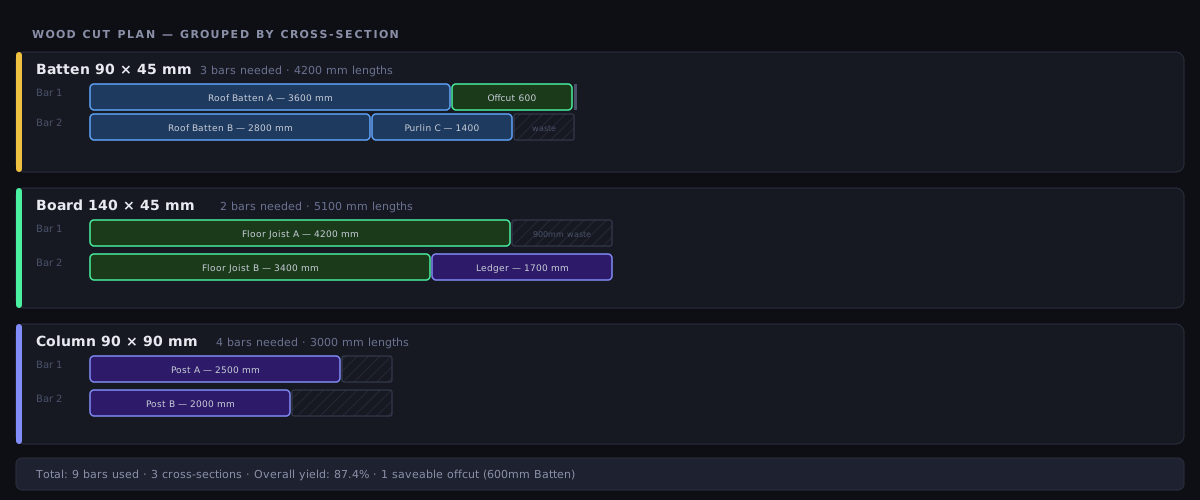
Results are organised into cross-section groups. For each group, you see:
- Bars used from that stock section
- Pieces placed from the demand list
- Offcuts per bar, including their length and cross-section
- Yield % for that section
The overall summary at the bottom aggregates across all groups and shows total timber used, total waste, and total material cost.
Offcuts in Wood Mode
Offcuts in Wood mode include their full cross-section dimensions, so when you save them to the Offcut Inventory, they are searchable by cross-section in future jobs. A saved offcut of 90×45 mm will only appear as available stock for future 90×45 demand pieces.
Within each cross-section, when several layouts use exactly the same bars, CutOptim keeps the leftover in as long a piece as possible rather than spreading it over many bars. It never costs a bar; it only decides between plans that are otherwise identical.
The Sawing Plan
The bar diagrams show what comes off each length of timber. The sawing plan tells you where to stop the blade, in order — which is the arithmetic nobody wants to repeat twenty times down a 4.8 m stick.
A piece of timber has no cut tree: it is cross-cut end to end from the head. So the plan is simply the running offset — after each part the blade drops at that mark, then advances by the kerf.
The steps on each length, in the order you make them
- The calibration skim, if it is switched on. It always comes off the head — the start of the length.
- The start-trim head cut, if a start trim is set.
- One step after each part — except a last part that finishes flush with the usable end when there is no end trim, because there the timber simply stops and no pass is needed.
Every step gives a stop position measured from the head: a number you can set on a stop, not a part length to add up. Head passes are named as such (Calibration, Start trim) and leave the order column blank, because they free no part. There is no stage number and no cut direction — timber is crossed the same way every time, and it is never turned.
Wood reports a cut length without being asked. Because the cross-section is known per material, the distance the blade travels across the piece can be measured, so the sawing plan reports a sawn length in the PDF key figures and in the Excel tab — whatever mix of sections the job holds. 1D Linear carries no section of its own; it reports stop positions only, unless you set its optional Profile width, which is a single width applied to the whole job. That is the reason to reach for Wood mode on a job with several sections: one number cannot describe five profiles.
On screen
- The Cutting Sequence bar sits directly above the bar strips it steps through, ahead of the first cross-section box. Its controls are ◀ Previous, the step readout, ▶ Next, ⏮ Restart and ▶ Play (0.8 s per step, stopping at the last one).
- Below the cut list, the whole plan is listed as a Cutting Sequence table with the columns Order, Bar, Name and Position. Clicking a row jumps the player to that step, and the active row is highlighted, so the table and the player stay one thing.
- On each strip the cut marks light up as you step: the current one solid, completed ones faded, upcoming ones hidden.
Because every step on a length is a single pass of the blade, the number of steps equals the Cuts figure in the results header, whatever your trim and calibration settings.
In the exports
- PDF — a Sawing plan page of its own, with the columns
#, Bar, Order, Name and Position, plus a framed strip of key figures (cuts and the sawn length) under the table. - Excel (.xlsx) — a Cutting Sequence tab straight after the Cut list tab, with a Cut length column and the totals repeated at the bottom, so the tab stands alone at the saw.
See Cutting Sequence and Exports & Downloads.
Calibration Cut
A calibration cut skims a thin strip off the head of every length before any part is cut. You measure the strip, compare it with the number you asked for, and correct the stop by the difference — so the first real part is already accurate instead of being the one you sacrifice to find out the setup was off. On rough-sawn or site-stored timber, where the end is as likely to be out of square as it is to be split, that first strip is worth the material.
- The four-edge side picker you may have seen in 2D is hidden here. Timber has one head, so a choice of four edges would be a control the plan could not honour.
- It rides on the start trim: the material reserved is start trim + calibration, which is what makes step 0 of the sawing plan a real stop position.
- With both a start trim and a calibration cut set, the head is crossed twice — once for the strip you measure, once to take the rest of the trim off — and the sawing plan lists both passes.
See Settings for the control itself.
Grain matching
Grain matching works in 2D Panel mode only — it has no effect in Wood mode. Sets are built from the 2D parts list and only the panel optimizer reads them, so a set will not influence a wood cutting plan. This section is here because grain matters most in timber; for veneered or sheet-goods fronts, lay the parts out in 2D Panel mode. See Grain matching for how it behaves there.
In 2D Panel mode, grain matching cuts a set of panels side by side from one piece of board, exactly one saw gap apart, so the figure runs on across them — a pair of wardrobe doors, or a drawer front over two kitchen doors. It does not select boards by knot pattern or colour, and it does not join planks into a table top.
What Wood mode does offer today
Wood mode’s own grain-relevant behaviour is the cross-section match: a part is only ever cut from stock of the same cross-section, so a 50×100 rafter never comes out of a 50×150 board. Length pieces are not rotated in this mode — a part is cut to length along the bar — so grain direction along the length is preserved by the nature of the cut, with no setting to configure.
Practical Example: Pergola Frame
Job: Freestanding backyard pergola, 4×4 m.
Parts:
- 4× 90×90 posts at 2700 mm
- 2× 140×45 bearers at 4200 mm
- 5× 90×45 rafters at 4200 mm
- 4× 90×45 noggings at 600 mm
Stock available:
- 6× 90×90 H3 treated pine, 4800 mm
- 4× 140×45 MGP10, 4800 mm
- 8× 90×45 MGP10, 4800 mm
Result — with a 3 mm kerf and no kerf tolerance:
- Posts: 4 bars used (of 6 available), each leaving a 2100 mm offcut
- Bearers: 2 bars used, 600 mm left over per bar
- Rafters + noggings: 6 bars used — five bars each take one 4200 mm rafter and leave exactly 600 mm, but a 600 mm nogging needs 600 mm plus the 3 mm kerf, so all four noggings are pushed onto a sixth bar
- 12 bars in total, 74.0% yield
This is the classic near-miss, and it is worth understanding before you buy timber. Turn on a 3 mm kerf tolerance (Kerf & Tolerance) and CutOptim is allowed to treat that 3 mm shortfall as acceptable: the noggings drop onto the rafter bars, those five bars come out at 0 mm remainder, and the job finishes in 11 bars at 80.7% yield — one whole bar saved by a single setting.
Even 80.7% understates what you keep: 8400 mm of the leftover is the four 2100 mm post offcuts, which are long enough to be worth saving to the offcut inventory and cutting from on the next job.