What Is Kerf Allowance and Why It Matters for Accurate Cuts
Quick answer
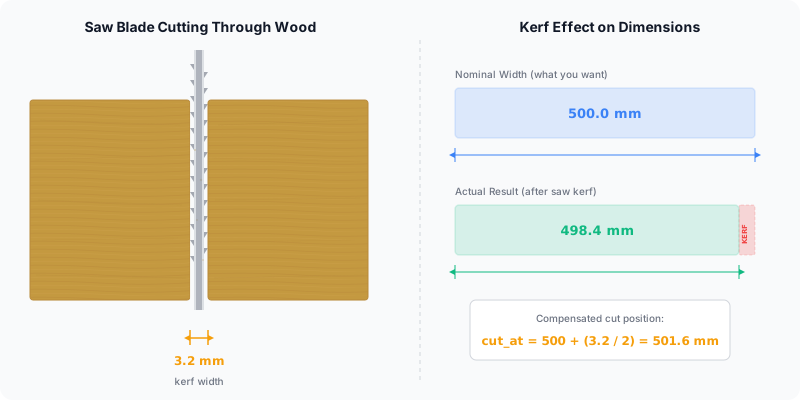
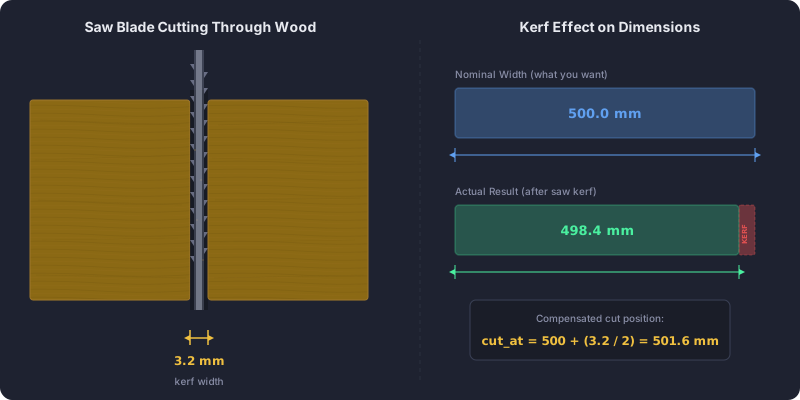
Kerf allowance means adding your saw blade’s cut width — the kerf, typically about 3.2 mm on a table saw — to the gap between parts in a cut plan. It accounts for the material each cut turns to sawdust, so your finished parts come out the right size and you never run short on stock.
Miss kerf allowance once and your parts come out 3 mm too big — every time. Or worse, you run out of stock on the last sheet because the optimizer didn’t know your blade eats 3.2 mm per cut. Kerf is the most overlooked input in cutting optimization, and it takes about thirty seconds to set correctly. Here’s everything you need to know.
This guide covers what kerf is, how kerf allowance works, typical values for different tools, and how to configure it in CutOptim so your parts come out the right size.
What Is Kerf?
Kerf is the width of material removed by a cutting tool — commonly called saw kerf — in a single pass. When a saw blade cuts through a board, the teeth don’t split the wood cleanly at a line — they grind away a strip of material equal to the blade’s tooth set width. That strip becomes sawdust.
A standard table saw blade has a kerf of about 3.2 mm (1/8 in), as defined by ISO 3002 cutting terminology. A thin-kerf blade runs around 2.4 mm. A CNC router bit might remove 3 mm to 6 mm depending on the bit diameter. A laser cutter’s kerf is as narrow as 0.2 mm.
The key point: kerf is real material that vanishes. After every cut, your remaining stock is shorter by the kerf width. Ignore it and your math is wrong from the first cut.
Interactive kerf demo
With 20 cuts per sheet: 64.0 mm of material lost to the blade alone
What Is Kerf Allowance?
Kerf allowance is the practice of adding the kerf width to the space between adjacent parts in your cut plan. Without it, the optimizer assumes cuts happen at an infinitely thin line — which no physical tool can do.
Here’s what happens in practice. Say you have a 1000 mm board and need two 500 mm parts. Without kerf allowance, the optimizer says: 500 + 500 = 1000 mm. Perfect fit, zero waste. But your saw blade removes 3.2 mm. After the first cut you have a 500 mm piece and a 496.8 mm piece. The second part is too short.
With 3.2 mm kerf allowance, the optimizer calculates: 500 + 3.2 + 500 = 1003.2 mm required. It knows the board is only 1000 mm, so it either flags the problem or arranges parts differently.
In 2D panel cutting, kerf allowance works the same way — it adds a gap between every adjacent part on the sheet. For a standard 4×8 ft panel (1220×2440 mm) with 3.2 mm kerf, the usable area shrinks slightly with every internal cut. On a sheet with 15 cuts, that’s nearly 50 mm of material turned to dust.
Typical Kerf Values by Tool
| Cutting Tool | Typical Kerf Width | Notes |
|---|---|---|
| Table saw (full kerf) | 3.2 mm (1/8 in) | Standard 10-inch blade with alternating tooth set |
| Table saw (thin kerf) | 2.4 mm (3/32 in) | Less motor strain, slightly more flex |
| Circular saw | 2.4 mm (3/32 in) | Varies by blade; check tooth set width |
| Band saw | 1.6 mm (1/16 in) | Narrow blade, good for curves and resawing |
| CNC router | 3–6 mm | Equals the bit diameter (1/8 in to 1/4 in typical) |
| Laser cutter | 0.1–0.3 mm | Material-dependent; thinner on acrylic, wider on wood |
How to Set Kerf Allowance in CutOptim
In CutOptim, kerf is a dedicated input field on the optimization screen — not buried in settings. Before you run the optimizer:
- Find the Kerf field (labeled in millimeters by default).
- Enter your blade’s kerf width. If you’re unsure, make a test cut in scrap material and measure the slot width with calipers.
- Run the optimization. CutOptim automatically adds the kerf gap between every adjacent part in the layout.
That’s it. The optimizer handles the rest — adjusting part positions, recalculating yield, and accounting for kerf on every internal cut. The same kerf value drives CutOptim’s cut list optimizer, so every layout you generate already accounts for it. If you change blades or switch to a CNC router, update the kerf value and re-run.
Measure kerf from an actual test cut, not from the blade’s spec sheet. Blade wobble, tooth set wear, and feed speed all affect the real kerf width. A $5 digital caliper and a scrap offcut give you a more accurate number than any datasheet.
What Happens If You Forget Kerf Allowance?
The error compounds with every cut. Here’s a concrete example:
You’re cutting 10 shelves from a sheet of 18 mm melamine-faced MDF. Each shelf is 400 mm wide. Without kerf, the optimizer says you need 4000 mm of stock width (10 × 400 mm). A 4×8 ft panel is 1220 mm wide, so that’s about 3.3 sheets — let’s say 4 sheets with the length dimension considered.
Now add kerf. With 9 internal cuts at 3.2 mm each, kerf consumes 28.8 mm — nearly 30 mm of extra width. That’s like adding a phantom 11th shelf. The optimizer that ignored kerf will try to fit parts that physically don’t fit, and your last piece will be 28.8 mm too short.
On bigger jobs the effect is worse. A 40-part cabinet project with 3.2 mm kerf can accumulate over 120 mm of unaccounted material loss. That’s an extra half-sheet of plywood you didn’t buy.
The fix is trivial: enter kerf once, and the optimizer does the math on every cut. There’s no reason to skip it.
If you use multiple tools on the same project (e.g., a table saw for straight rips and a CNC router for shaped parts), run separate optimizations with different kerf values for each tool. Mixing kerf values in a single run gives inaccurate results.
Which Side of the Line Does the Blade Take?
The waste side, always — and if the blade straddles the line instead, the part comes out half a kerf small.
This is the part of kerf that no amount of software can do for you. The optimizer works out where every cut belongs and assumes the material it removes comes off the offcut, not off the piece you are keeping. At the saw, that assumption is a decision somebody makes on every single cut.
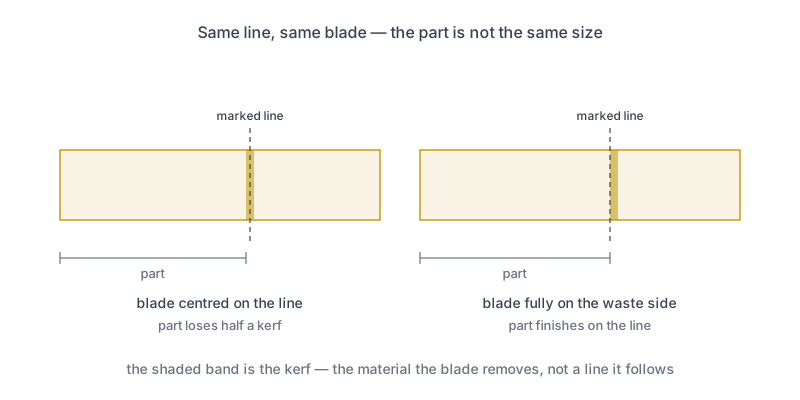
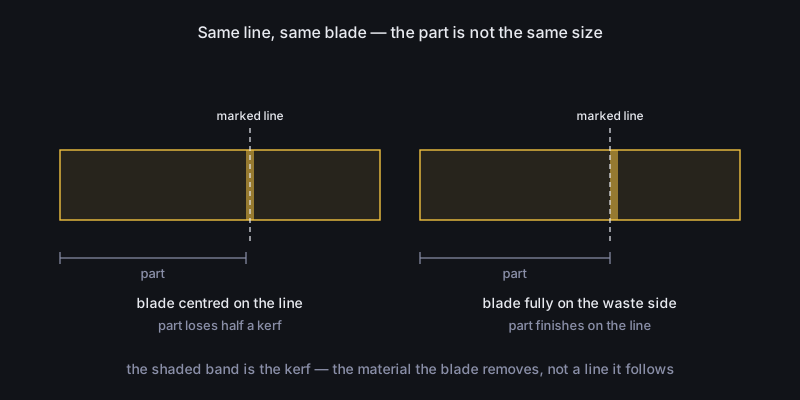
Put the blade so that the whole slot falls outside the part you are keeping. Centre it on the line and every piece is short by half the kerf — with a 3 mm blade that is 1.5 mm, which is invisible on one part and obvious once four of them have to add up across a carcass.
Two habits make it reliable:
Mark which side is waste, not just where the cut goes. A pencil line says where; a cross or a squiggle on the offcut says which. It takes a second and it survives being interrupted halfway through a stack.
Keep the fence on the keeper. When you are ripping repeat parts, set the fence so the piece you are keeping is the one between the fence and the blade. Then the kerf falls on the free side every time, and the parts come out identical because they were all measured from the same reference rather than from the last cut edge.
That last point is why a cut plan lists positions from one edge rather than a chain of part-to-part distances. Measuring each cut from the piece before it stacks the error of every previous kerf into the final part; measuring from a fixed edge does not.
Set your kerf once and get accurate layouts every time.
Kerf input is available on the free tier — no upgrade needed.
Try CutOptim Free