Cutting Optimization for Beginners: A Getting-Started Guide

Quick answer
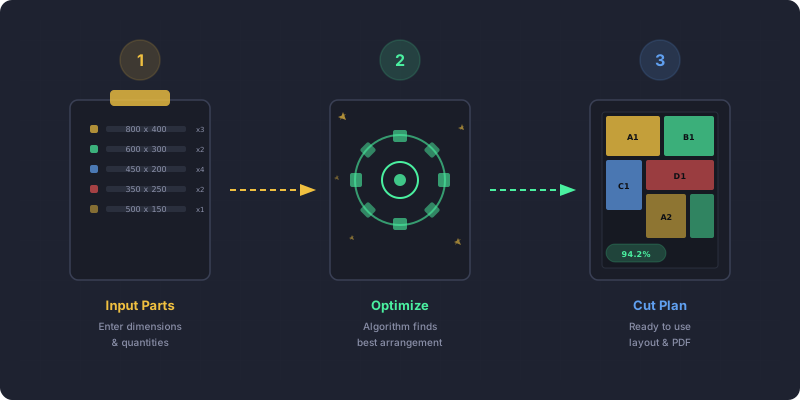
Cutting optimization is the process of arranging the parts you need on the stock material you have so waste is as small as possible. You enter three things — your stock panels or bars, your parts list, and the saw kerf — and the software calculates the tightest layout and tells you how many sheets to buy.
You don’t need to understand the math. You need to understand the inputs. A cutting optimizer is a tool that takes a list of parts you need and a list of stock material you have, then tells you exactly where to cut. The mathematical optimization algorithm behind it tests thousands of arrangements in seconds — something that would take you hours with a pencil and graph paper. This guide covers every concept a first-time user needs, from entering your first panel size to reading the output layout.
You’ll learn the three inputs every cut optimizer needs, how to run your first optimization, how to read the results, and the five mistakes beginners make most often.
The 3 Things Every Cut Optimizer Needs
Every cutting optimizer — regardless of brand, platform, or price — needs exactly three inputs:
1. Stock panels (or bars). These are the sheets of material you’ll cut from. For 2D panel cutting, enter the width and height. A standard US sheet of plywood is 4×8 ft (1220×2440 mm). In Europe, common panel sizes include 2800×2070 mm. You can add multiple stock sizes if your shop carries different sheets.
2. Parts list. Every piece you need to cut, with its width and height (for panels) or length (for linear stock). A simple bookshelf might have 8 parts. A full kitchen can have 60+. Label each part so you can identify it on the layout later.
3. Kerf (blade width). The amount of material your saw blade removes per cut — typically 3–4 mm for a table saw or CNC router. This tells the optimizer to leave a gap between adjacent parts so your physical cuts don’t eat into neighboring pieces.
That’s it. Enter those three things and the optimizer can work. Everything else — grain direction, edge banding, part labels — is optional refinement.
Your First Optimization, Step by Step
List your stock panels
Open CutOptim and enter your available stock. If you’re using standard 4×8 ft plywood, enter 1220 mm × 2440 mm (or switch to imperial and enter 48 × 96 inches). Set the quantity — if you have 3 sheets in the shop, enter 3. If you’re buying new material, leave quantity unlimited and let the optimizer tell you how many sheets to buy.
List your required parts
Add each part with a name, width, and height. For a basic bookshelf: two sides at 300×1800 mm, four shelves at 300×900 mm, one top at 300×920 mm, one back panel at 900×1800 mm. Enter the quantity for each — if you need 4 identical shelves, enter the part once with quantity 4.
Set your blade kerf
Find the kerf input field and enter your blade’s cutting width. If you’re using a standard table saw blade, 3.2 mm is a safe default. Not sure? Make a test cut in scrap and measure the slot with a ruler or caliper. For CNC routers, kerf equals the bit diameter (commonly 3 mm, 4 mm, or 6 mm).
Click optimize
Hit the optimize button. The algorithm runs in seconds, testing arrangements to minimize wasted material. On a typical job with 10–20 parts, results appear almost instantly.
Read the layout and cut
The optimizer shows a visual map of each stock sheet with your parts arranged on it. Each part is labeled and color-coded. Note the yield percentage (how much of the stock is used) and the number of sheets required. Print the layout or keep it on a tablet next to your saw.
Reading Your First Optimization Result
The result screen shows several things at once. Here’s what each one means:
Yield percentage — The share of stock material that becomes usable parts. On a good run with well-matched parts, expect 85–95%. Below 80% suggests your parts don’t fit the stock dimensions well, or you might try a different stock size.
Waste percentage — The inverse of yield. This is offcut material. Some waste is unavoidable — odd-shaped leftover strips that are too small for any part. Applying lean manufacturing principles, good optimization minimizes this, but zero waste is physically impossible unless your parts tile perfectly.
Sheet count — How many stock panels (or bars) the optimizer needs. This is your shopping list. If you already own the material, compare sheet count against your inventory. If you’re buying, this is how many to order — add one extra as a safety margin for mistakes.
Visual layout — The diagram showing where each part sits on each sheet. Parts are drawn to scale and labeled. Pay attention to the cut sequence if shown — cutting in the suggested order reduces the number of times you reposition material. On a CNC, this order is handled automatically.
Offcuts / remnants — Some optimizers list leftover pieces large enough to keep for future projects. If an offcut is 300×600 mm, that might be a future drawer bottom. Track your remnants and add them as stock for the next job.
Before vs. after optimization
Beginner Mistakes to Avoid
1. Forgetting kerf. The most common error. Without kerf, the optimizer packs parts edge-to-edge with zero gap. Your saw blade then eats into the neighboring part. Always set kerf — even an approximate value (3 mm) is far better than zero.
2. Entering dimensions in the wrong units. If your stock is 1220×2440 mm and you enter a part as 500 inches instead of 500 mm, the optimizer either rejects the input or produces nonsense. Double-check that all values use the same unit system.
3. Ignoring grain direction. For veneered or wood-grain panels, parts often need the grain running a specific direction. If you don’t mark grain-sensitive parts, the optimizer may rotate them for better yield — and your cabinet doors end up with horizontal grain.
4. Not accounting for edge banding. Edge banding sits on top of the panel edge, so it adds 0.5–2 mm per banded edge to the finished part. The panel underneath has to be cut smaller by that much. A shelf that must measure 400 mm once it is banded on both long edges with 1 mm tape is cut at 398 mm. Enter the pre-banding dimension, not the finished size.
5. Optimizing once and never re-running. Changed a part size? Added a shelf? Re-run the optimizer. Manually adjusting the layout after a change defeats the purpose of the tool and usually wastes more material.
Next Steps After Your First Optimization
Once you’re comfortable with the basics, explore these topics to get more from your optimizer:
- Kerf details — Learn how different tools affect kerf width and when to adjust it. See our kerf allowance guide.
- Grain direction and rotation constraints — Control which parts can rotate and which must keep a fixed orientation.
- Remnant management — Save usable offcuts as future stock to reduce waste across multiple projects.
- CNC export — If you run a CNC router, export your optimized layout as a DXF file and import it into your CAM software. See our CNC export guide.
sheets saved per year for an average workshop using 300 sheets annually — that pays for itself on day one
💰 How much could you save?
Keep a running list of common part sizes you cut repeatedly (shelf standards, drawer dimensions, door blanks). Save them as templates in your optimizer so future jobs take seconds instead of minutes to set up.
Which Settings Actually Change the Result?
Two of them move the answer a lot, two move it a little, and one moves it only when the material has a grain.
Beginners tend to tune the wrong knob — usually kerf, because it is the one with a number in it. Kerf matters for whether the plan is correct, but it is the stock size that decides whether the plan is good. Here is the honest ranking:
| Setting | How much it moves the result | What it actually decides |
|---|---|---|
| Stock size | Most | Whether your parts nest at all — the same list on a different board is a different job |
| Rotation allowed | A lot | How freely parts can be turned to fill gaps; locking it costs yield immediately |
| Kerf | Correctness, not yield | Whether the plan assembles. Wrong kerf gives a layout that looks fine and does not fit |
| Trim / edge allowance | A little, but real | How much of the factory edge you throw away before the first part |
| Grain direction | Only on patterned board | Turns rotation off for the parts that carry it — right for oak, pointless on white melamine |
The practical consequence is an order of operations. Get the stock size right first, because it is the one input where being wrong wastes a whole board rather than a few millimetres. Set kerf once, honestly, and leave it. Then, and only then, is it worth looking at rotation and grain — and those two are usually decided by the material rather than by preference.
One thing worth knowing early: if a result looks disappointing, changing settings is rarely the fix. Check that the stock size matches the board you are actually buying, and that the largest part fits it. Most low yields are that, not a tuning problem.
Ready to run your first optimization? Start with a free cut plan.
No account needed. Enter parts, set kerf, click optimize.
Try CutOptim Free