How to Export a Cut Plan to CNC: Formats, Workflow, and Tips
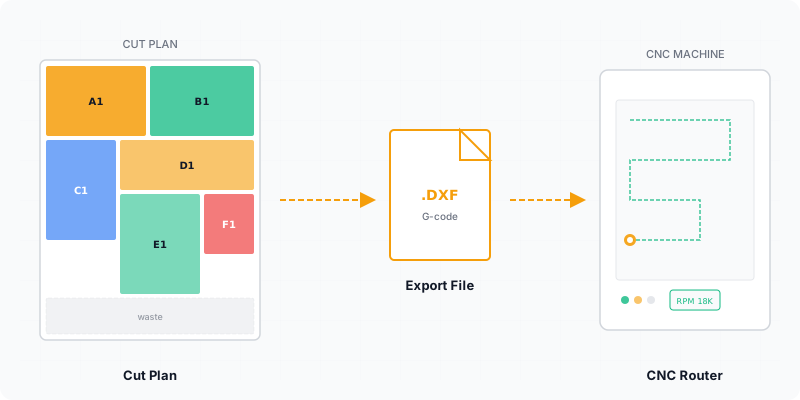
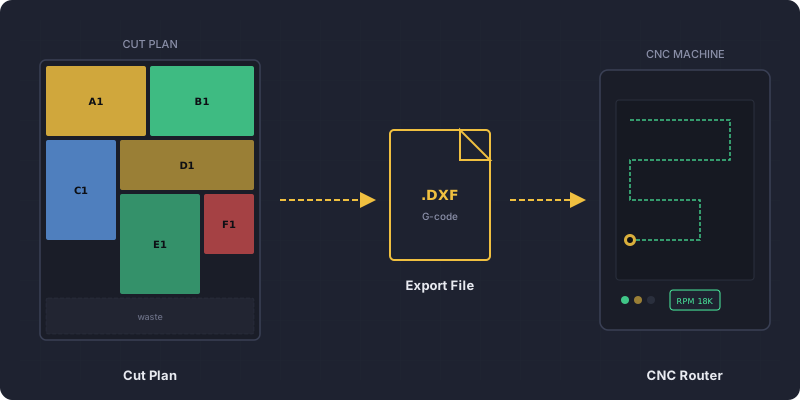
You’ve spent twenty minutes arranging 47 parts across three sheets of 4×8 ft plywood (1220×2440 mm), and CutOptim just handed you a layout with 92% yield. Now what? The optimizer did the hard part, but the gap between a screen layout and a finished CNC program catches a lot of operators off guard. This guide walks through every step — file format selection, CAM import, toolpath creation, and the mistakes that send jobs back to the drawing board.
You’ll learn how to choose the right export format, move your cut plan into CAM software, set toolpaths, and post-process to machine-ready G-code — without the trial-and-error most shops go through first.
What File Formats CNC Machines Accept
CNC controllers don’t all speak the same language. Here’s what you’ll encounter:
DXF (Drawing Exchange Format) — The most widely accepted 2D format. Every major CAM package imports it. DXF files describe geometry (lines, arcs, polylines) without toolpath data, so you still need to assign feeds, speeds, and tool numbers in your CAM software. Best for CNC routers and laser cutters.
SVG (Scalable Vector Graphics) — Common in laser cutting and vinyl/sign shops. SVG carries vector geometry similar to DXF but uses a web-standard XML structure. Some CAM tools accept it; most industrial controllers don’t directly.
G-code — The actual machine instruction set. G-code files include coordinates, feed rates, spindle speeds, and tool changes. You typically don’t export G-code directly from an optimizer — it’s generated by your CAM software’s post-processor after you define toolpaths.
Proprietary formats — Computer numerical control systems from Biesse, Homag, SCM, and others accept their own file types (.bpp, .mpr, .xxl). If your machine uses one of these, your CAM package needs the matching post-processor.
the year Autodesk published DXF as an open interchange format — which is why almost every CAM package still reads it today
From Optimized Layout to Machine-Ready File
Optimize your cut plan in CutOptim
Enter your stock panels (e.g., 2440×1220 mm for a standard 4×8 sheet), list every required part with dimensions, set your blade kerf (typically 3–4 mm for a CNC router bit), and run the optimizer. Review the visual layout and yield percentage before moving on.
Export as DXF or SVG
Download the optimized layout. DXF is the safer choice for CNC routers — it preserves exact dimensions and is universally supported. Use SVG if your workflow involves laser cutting or your CAM tool specifically prefers it.
Import into your CAM software
Open the file in your CAM package — Fusion 360, Vectric VCarve/Aspire, AlphaCAM, or similar. Verify that the geometry dimensions match your original values. If you see a 600 mm part showing as 0.6 mm, you have a units mismatch (see below).
Set toolpaths and cutting parameters
Assign a profile toolpath (outside contour) to each part outline. Set your bit diameter, feed rate, plunge rate, depth per pass, and tab placement. Tabs keep parts from shifting mid-cut on CNC routers — 2–3 tabs per part, about 5 mm wide, usually works.
Post-process to G-code and send to the machine
Select the post-processor that matches your controller (e.g., Mach3, GRBL, Fanuc, WinCNC). Generate the G-code file. Load it into your controller software or transfer via USB/network. Run a dry-run or air-cut first on unfamiliar setups.
What Is a Post-Processor and Why Does It Matter?
A post-processor is the translator that turns generic toolpaths into the exact dialect one specific controller understands. It is the reason two machines that do the same job cannot run the same file.
Inside CAM software, a toolpath is machine-independent: move to this coordinate, at this feed, with this tool. G-code looks standardised, but only the outline of it is. A Fanuc control, a GRBL board and a Mach3 PC each expect different codes for the same actions — how a tool change is requested, whether arcs are described with I/J offsets or a radius, what starts the spindle and coolant, how a program opens and closes, whether lines carry N-numbers. The post-processor holds those conventions for your machine and nothing else.
That is also why a post-processor that is nearly right is more dangerous than one that is obviously wrong. A file with the wrong arc convention still runs — it just cuts the arcs somewhere else. A file missing the spindle-start line plunges a stationary cutter into the sheet. Neither failure is visible in the layout you approved.
You do not create a post-processor from your cut plan. It comes from the machine builder, ships with your CAM package for common controllers, or was configured by your dealer at commissioning. Treat it as part of the machine rather than part of the job, and keep a copy of the working version before anyone updates the control software.
Common CNC Export Errors (and Fixes)
Units mismatch — This is the single most frequent mistake. Your optimizer exports in millimeters, but your CAM software defaults to inches (or vice versa). The geometry imports at 1/25th or 25× the correct size. Always check one known dimension immediately after import.
Origin offset — The cut plan’s coordinate origin (0,0) may not match your machine’s home position. If parts appear shifted or off the sheet, adjust the origin in your CAM software so geometry aligns with the physical sheet corner where your machine zeros.
Missing kerf compensation — If kerf was already applied in CutOptim, don’t add it again in your CAM software. Double-kerf means every part comes out undersized by the kerf width. If kerf wasn’t applied in the optimizer, set it in CAM via the toolpath offset (outside for parts, inside for cutouts).
Unclosed polylines — Some DXF exports contain tiny gaps between line segments. CAM tools may refuse to create a toolpath on open geometry. Use your CAM’s “join” or “close vectors” function to fix gaps under 0.1 mm.
Wrong cutting direction — Climb vs. conventional milling matters for edge quality. Most CNC routers cut cleaner with climb milling (toolpath runs clockwise for outside profiles). Verify your CAM software’s default direction.
Always check units immediately after importing a DXF or SVG. A 1220 mm sheet that imports as 1220 inches will crash your machine into the table limits. Measure one known dimension in your CAM software before proceeding.
DXF vs SVG: Which Format to Use
Use DXF when you’re running a CNC router, panel saw with nesting capability, or any machine with industrial CAM software. DXF is the de facto standard in woodworking and sheet metal CNC. It handles arcs and polylines cleanly, and every CAM package on the market imports it without conversion.
Use SVG when you’re working with a laser cutter, a vinyl plotter, or browser-based CAM tools like LaserWeb or LightBurn. SVG is also handy if you need to preview or edit the layout in vector editors like Inkscape before sending to the machine.
Avoid SVG for precision-critical CNC routing. Some SVG renderers approximate arcs with short line segments, creating faceted edges. DXF preserves true arcs.
Can You Send a DXF to a Panel Saw?
Usually not — and a drawing is the wrong shape of information for that machine anyway.
A router and a beam saw solve different problems from the same layout. The router follows the outline of each part, so a drawing is precisely what it needs: the geometry is the instruction. A beam saw makes full-width straight cuts through a stack of boards, and what it needs is an order of operations — rip here, cross-cut there, with the fence at these positions, in this sequence. None of that is in a DXF, and the saw’s controller has nowhere to put an outline even if you sent one.
So panel saws import lists rather than drawings. Beam-saw software reads a part list — a CSV or the vendor’s own format — carrying length, width, quantity, material, a grain flag and edge-banding per side, then generates its own cutting plan on the machine. On that route the optimizer’s contribution is a correct and complete part list; the machine’s own software decides the layout.
If your shop runs both a saw and a router, expect two export routes out of the same job: a part list for the saw, a DXF for the router. Ask a subcontractor which one they want before sending anything. A DXF that arrives at a saw shop normally ends with someone retyping your parts by hand, which is exactly where transcription errors enter a job that was correct when it left you.
Setting Up Your CAM Workflow
A repeatable workflow saves more time than any single optimization run. Here’s what experienced shops do:
Keep a template file in your CAM software with your standard material thickness, bit size, feed rates, and post-processor already configured. When a new DXF comes in, open the template, import geometry, assign toolpaths, and post-process — three clicks instead of twenty settings.
Name your files consistently: job-material-sheetNumber.dxf (e.g., kitchen-plywood-01.dxf). When you’re post-processing twelve sheets for a cabinet job, you’ll thank yourself.
Store your post-processor configuration in version control or a shared drive. When a machine gets a firmware update, you’ll need to know exactly what changed.
Run a single-sheet test cut on scrap material whenever you change your post-processor, update CAM software, or switch to a new bit. Ten minutes of testing prevents hours of rework on a full production run.
What If You Don’t Own the CNC?
Most small shops buy machine time instead of machines, and that changes what you send rather than how you optimize. Your file has to survive being opened by someone who has never seen your project and will not guess your intent.
Send the geometry clean. One part per closed outline, and nothing else on the drawing — no dimension lines, no title block, no leftover construction geometry. Anything extra is a shape the operator can accidentally select, and a selected shape becomes a toolpath.
Send the units, material and thickness as plain text alongside the file, not only inside it. A drawing that is correct in millimetres and read as inches is not slightly wrong, it is unusable, and nothing in the file itself will look suspicious enough to catch it.
Send a PDF of the layout as well. The service reads the DXF; a person reads the PDF, and a person is what notices that a part is missing or that two panels were meant to be a handed pair.
Finally, ask what the service charges by. Some price per sheet, some by machining time, and the two reward different plans: per-sheet pricing rewards yield, per-minute pricing rewards fewer and longer cuts. Knowing which applies before you optimize is worth more than a couple of points of yield.
Optimize your panels and export CNC-ready files in seconds.
No account needed for basic optimization.
Try CutOptim Free