Offcut Inventory
Every cutting job produces leftover material. A well-managed offcut inventory turns that leftover material into a resource — saving money on future jobs by reducing the amount of new material you need to buy. CutOptim’s offcut inventory tracks saved pieces from past jobs and makes them available as stock for future optimizations.
2D and 1D offcuts are kept separate. The Offcut Inventory only shows pieces usable in your current mode: panel offcuts (width × length) in 2D, and bar offcuts (length) in 1D/Wood. A 2D panel can’t be reused as a 1D bar (or vice versa), so pieces saved in other modes stay hidden — the panel shows a count of them at the bottom. The store itself is a single, cross-project inventory.
What is an Offcut?
An offcut is a piece of material remaining after all demand pieces have been cut from a sheet or bar. Whether an offcut is worth saving depends on its size relative to your typical piece sizes.
CutOptim classifies remaining material into two categories:
| Category | Criteria | Shown on canvas | Saveable to inventory |
|---|---|---|---|
| Offcut | Larger than the minimum offcut size (set in Settings) | Hatched pattern | Yes |
| Waste | Smaller than the minimum offcut size | Solid grey | No |
The minimum offcut size is your threshold for “is this piece worth storing?” Set it in Settings.
A reasonable starting point for minimum offcut size is 200×200 mm for sheet goods and 300 mm for linear materials. Adjust based on your typical job requirements — if you regularly need small pieces for edge banding repairs or pocket holes, lower the threshold.
Saving Offcuts to Inventory
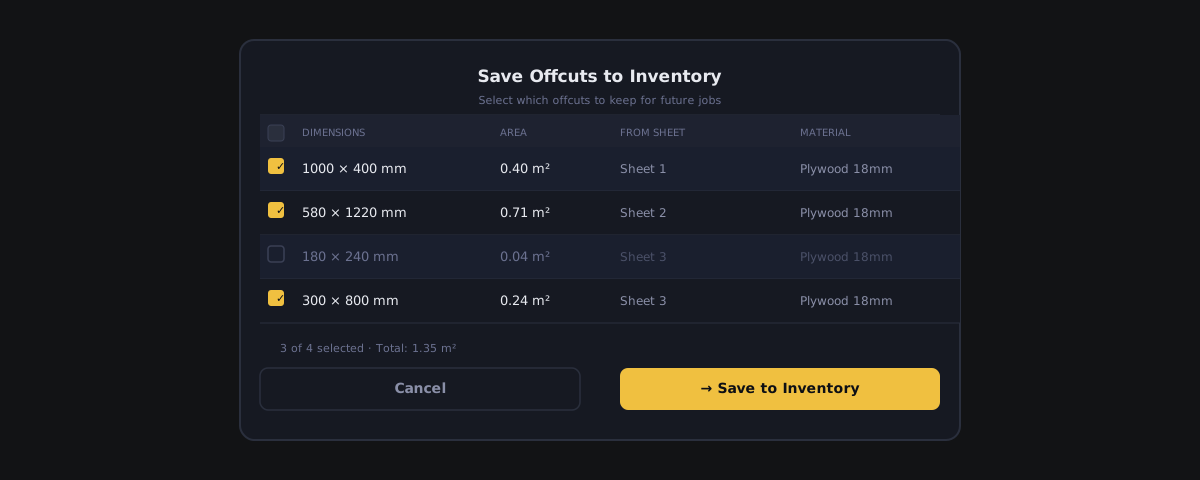
After running an optimization, offcuts are listed in the results panel with their dimensions and area. You can save any or all of them to your inventory.
- 1
Run your optimization
Complete a 2D, 1D, or Wood optimization as normal. CutOptim calculates which remaining pieces qualify as offcuts based on your minimum offcut size setting.
- 2
Open the Save menu
Once the result is ready, click the arrow next to **Save** in the top bar and choose **Add to offcut inventory**.
- 3
Offcuts are saved to the inventory
CutOptim adds every offcut above your minimum offcut size to the Offcut Inventory — with its dimensions and the source sheet/bar. Pieces below that threshold count as waste and are not saved. Saved pieces appear in the **Offcut Inventory** panel in the left sidebar, filtered to the current mode (2D or 1D/Wood).
- 4
Label your physical offcuts
Write the piece dimensions and CutOptim reference number on the physical piece with a marker, or print labels using the Panel Labels export. Store the material with its label so you can find it by size when it is needed.
Viewing and Managing the Inventory
Open the Offcut Inventory panel in the left sidebar. Each stored piece shows an editable name field, its size, quantity and source, plus two buttons: ↑ moves it into your Stock table and ✕ removes it. To rename a piece, click its name and type — it commits when you leave the field, like every other cell in the app.
| Feature | Type | Description |
|---|---|---|
| Label | text | Name of the offcut piece, auto-generated from the source sheet/bar (e.g. 'Offcut 3'). Click it to rename — 'Oak 18 rack B' beats 'Offcut 3' when you are looking at a shelf. |
| Dimensions | number | Width × length for 2D panels, or length for 1D/Wood bars — shown in your current working unit. |
| Quantity | number | How many identical offcut pieces are stored. |
| Source | text | The stock sheet/bar the piece was cut from (e.g. 'Sheet #2') — a text label for reference. |
| Used mark | automatic | A ✓ appears on every offcut the last run cut into, before you save it — so you can see what the plan will consume. |
What an offcut belongs to
An offcut belongs to your account — not to a project, and not to a cut. There is one inventory per user, and it behaves like the rack in your workshop: a leftover you saved while working on a kitchen is available the next morning on a wardrobe job, in a different project, in a different mode, on a different device.
Concretely, that means:
| Question | Answer |
|---|---|
| Is the inventory saved inside a project or cut? | No. It is stored separately, so saving a cut does not write your offcuts into it. |
| Does opening an old cut restore that cut’s offcuts? | No. Loading a project or cut never changes the inventory — you always see the current state of your rack. |
| Can two projects have different inventories? | No. There is exactly one store per account, shared by every project. |
| Does deleting a project remove offcuts saved during it? | No. The pieces are physically on your rack; they stay until you use or delete them. |
| Is it shared with my team on Workshop? | No. The inventory is per user account, not per organization. |
The Source field records which sheet or bar a piece was cut from, and a saved offcut can carry the material name — but these are labels for you to read, not links that tie the piece to a job.
Mode filtering
The panel shows only offcuts usable in your current mode — panel offcuts (width × length) in 2D, bar offcuts (length) in 1D/Wood. Pieces saved in other modes stay hidden, with a count of them shown at the bottom. Only the view is mode-scoped; the store itself is one list. (There is no text search or sort.)
Using Inventory Offcuts in a New Job
You do not have to move anything by hand. With Use off-cuts automatically switched on — the checkbox at the top of the panel, on by default — CutOptim cuts from your saved offcuts before it opens a single new sheet.
- 1
Set up your job
Create or open a project and enter your demand pieces as normal. Switch to the mode (2D or 1D/Wood) whose offcuts you want to reuse — the panel shows offcuts for the current mode.
- 2
Run the optimization
CutOptim first packs your parts onto the saved offcuts alone, then sends whatever did not fit to the normal optimizer on new stock. Each saved piece is used at most once — offcuts are never cloned the way a stock format can be.
- 3
Read what it saved you
The results summary spells out the reuse in words: how many offcuts were used, and — when the job is small enough to check — how many fewer new sheets or bars you needed because of them. The same lines appear in the PDF and the Excel export.
- 4
Commit the run to deduct the pieces
Either save the leftovers from the run (Save ▾ → Add to offcut inventory — works on a free account) or save the project (Pro). Both deduct what was used: a fully consumed offcut leaves the inventory, and a partly used one is replaced by its remainder. The list keeps matching the rack.
Every offcut the run cut into is marked with a ✓ in the panel before you save. Look at those marks first — that is the plan telling you which physical pieces to fetch from the shelf.
Moving a piece by hand
You can still push an offcut into the Stock table yourself: click ↑ on the row, or All to stock to move every offcut of the current mode. This is useful when you want a leftover in the job for a reason the optimizer cannot know — a colour match, a damaged corner you plan to cut around.
A moved piece becomes an off-cut row in the Stock table. It is starred automatically and is used first, never more than its quantity — with Limited supply (the ★ rule) and with Unlimited supply too, where it is filled before any new board or bar is bought and is never repeated. The tooltip on its star says so. The summary under How this plan was optimized names the off-cut rows used in Unlimited.
An off-cut row shows a ♻ badge in its name cell — with ×N when its quantity is more than 1 — in every supply mode, so you can recognise it in Unlimited too, where the ★ and quantity columns are hidden. Its quantity still binds there: the piece is never repeated. The ♻ tooltip reads: Off-cut from your store: used first, and never more than its quantity.
Sheets and bars cut from off-cut rows are re-used material: the material lists on screen, in the PDF and in Excel list them under Re-used off-cuts, never under new material to buy, and the quotation does not bill them. ⚖ Which sheet? does not offer an off-cut row as a size to buy, and its Use this keeps the off-cut rows in the table.
A stock table with only off-cut rows (Unlimited). If every row in the Stock table is an off-cut row, there is nothing to buy, so the plan uses them as limited stock. The summary says Unlimited · off-cut rows only — nothing to buy, so their quantities bind, and if they run out, the shortage message asks you to add a board or bar size that can be bought. A ⚑ must-cut flag is not applied here — the toggle says Unlimited.
Moving a piece with ↑ removes it from the inventory immediately, because the material has physically left the rack and gone into the job. Press ↑ only when you mean to commit that piece — there is no undo on the inventory row.
Turning automatic re-use off
Uncheck Use off-cuts automatically and the optimizer ignores your saved pieces entirely, cutting only from the Stock table. Use this when you are quoting fresh material and do not want leftovers folded into the price.
Adding offcuts in bulk
Two ways to fill the inventory in bulk:
- From a run — after optimizing, click Save N from run in the Offcut Inventory panel (it appears when a run produced saveable offcuts), or in the results summary, or use Save ▾ → Add to offcut inventory. Every leftover above your minimum offcut size is saved.
- From a CSV — if you already track your physical offcut stock in a spreadsheet, open the CSV ⌄ dropdown in the Offcut Inventory panel. It holds two items: Template, which downloads a file with the right column layout, and Import CSV, which reads your file back in.
The offcut CSV has five columns — name, width, height, length, quantity. Use width + height for panel offcuts (2D) and length for bar offcuts (1D/Wood); leave the columns you don’t need blank. A header row is detected automatically. A file without a header is read by the number of values in each row: 4 values = name, width, height, quantity (a panel); 3 values = name, length, quantity (a bar). Measurements are in your current working unit.
Clearing the Inventory
Over time some pieces become irrelevant — material was used without updating the inventory, pieces were damaged, or they are simply too small for current jobs. Keep the list tidy:
- Open the Offcut Inventory panel.
- Remove a single piece with its ✕ button once you have used it up or it is no longer physically available.
- Use Clear in the panel header to empty the whole inventory at once.
Deleting an inventory item only removes it from CutOptim’s database. It does not affect any past job data. You can always re-add an offcut to inventory manually if needed.