Exports & Downloads
After running an optimization, CutOptim can export your results in multiple formats to suit different downstream needs — from printing a shop floor cut sheet to feeding a CNC controller. This article describes every export format.
Opening the exports
Run an optimization first — every export needs a finished plan. The toolbar then offers one Export menu, grouped in three sections, plus a one-click Share button:
Export — the file formats of the cutting plan and the documents built from it:
| Section | Menu item | Produces | Plan |
|---|---|---|---|
| Documents (PDF) | Cutting plan & list – colour | Printable cut sheet (preview first) | Free |
| Documents (PDF) | Cutting plan & list – black & white | Print-friendly plan for a mono laser printer | Free |
| Documents (PDF) | Labels | Printable piece labels (preview first) | Free |
| Documents (PDF) | Build Pack (PDF) | Assembly document — only when the job has an assembly model | Free |
| Documents (PDF) | Quotation PDF | Customer quotation or internal report | Workshop |
| Spreadsheets | CSV | Raw cut list for a spreadsheet | Free |
| Spreadsheets | Excel (XLSX) | Formatted multi-tab .xlsx workbook |
Free |
| Drawing & CNC | SVG | Vector diagram — 2D mode only | Free |
| Drawing & CNC | DXF (CNC) | CAD/CNC geometry, every sheet in one drawing | Free |
| Drawing & CNC | DXF — one file per sheet (ZIP) | One DXF per sheet, zipped — 2D mode only | Free |
Share — one click copies the read-only web link to this plan, which anyone can open. It is made from a saved cut, so save first — see Sharing plans (Pro).
There is no separate print command: open the PDF and print it from your PDF viewer. To keep this run’s leftovers, use the arrow next to Save and choose Add to offcut inventory (see Offcut Inventory).
“Free” in these tables means a free account. Without an account you can use the PDF (colour and black & white) and CSV; the other items ask you to create a free account. The share link is made from a saved cut, and saving is a Pro feature.
PDF, Labels and Quotation open a full preview before anything is written to disk. CSV, Excel, SVG and both DXF items download straight away.
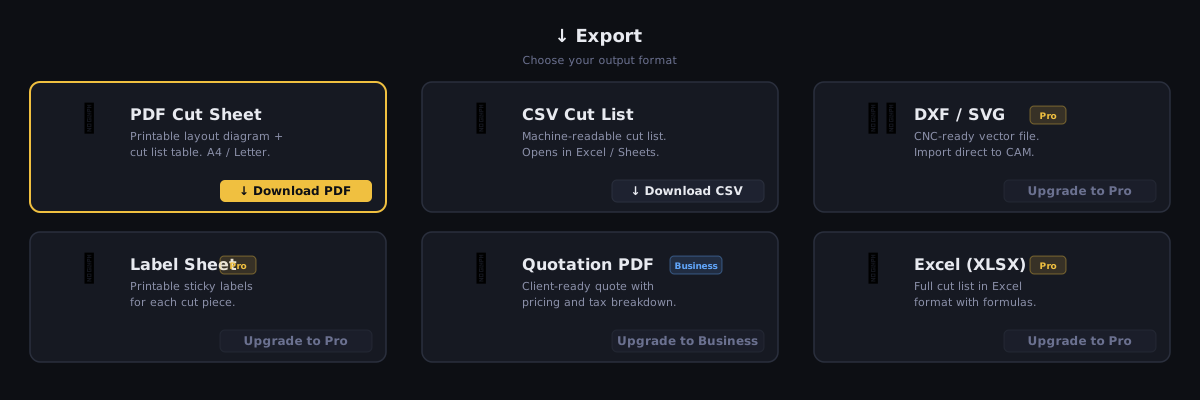
PDF — Printable Cut Sheet
The PDF export produces a multi-page document designed to be printed and used on the shop floor or sent to a client.
Document structure:
- Cover page — a title page with your branding and a summary block: utilization, sheets or bars, parts, cuts, waste, and material cost when prices are set. It is added to every PDF made by a signed-in account, on any plan (Free included) — from one sheet up in 2D, and as soon as there is a bar or a group in 1D Linear and Wood. PDFs made without an account start straight at the letterhead page.
- Page 1 — Overview: a printer-friendly company letterhead, the job summary (utilization, waste, sheets/bars, parts, kerf, material cost) with a utilization bar, any shortage or unplaced-piece warnings, and a “How this plan was optimized” box explaining the method and the settings that shaped the run. A setting whose value is too long for the two-column grid gets its own full-width, wrapped line instead of being cut off with “…”.
- Contents: a table of contents with page numbers; every line is a link to its section, and the same sections appear as bookmarks in the PDF viewer’s side panel. Switch it off under Export & drawing if you want a shorter document.
- Parts page: the key to the plan — every part listed with its number (No., the row of the Parts table when you ran the optimizer), its colour swatch, name, size and quantity — on its own page so it can be printed and used as a standalone reference. The number is what ties a part on any drawing to this list, so a small part with no room for its name is still identified.
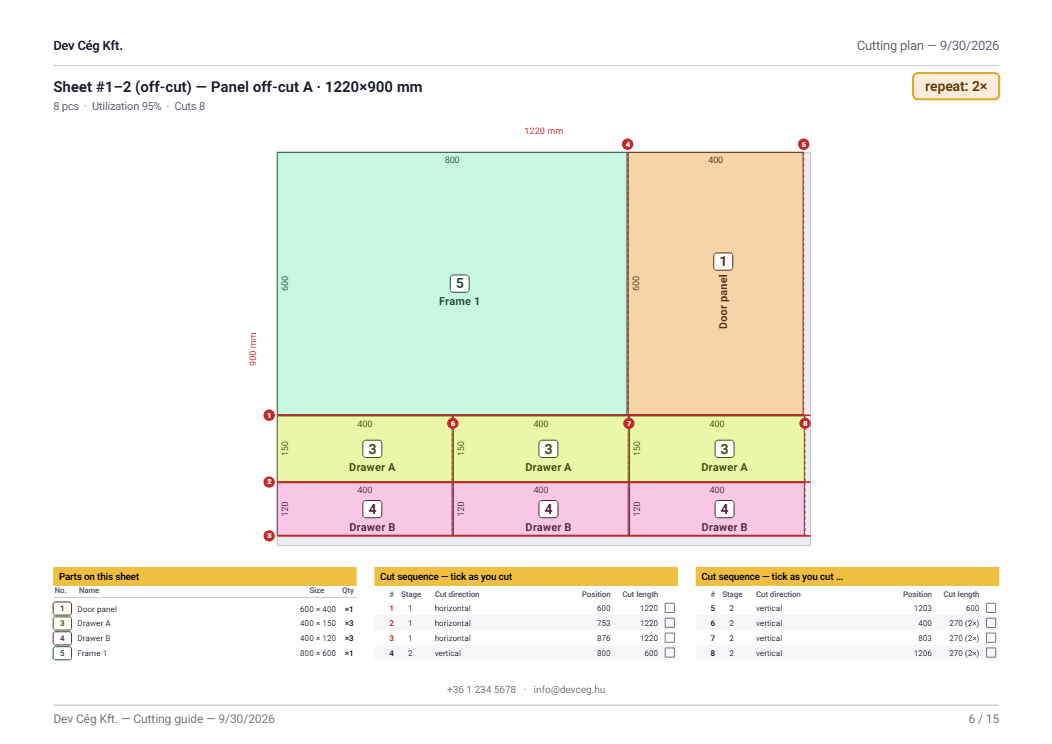
- Cutting plan: one framed block per sheet (2D) or per bar/strand (1D and Wood) — a dimensioned diagram with the piece list underneath. Identical units are merged into a single diagram carrying a “repeat: N×” badge, in all three modes, so a job that is twenty copies of one layout prints as one block rather than twenty pages. In Wood the plan is grouped per material, with one section per stock item and one per re-used off-cut. With Material-specific mode on, 2D and 1D exports are broken down per material too — the summary, the material requirements and the Materials tab each split the totals by material. When edge banding is marked, each banded edge is drawn as a thick line just inside the piece on the cutting diagram itself — in both the colour and the black & white PDF — so a glance at the board shows which edges to band, alongside the detailed Edge banding by piece page.
- Edge banding by piece (2D only, its own landscape page, when banding is marked): every banded part drawn as a small figure with each edge stroked in its banding-type colour and its length labelled, followed by a table with one row per banded part type — the quantity, the sheets it is cut on (numbered as on the work pages), the banding type and length of each of its four edges, and the row’s total banding length. This says where the banding goes and on which sheets; the per-type total on the material-requirements page that follows says how much to order.
- Material requirements (its own page): what you have to buy for this job, in two tables — New stock and Re-used off-cuts — each listing name, size, quantity and total area or length. Under the off-cut table a line names how many pieces to pull off the rack before you start. Sections you do not need are simply omitted: a run that re-used nothing shows only New stock. When the job has edge banding marked, the running length is printed at the foot of this page broken down by banding type — a colour swatch, a line per type, plus an order total — and the same per-type breakdown appears on the Materials tab of the Excel export.
- Detailed cut list (its own page): the full table of every cut (piece, dimensions, assigned sheet/bar). The column headers repeat at the top of every continuation page, and a Repeat column carries the layout multiplier wherever a layout actually repeats. When Oversize per side is set (2D), the dimensions are the cut size and a Finished size column is added — the same happens in the Excel cut list (two Finished columns) and the CSV (two extra columns at the end).
- Sawing plan (its own page, all three modes): the Cutting Sequence as a printed list, in the order the cuts are made. On a sheet the columns are
#, Sheet, Stage, Cut direction, Position, Cut length and Result; on a bar they are#, Bar, Order, Name and Position — a bar has no stage and no direction to report. The counting convention is stated in a line under the page title, so nobody has to guess which of the two cut numbers the page is showing. On a sheet, steps are numbered 1 to n per sheet, as on the work pages, and a step that is one fence setting over several strips reads· 2 passesafter its direction. - Work sheets (2D; on by default): one page per distinct sheet layout with everything needed to cut that board — a strip of key figures for that sheet (pieces, utilization, waste, reusable offcuts, cuts, cut length and, when a part has a grain, the grain); the drawing with each part numbered, its name written along the long side and its dimensions on the edges, and the reusable offcuts drawn with their size (pale green, dashed) so the right drop is kept; the cut lines numbered in the order they are made — when one fence setting makes cuts across several strips, every pass carries its own number, lettered 3a, 3b … in a pill-shaped badge, and a number that would cover another number or a part number slides along its own cut line with a short leader; a table of the Parts on this sheet (No., Name, Size, Qty); and that sheet’s own Cut sequence with a tick box per cut and a Result column — the part numbers each cut frees, or a reusable-offcut mark. Under a multi-strip step the table gets one sub-row per pass that frees something (
3a, that pass’s length, its part numbers; no tick box of its own, the step is ticked once); on a crowded sheet this becomes one compact row per step (3a: 27 · 3b: 28), and if even that does not fit, the step row alone shows the parts. The sequence never spills onto an extra page because of this. The length column of such a step still reads like81 (2×). A tall sheet puts the lists beside the drawing, a wide sheet puts them under it in three columns. Identical sheets share one work sheet with a repeat: N× badge. In 1D Linear and Wood the same option turns the piece list under each bar into a work list: tick box, cut order, part number, length and stop position. - Plan check (on the summary page, in every mode): a short list of yes/no facts about the plan — every part placed, Material mode on (or a warning when stock rows of the same size carry different names while Material mode is off, which makes the plan treat them as one material — same sheet size in 2D, same bar length in 1D Linear, same cross-section and length in Wood), grain direction honoured (2D), and how many reusable offcuts there are (their area for sheets, their total length for bars).
- Waste list (its own page): the sizes of the leftover offcuts — exactly the pieces the cutting sequence leaves — and how many of each, with a third Reusable column carrying Yes or No. Reusable rows are sorted to the top, and a line under the table states the threshold in your own numbers. A one-line waste summary closes the page (total waste + how many offcuts are reusable).
- Appendix — Full-size sheet layouts (2D only): every distinct board is drawn at full size, one per A4 page, after the work sheets and the waste list, as large as the paper allows, with the page orientation matched to the board — a tall board gets a portrait page, a wide board a landscape page — so a long/narrow board fills the whole sheet instead of wasting the width. The detailed cut list (with coordinates) and the whole-job cutting sequence follow as further appendices; in the sequence the steps are numbered per sheet and a multi-strip step reads
· 2 passes. With the work sheets switched off (the Classic layout preset) these pages are the main body again, as in earlier versions.
Black & white PDF (for mono laser printers)
The Cutting plan & list – black & white item in the Export menu is a print-optimized variant of the same plan, for a monochrome laser printer. Colour fills print as muddy grey and waste toner; this version prints clean:
- Pieces are drawn white with a solid black cut outline — no fill to waste toner, so every board reads clearly in black and white.
- The label is the piece’s own colour — a colour printer (or the screen) shows it in colour; a mono laser prints it as readable grey. Only the text carries colour, not the whole piece.
- Every piece carries its name and dimensions, in a font that grows to fill the piece — the name above the size where the piece is tall enough, a single line otherwise. Even a small 100 mm strip shows its size.
- Each part keeps its number: because the greyscale legend swatch carries no information in black and white, the legend’s No. column and the same number stamped as a small tile on every matching piece are what tell the parts apart — so the number key cannot be switched off in the black & white plan.
- The rest of the chrome is greyscale — no colour headers.
- Edge banding is marked on the layout itself: a thick black line just inside each banded edge, so a glance at the board shows which edges to band (a legend line “Thick edge = edge banding” is printed above the sheet). The colour PDF now carries the same marks on its diagram; the separate Edge banding by piece page still gives the per-edge material and length.
- Every board prints full size, one per A4 page, with the page orientation matched to the board (a tall board on a portrait page) so it fills the sheet.
The colour PDF is unchanged (apart from the same orientation matching) — the black & white version is a separate download, so you can keep both.
From the second page onward a thin running header carries the company name and the plan title, and the body content starts at a consistent height on every page.
The key figures under the sawing plan
Under the sawing-plan table sits a framed strip of the numbers the operator needs at a glance: Cuts (the number of steps), saw passes — printed only when it differs from the cut count — Cut length, and cutting stages.
Cut length is printed only where one was actually measured. 2D measures it from the cut tree and Wood from the known cross-section, so both always carry it. 1D Linear carries no cross-section, so by default it prints positions and no length — but set Profile width under Settings → More → Blade & trim (a field that appears in 1D Linear only) and the sawn length is printed here too, every counted cut crossing the profile once. Left at 0, the default, the figure is simply omitted rather than guessed.
Choosing what the PDF contains
The Export & drawing options decide what goes into the PDF and what is written on the parts. They are in two places, with the same switches: the side panel of the PDF preview (the preview is regenerated as you tick) and Settings → More → Export & drawing. They are remembered in your browser, and one set applies to the colour PDF, the black & white PDF, the Excel work tab and the on-screen plan.
| Option | What it does |
|---|---|
| Table of contents | The clickable Contents page and the bookmarks. |
| Work sheets (sheet + its parts and cuts) | The per-sheet work pages in 2D, the work list under each bar in 1D Linear and Wood. |
| Full-size sheet layouts | One board per A4 page (2D). |
| Detailed cut list (coordinates) | The table of every placed piece with its position (2D). |
| Whole-job cutting sequence | The sawing plan page for the whole job. |
| Part numbers | The number on every part and in the legend. Always kept in black & white. |
| Part names / Names along the long side | Write the name on the part, turned to run along its longer side when that is the vertical one. |
| Edge dimensions | The width on the top edge and the height on the left edge of each part, instead of one W×H line under the name. |
| Numbered cut lines | The cut lines and their numbers on the work-sheet drawing; every pass of a multi-strip step is lettered 3a, 3b. |
| Inches as fractions (23 1/2) | In inch mode, show lengths to the nearest 1/32 as fractions; a value that is not on that grid stays decimal. |
| Grain hatching | When a part has a grain, fine lines along the grain on sheets that have one and on their parts — on the PDF, the Excel pictures and the screen. Shown only when a plan has a grained sheet. |
| Part dimension text on drawings | How large the dimensions printed on the parts are: Small, Normal (the default), Large or Extra large. It applies to the on-screen plan, the PDF and the Excel pictures. Text that does not fit a small part gets smaller, or is left out, as before — it never runs outside the part. At the larger sizes the bigger text can also crowd a small part: it may lose a dimension or even its name (the part number always stays). The DXF is unchanged. Not the same as Dimension text size in the label options, which sizes the panel-label stickers. |
| Grain matching page / Set outlines on drawings / Cabinetmaker’s triangle | Shown only when the plan has a grain-matched set, all on by default: the PDF page that lists each set, the dashed frame and SET A badge around a set on every drawing, and the triangle drawn across each set. See Grain-matched sets in the exports. The Classic layout preset turns the page off and keeps the frames and the triangle. |
In 2D the preview panel also has two presets: New layout (work sheets first, the rest as appendices) and Classic layout (the earlier document: no contents page, no work sheets). The panel can be collapsed with ✕ and reopened with the ⚙ button in the preview header; whether it is open is remembered too.
Why every board also gets a full page
A diagram squeezed inline into the portrait reading flow gets about 174 × 80 mm, which on a 2800 × 2070 mm board is roughly 1:16 — legible as a picture, useless as something to cut from. A full-page A4 — in the orientation that matches the board — gives roughly three times the area, so the parts are big enough to read off at the machine.
For that reason there is one full-size page per distinct board, whether the plan is a single layout or several. The work sheet is what you cut from — drawing, parts and cuts together; the full-size page is the same board at the largest scale the paper allows, for reading a crowded layout or pinning above the saw.
How the Reusable column is decided
The column is not an opinion: it is your own minimum offcut setting, applied to the leftover, and the PDF prints the rule with your numbers filled in.
- 2D — a remnant counts as reusable when both of its sides clear the minimum. A long thin strip is not useful, however long it is.
- 1D and Wood — a remnant counts as reusable when the leftover length clears the minimum.
The column prints the words Yes and No rather than a tick, because the embedded subset font carries no symbol glyphs. See Minimum offcut for how to set the threshold.
Re-used off-cuts are marked wherever they appear. A sheet or bar that came out of your Offcut Inventory is labelled (off-cut) next to its number and carries the name you gave the piece, so the person cutting knows to fetch it from the rack instead of opening new stock. This includes off-cut rows you moved into the Stock table (marked ♻): sheets and bars cut from them are listed under Re-used off-cuts in the material lists on screen, in the PDF and in Excel — never under new material to buy — and the quotation does not bill them.
Branding: company branding (logo, name, slogan) appears on the page-1 letterhead and in the running header when configured — on every signed-in plan, including Free. See Company Branding.
The PDF is fully usable on every plan — there is no diagonal watermark over the diagrams. A PDF made without an account, or by a free account without pay-as-you-go credits, carries one small “Generated with CutOptim — get Pro to remove this footer” line in the footer. Pro and Workshop PDFs have no such line, and neither do the PDFs of a free account that holds pay-as-you-go credits.
The Parts page, the edge banding by piece, the material requirements, the detailed cut list, the sawing plan and the waste list each start on their own page, so for large jobs you can print just the pages you need at each station — and in 2D you can hand the operator a single work sheet per board: the drawing, the parts on it and its cuts on one page.
CSV — Cut List Spreadsheet
The CSV export produces a comma-separated values file that can be opened in Excel, Google Sheets, or any spreadsheet application, or imported into workshop management systems.
CSV columns (2D mode):
| Column | Description |
|---|---|
piece_label |
Piece name as entered in the Parts table |
width |
Piece width |
height |
Piece height |
qty |
Quantity (one row per individual piece) |
sheet_index |
Which stock sheet this piece is cut from (1-based) |
sheet_label |
Stock sheet label |
pos_x |
X position of piece on the sheet (bottom-left corner) |
pos_y |
Y position of piece on the sheet |
rotated |
true if the piece was rotated 90° from its input dimensions |
CSV columns (1D mode):
| Column | Description |
|---|---|
piece_label |
Piece name |
length |
Cut length |
qty |
Always 1 per row |
bar_index |
Which stock bar this piece is cut from |
bar_label |
Stock bar label |
position |
Distance from the bar’s start end |
CSV export is available on every plan, including Free.
The CSV file uses UTF-8 encoding with a BOM for compatibility with Excel on Windows. When opening in Google Sheets, choose File → Import and select UTF-8.
Excel (.xlsx) — Formatted Multi-Sheet Workbook
The Excel export produces a ready-to-print, branded .xlsx workbook — a richer, formatted alternative to the raw CSV. It opens in Microsoft Excel, LibreOffice Calc, Google Sheets, and Apple Numbers.
Sheets (tabs):
- Overview — a branded header (your company logo and details when configured), the job meta (project, date, mode, unit), a summary block (yield %, waste, sheets/bars, pieces, kerf, total cost), the Plan check (the same lines as on the PDF, in every mode), and a “How this was optimized” section listing the method, the stock supply mode (Unlimited or Limited — stated in every mode, wood included), the settings that shaped the run, and the outcome — the same block as on screen and in the PDF. The Overview also lists the run’s warnings: parts not cut, must-cut parts left out, stock rows without a price, and same-size stock rows without material mode. When you optimize in cost mode, the outcome also states how much cheaper this plan is on the invoice than the least-material plan — and any extra material that saving cost — so the money-versus-material trade-off is spelled out on the page rather than left to guess. When some stock rows had no price and were ranked at your dearest unit price, the result makes no money-saving claim — no money saved and no cheaper invoice than the least-material plan — because those figures would mix real and imputed prices. In limited stock mode it also adds a “Not cut” list naming any pieces that did not fit.
- Cut list — the full per-piece table for the active mode (2D / 1D / wood), with a frozen header row and column filters. Per-piece edge banding now has its own Edge Banding tab (below) rather than four extra columns here.
- Cutting Sequence — the sawing plan as its own tab, in all three modes, inserted directly after the Cut list because it is what the operator works from and therefore belongs ahead of the material and waste accounting. In 2D the columns are Order, Sheet, cutting stages, Cut direction, Position, Cut length and Result (the part numbers the cut frees, ×n, or a reusable offcut; for a multi-strip step per pass, such as
3a → 27 · 3b → 28). Steps are numbered 1 to n per sheet and a multi-strip step reads· 2 passes; on a bar they are#, Bar, Order, Name, Position and Cut length — in 1D Linear the length column stays empty unless you have set Profile width under Settings → More → Blade & trim, because linear stock carries no cross-section of its own to measure across. The totals (cuts, saw passes, cut length, stages) are repeated at the bottom of the tab, so it stands alone when it is the only page taken to the saw, followed by the one-row-is-one-fence-setting note. - Work sheets — (2D only, when the work-sheet option is on) the spreadsheet twin of the PDF work sheet, placed before the other picture tabs: for each distinct sheet layout a numbered picture with its cut lines (every pass of a multi-strip step numbered 3a, 3b) and its reusable offcuts drawn with their size, the parts on that sheet and its cut sequence with a Result column and an empty tick column to fill in on paper or on screen. When a part has a grain, the pictures carry the grain hatching too.
- Layout — (2D only) a picture of each distinct sheet layout embedded in the workbook, one image per sheet, so you can see how to cut the board without leaving Excel. Identical sheet layouts are collapsed to a single image carrying a ×N note (the same as the PDF cutting plan), so a run that is many copies of one layout is one image, not many.
- Edge Banding — (2D only, when banding is marked) one filterable row per banded piece giving the name, size, and the material and length of each of its four edges (Top / Right / Bottom / Left; blank where an edge is not banded), followed by a banding-layout picture embedded in the sheet — every piece with each edge drawn in its banding-type colour, the same figure as the PDF. The per-piece banding columns that used to sit on the Cut list now live here.
- Materials — stock requirements aggregated by size, with quantities, area or length, and cost (when pricing is set), plus a total row. A row without a price shows “—” in the cost column, not 0. When the run re-used saved leftovers, a second Re-used off-cuts table is appended below it, so what you must buy and what you already own stay separate.
- Waste — every leftover listed by name, size and quantity — reusable and non-reusable alike — with a Reusable column carrying ✓ or ✗ (reusable = at or above your minimum-offcut size), reusable rows first, plus a total-waste summary and the count of reusable offcuts. In limited stock mode it also lists any pieces that could not be cut.
- Grain matching — (2D, when a grain-matched set was applied and the Grain matching page option is on) placed after the Cut list: per set its copies, parts, grain, block size and status, and a member table — position (left / right …), name, size and the sheet it is cut from. The Cut list, Cutting Sequence and Work sheets tabs gain a Set column, and the sheet pictures carry the set frame, the badge and the triangle.
- Quotation — (Workshop only, when pricing is set) an itemized material cost table with subtotal, VAT, and grand total.
Formatting: branded header bands, alternating row shading, sensible column widths, currency and percent number formats in your locale, a frozen header row and filters on the table sheets, and print-ready page setup (A4, fit-to-width, repeating header rows) so the workbook prints cleanly straight away.
Branding: company branding — your logo (embedded into the Overview sheet) and company details (name, address, phone, email, registration number) — appears just like on the PDF, on every signed-in plan. See Company Branding. The Quotation tab is added on Workshop.
The Excel export downloads directly (there is no preview step). Numbers are stored as real numeric cells, so you can sort, filter, and build your own formulas on top of the cut list and material tables.
SVG — Vector Diagram
The SVG export produces a scalable vector graphics file of the cutting diagram. SVG files can be:
- Opened in Adobe Illustrator, Inkscape, or any vector editor
- Embedded in design documents or websites
- Used as a reference for manual marking out
SVG export works in 2D Panel mode only. In 1D Linear or Wood cutting the menu item reports that SVG is available for 2D plans, and no file is produced. Use PDF or DXF for 1D plans.
SVG structure:
- One file for the whole plan. Every sheet in the result is stacked vertically into a single SVG, one below the other with a gap between them — not one file per sheet, and not a ZIP.
- The export is a copy of the diagram you see on screen, so pieces keep their fill colour, outline and the size/name labels drawn on them.
- Piece labels are
<text>elements inside the piece group. - Dimensions are in the unit the result was generated in — millimetres or inches.
The pieces are drawn as <rect> elements inside <g> groups, but they do not carry the piece name as an id, and offcut areas are not exported as separate shapes. If you need machine-readable geometry with identifiable parts, use the DXF export, which separates stock, parts and labels onto their own layers.
Common use cases:
- Providing a cut plan to a client in vector format
- Using as a template for CNC toolpath generation in a vector editor
- Overlaying on a material photograph for visual verification
DXF — CNC / CAD File
DXF (Drawing Exchange Format) is the standard file format for transferring cut paths to CNC routers, laser cutters, plasma cutters, and waterjet machines, as well as CAD software.
What the DXF contains:
- Every stock sheet, bar or profile as a closed polyline on the
STOCKlayer - Every cut piece as a closed polyline on the
PARTSlayer - All text (piece names, sizes, sheet/bar captions) on the
LABELSlayer - Coordinates in the unit the result was generated in — millimetres or inches — with the drawing unit declared in the file header (
$INSUNITS), so your CAD scales it correctly on import. A plan made in centimetres is written in millimetres (every size ×10), because millimetres are what every CAD and CAM program reads reliably — the parts open at their real size; only the text captions stay in cm. The same applies to the Nesting DXF.
The DXF uses three layers by default — STOCK, PARTS, LABELS — not one layer per piece. Turn off LABELS in your CAD to get clean geometry for toolpathing, and STOCK to keep only the parts.
DXF export works in all three modes: 2D sheets, 1D bars and Wood profiles. The DXF (CNC) item puts every sheet into one drawing.
One file per sheet (ZIP)
In 2D Panel mode, DXF — one file per sheet (ZIP) writes every sheet as its own DXF — same layers, same R12 format — and packs them into one ZIP. Each file is named after its sheet: number, material and size, for example sheet-04-baltic-birch-plywood-3-4-48x96.dxf. Use it when your CAM program imports one sheet per job, as Vectric Aspire and VCarve do, instead of cutting the combined drawing apart by hand.
Compatibility:
The DXF is written in the R12 format — the most widely supported DXF revision — which virtually all CNC controller software and CAD applications read, including:
- AutoCAD 2010 and later
- Fusion 360
- SolidWorks (via import)
- Mach3, Mach4, LinuxCNC
- VCarve, Aspire (Vectric)
- RhinoCAM
DXF export provides the outlines of pieces for nesting reference. It does not include toolpaths, speeds, depths of cut, or G-code. You will need to add toolpaths in your CAM software (e.g. VCarve, Fusion 360 CAM) before sending to a CNC machine.
DXF options for CNC / CAM
For a CNC or CAM workflow, Settings → More → Export & drawing → DXF for CNC / CAM shapes the cutting-plan DXF — the single file and the per-sheet ZIP alike. Every option starts at its default, and with all of them at the default the file is exactly the one described above.
| Option | What it does |
|---|---|
| Parts layer | The layer name of the parts instead of PARTS — for example thrucut. The same name is used in 1D and Wood DXFs. |
| Small-parts layer and the three limits Small if narrower than, Small if lower than, Small if area under | A part goes to the small-parts layer (default onion_skin) instead of the parts layer when it is under the width limit or the height limit (whichever are set) and under the area limit (if set) — so your CAM can give it hold-down tabs or an onion skin. A limit that is empty or 0 takes no part: with only a width limit, width alone decides; with only an area limit, area alone. Width and height are the part as it lies on the sheet; a part exactly on a limit stays on the parts layer. The limits are in your working unit (mm, cm or in; area in mm², cm² or in²). |
| Sheet origin | Bottom-left (the default) puts the sheet in the positive quarter, from 0 up to the sheet height. Top-left hangs the sheet below the origin, from 0 down to minus the sheet height, with the parts where they are on the screen and in the PDF — the drawing starts at the sheet’s top-left corner, as many post-processors expect. |
| WASTE layer | Adds, per sheet, one vertical and one horizontal line on a WASTE layer, one saw kerf beyond the last part, so the offcut can be cut away in one pass. A line is left out when the parts already reach that edge. Under the checkbox there is a Tool diameter field. With a tool diameter the line is the toolpath centre: it sits a tool radius plus the allowance from the last part (kerf minus half the tool, the kerf being tool plus allowance), never closer than the radius. For example, a 6 mm bit + 3 mm allowance is a 9 mm kerf, so the line is 6 mm from the part (3 mm radius + 3 mm allowance), not 9. If the field is empty, the tool diameter typed under CNC / router: tool + allowance is used; with neither, the line stays one full kerf from the part. |
| Part labels sized to the part (like the PDF) | On by default. In the 2D DXF each part’s text is sized to the part, as on the screen: along the long side, turned on tall parts, as large as the part allows up to the screen’s maximum at that sheet’s scale (about 40 mm on a 2770 mm sheet instead of the old fixed 12 mm), and centred on the part, so a sheet preview (for example in Vectric) is readable. Off, the old fixed 12 mm text is written. The text itself, the part name (with the set position for grain-matched sets), is unchanged. The 1D and Wood DXF and the Engine API’s DXF are unchanged. |
Layer names are checked: only the letters A–Z a–z, the digits 0–9 and the characters _, $ and - are valid (what a DXF R12 file allows). Spaces and other plain ASCII characters (< > / \ " ' : ; ? * | = , # . ( ) & and the like) are removed; a name with any other character — an accented or non-Latin letter, an emoji, an invisible or control character — is refused outright, as is one that ends up empty, is longer than 31 characters (the R12 file limit), or is STOCK, LABELS or WASTE in any capitalisation — the default name applies then. The small-part limits, the sheet origin and the WASTE layer affect 2D sheets only (the app shows them only in 2D); in 1D and Wood only the parts layer name applies. The Engine API’s DXF has no such options and is unchanged. The options are remembered in your browser, like the other export settings.
Build Pack (PDF)
A job with an assembly model (a furniture template or an imported SketchUp file, in 2D) also has Build Pack (PDF) in the Export menu: an assembly document with the exploded drawing, the assembly steps, hole sheets and a material list. It needs a signed-in account — a free one works — and opens the same kind of preview. See Assembly view and Build Pack.
Label Sheet Export
The Label Sheet export produces a printable sheet of piece labels, one label for every piece you cut (a row with quantity 3 gets three labels). Labels are designed to be printed on standard A4 label sheets and applied to cut pieces for identification during assembly.
Each label includes:
- Piece name (up to two lines)
- Dimensions (W × H, or length; W × H × length in Wood mode)
- Which copy it is — for example
2/3on the second of three identical pieces - Which sheet or bar it is cut from — for example Sheet #3 — Birch 18 (2D) or Bar #2 — Spruce 50×100 (1D and Wood). The number is the one on the work pages of the PDF, followed by the stock name (or the off-cut’s name), so the sorter at the saw knows which stack each sticker belongs to. A copy that was not placed on any sheet has no such line.
- Grain direction (2D, when the job is cut with grain): the outline of the piece carries three arrows along its grain. The outline is drawn with the piece’s width across, so stick the label on with the arrows running the same way as the grain of the piece.
- Edge banding (2D, banded pieces only): an outline of the piece in its own proportions with every banded edge drawn thick and every unbanded edge thin and dashed, and a line naming the sides and the banding type, for example Edge Banding: T B: ABS oak 22 · L: ABS white — T, R, B, L are top, right, bottom and left, as in the CSV
- Grain-matched set (2D, parts cut as part of a set): where the piece goes — for example SET A · A2 of 3 (left) · Base cabinet A — printed before the sheet line
- Project name — when the job is saved as a project, so a cut-out piece still says which job it belongs to
- The material (in material-specific mode)
- Custom text field values (if configured — see Custom Text Fields)
- Workshop marking (optional, everything off by default): the part number, work-stage circles to tick, factory edges and a hidden-side mark — see below
Label sheet layout: A4 sheet, 3-column grid — one label per piece copy, in the order of the Parts table, designed to be printed and stuck onto cut panels for identification during assembly. The labels grow taller only when they have more to show (edge banding, project, material, custom fields).
Label printer (one label per page): for a roll or a stack of stickers, open the Label format panel in the label preview (the ⚙ button in the preview header) and choose Label printer (one label per page). Each label is then printed on its own page of exactly the Width (mm) × Height (mm) you enter — 100 × 40 mm by default, any size from 20 × 15 to 300 × 300 mm — with no header or footer, and the text sized to the label. Your choice and size are remembered on this device. In the print dialog choose the same paper size and print at 100% (actual size), not “fit to page”. Switch back to A4 sheet (3 columns) for an ordinary printer.
Dimension text size: in the same Label format panel, Dimension text size sets how big the part’s size is printed — Normal (the standard layout), Large or Extra large. With Large and Extra large the size becomes the first line, in bold, across the full width of the label, with the pictogram below it; the copy number (2/10) always stays visible, and a long name is shortened instead. It works on the A4 sheet and in label-printer mode, and your choice is remembered.
On the label: the same panel has two switches, both on by default — Sheet the piece is cut from (the Sheet #3 — Birch 18 line) and, in 2D, Grain arrows. Turn either off to leave it off the labels; your choice is remembered on this device. A third switch, Measurements on the drawing (2D, also on by default), prints the piece’s width above its outline and its height along the left side, in small numbers. Under the sheet switch, Show the sheet number (#3) can be turned off, so the label shows only the stock name (for example Birch 18 or a colour code); a stock row without a name keeps its number. The saved project’s name also prints on the labels (switch Project name) and, together with the cut’s name (Project — Cut), on the PDF cover and in the Excel header (switch Project and cut name in the PDF options, which also applies to Excel). Both are on by default and need the job to be saved as a project.
Thicker lines in the drawing: a label printer cannot print hairlines, so the thin dashed outline of the unbanded edges and the grain arrows can be missing on the sticker. The switch Thicker lines in the drawing (for label printers) in the same panel draws them black and about twice as heavy. It is on by default in label-printer mode and off on the A4 sheet; your choice is remembered on this device.
Sticker words: in the Label format panel, the Sticker words section has one text field for each fixed word the stickers print — Project, Edge banding and Sheet in 2D; Project and Bar in 1D and Wood. Whatever you type replaces that word on every sticker (for example Projekts instead of Project, Loksne instead of Sheet), so you can print stickers in a language the app does not have. An empty field uses the app language’s word (shown as the placeholder). Up to 40 characters each; remembered on this device, like the other Label format choices; applies to both layouts (A4 label sheet and label printer). Part names, sizes and material names are your own data and print as you typed them.
Workshop marking: the Workshop marking section of the Label format panel adds what the person at the saw and at the bench needs. Every item is off by default, so a label you printed before looks exactly the same until you switch something on.
- Part number (top left, largest) — the number the piece has in the cut list, the cutting drawings and the work pages, printed as the biggest text on the label so you can match it to your printed list from across the shop. It works in 2D, 1D and Wood.
- Print in cutting order (sheet by sheet) — the labels come out sheet by sheet, in the order the pieces fall off the saw (the order of the sawing plan in 2D, bar by bar in 1D and Wood) instead of the order of the Parts table, so you can tag each piece the moment it comes off the saw.
- Work stages (circles to tick) — a row of small circles along the bottom of the label, each with a short word, to tick with a pen as the piece moves on: Rough cut, Cut to size, Edge banded and Sanded, written as the abbreviations of the app language (RC · C2S · EB · S in English). The edge-banded circle appears only on pieces that have edge banding. You can type your own word for any stage (up to 6 characters) and add stages of your own, separated by commas (up to 6 stages in all).
- Mark factory edges (FE) (2D only) — an edge of the piece that lies on a sheet edge where no trim is cut off is the board’s factory edge, and it is marked FE on the piece’s outline. Pieces cut from an off-cut get no FE, because their edges are not factory edges.
- Hidden-side mark — a small filled triangle and the words hidden side at the bottom of the label: stick this label on the side that will not show.
- Only these part numbers — type numbers such as
3, 14, 25to print only those pieces’ labels, for example to reprint a label after sanding. Empty prints every piece. If none of the numbers exists in the plan, nothing is printed and a message says so. This filter stays on the device where you set it.
More label stocks and printer offset: next to A4 sheet (3 columns) and Label printer, the Label format panel lists two ready-made label stocks: APLI 03056 · A4 3 × 8 (24 labels of 64.6 × 33.9 mm on an A4 sheet) and Brother DK-11201 · 29 × 90 mm (one label per page, 90 × 29 mm, with the thicker lines of the label-printer mode). If your printer shifts the print a little, Printer offset (mm) moves everything right and down by up to 20 mm (negative values move it left and up), in steps of 0.1 mm. Both are remembered with the other label choices.
Presets: the top of the Label format panel has a Preset list. Default returns the label choices to the standard label (the part-number filter aside). Workshop tracking switches on the part number, the cutting order, the four work stages, the factory edges and the hidden-side mark in one click and changes nothing else — not the format, not the size. APLI 03056 and Brother DK-11201 change only the format and the offset. Save as preset… stores your current choices under a name you type; a preset of your own can be updated, renamed and deleted, and you can keep up to 20. The list shows (modified) next to the active preset when you have changed a choice since. A preset is only a shortcut: the choices stay the ones you see in the panel.
Saved to your account: when you are signed in, your label choices and your own presets are saved to your CutOptim account, so they are the same on every computer you sign in on. When you sign in, the account’s copy is loaded and replaces the one in that browser — the account wins; the first time you sign in with label choices already in the browser, they are uploaded to the account. Changes are saved a moment after you make them. Another computer picks them up the next time you open the app (a window that is already open is not updated live). Signed out, the label choices work on the device as before. Only these part numbers is never saved to the account.
From software: the Engine API takes the same choices as options.labels on a 2D request and draws its label PDF with them.
Labels from a furniture model: when the job has an assembly model, the label can also carry a place letter next to the part number when several parts share it (14b; with the part number switched on), a structure line — the group and the position among identical parts, for example Carcass · left or Shelves · 2 of 4 from the bottom — and a ▲ on the visible edge of the pictogram. If the parts have hole marks, the label adds a Drilling line (2 this side · 1 other side) and draws the marks on the pictogram: filled for this side, open for the other.
QR code: the Label format panel has QR code to the part’s page (saved project). Each label then links to its piece’s page on a phone, where the work stages are ticked — see QR code on the label and progress per piece. It needs a real Pro or Workshop plan and a cut saved to the cloud.
Run the optimization first, then generate labels immediately. Print and cut the label sheet before moving material to the saw, so labels are ready the moment each piece is cut.
Grain-matched sets in the exports
When a plan has a grain-matched set that was cut as one block, every export says which part goes where. Each member carries its position code — A1, A2, A3 in reading order (top to bottom, left to right) for set A — and, where it is unambiguous, a hint such as left or top.
| Export | What the set adds |
|---|---|
| PDF (colour and black & white) | A dashed frame and a SET A badge around the set on the work sheets and the full-size pages (gold in colour, a black dotted frame in black & white); the position code next to the part number on the drawing (2 A2); SET A on the cut-sequence steps that cut inside the set (not on the cuts around it); a Set column in the parts-on-this-sheet table, the detailed cut list and the whole-job sequence; and a Grain matching page before the work sheets — per set the cabinet-front drawing with the grain, its status (cut as one block, cut part by part, or not cut) and a member table. |
| Cabinetmaker’s triangle | A triangle drawn across each set on the PDF and Excel drawings, apex towards the top of the cabinet. Mark it on the board in pencil before cutting: afterwards every piece carries its part of the triangle. |
| Panel labels | One more line: SET A · A2 of 3 (left) · Base cabinet A. |
| Excel | A Grain matching tab, a Set column in the Cut list, Cutting Sequence and Work sheets tabs, and the frame, badge and triangle on the sheet pictures. |
| CSV | Two columns at the end of each 2D row: Set (A) and Position (A2); empty for parts outside a set. |
| SVG | The frames and badges in their own group, separate from the pieces, and Door · A2 labels. |
| DXF | The position after the part name on the LABELS layer (Door A2). No new layer, and the STOCK / PARTS geometry is unchanged. |
| Share | The frame and the SET A badge on the shared plan; a part’s tooltip names its position (Door · A2). |
A set that had to be cut part by part (it fitted no sheet in one piece) gets no frame and no position codes — its status says so instead. A paused set changes nothing in the exports except one summary line (Grain matching: paused — 1 set ignored).
PDF Preview
Three exports go through a preview step before the file is downloaded: the PDF cut sheet, the Panel Labels sheet and the Quotation. Clicking one of those opens a preview modal so you can review the document before committing to the download. On a computer the whole PDF is shown inside the modal and you can scroll through every page. On a phone or tablet the browser cannot display a scrollable multi-page PDF inside the app, so the modal shows an Open full PDF button instead — tap it to open the complete document (all pages) in your device’s own PDF viewer, where you can scroll, zoom, print or save it. CSV, Excel, SVG and DXF have no preview — they are written to disk the moment you pick them. Surface mode’s (pavers) Print / PDF has the same preview, with its own options — see Surface mode.
Preview workflow:
- Pick one of those exports (PDF, Labels, Quotation) from the Export menu
- For the cutting-plan PDF on a computer, the preview has an Export & drawing panel on the left: tick what the document should contain and the preview is rebuilt (see Choosing what the PDF contains)
- The preview opens — on a computer, scroll through all pages in the modal; on a phone or tablet, tap Open full PDF to view the whole document in your device’s viewer
- Click Download PDF to save the file
- Or close with ✕ to cancel without downloading
This prevents wasted paper from accidentally exporting the wrong job or wrong sheet range.
Quotation Export Workshop
The Quotation export produces a client-facing pricing document for the job — or, if you prefer, an internal report for yourself. Choose it from the Export menu; a short form opens before the file is built.
What the form asks for:
- Document type — Client quotation or Internal report
- Bill to — the customer’s name and Address (both optional)
- Pricing mode — Margin on cost (you enter material prices and a margin %) or Product prices (you enter what each finished piece sells for)
- Margin — the markup percentage added on top of cost
- Tax rate — the VAT percentage applied to the net total
- Validity (days) — how long the offer stands; the valid-until date follows from it
- Include cutting charges — adds a line for your per-cut rate (Cutting charge / cut) multiplied by the cuts in the result
- Labor / setup — a one-off charge, shown as its own line
Sheets and bars cut from off-cut rows (marked ♻ in the Stock table) are re-used material you already own, so the quotation does not bill them.
The currency is not set in the form: it comes from Settings → Currency. Your company branding (see Company Branding) is printed in the header. For every field and what ends up on the page, see Quotation PDF.
Quotation is not a full invoice. It is designed as a pricing summary to include in a client quote or job costing report. For full invoicing, export the CSV and import it into your accounting software.