Quotation PDF Workshop
The Quotation PDF export lets you produce a polished, client-facing pricing document straight from your optimized cut list. It shows an itemized breakdown of materials, an optional cutting charge, tax, and a grand total — all under your company branding.
A typical use case: a joiner has just finished planning a kitchen job in CutOptim. Before raising the final invoice they want to send the homeowner a clear PDF showing exactly what material is being used and what it will cost. With a single click they can export a branded quotation, ready to email.
Prerequisites
Before exporting a quotation, make sure the following are in place:
| Feature | Type | Description |
|---|---|---|
| Workshop subscription | required | Quotation PDF is available on the Workshop tier only. |
| Show price columns enabled | required | Enable in Settings → **More** → **Cost** → **Show price columns** (choosing **Min. cost** turns it on automatically). This reveals the price column in the Stock and Parts tables. Free on every plan, including Free — you only need to be signed in; a guest is asked to register. |
| Unit prices entered | required | Enter a unit price per sheet or piece in the Stock and/or Parts tables. Without prices the totals will be zero. |
| Quotation details | at export | Customer, tax rate, validity, cutting charge, labour and margin are asked for in a short form when you export — nothing to set up in advance. |
| Optimization run | required | A quotation is generated from the current optimization result. Run the optimizer before exporting. |
Step 1: Fill in the quotation details
There is nothing to configure in advance. When you choose Quotation PDF, CutOptim opens a short form and builds the file from what you type there. Every field is optional — leave one at zero and its line simply does not appear on the quotation.
| Feature | Type | Description |
|---|---|---|
| Bill to — name | text | The customer this quotation is for. Printed as a customer block opposite your own company details. |
| Bill to — address | text | Customer address, one line per row. Printed under the customer name. |
| Tax rate (%) | number | Percentage applied to the net total. For example 27 (Hungarian VAT), 20 (UK VAT), 0 (tax-exempt). Printed as 'VAT X%'. |
| Validity (days) | number | Days from the export date that the offer stands; the 'Valid until' date is calculated for you. Default 30. Set 0 to omit the date. |
| Include cutting charges | boolean | When ticked, a cutting line is added: your per-cut rate multiplied by the number of cuts in the current result. |
| Cutting charge / cut | number | The amount charged per cut — for example 0.50 for €0.50 a cut. |
| Labour / setup | number | A flat amount added once for setup, handling or delivery. Appears as its own line. |
| Margin (%) | number | Markup applied to material + cutting + labour, shown as a separate line before tax. |
Your rates are remembered on this device — tax, validity, cutting rate, labour and margin come back pre-filled next time, as does the last customer you typed. Change what differs for this client and export.
Step 2: Enter Unit Prices
Unit prices come from the price columns in the Stock and Parts tables.
- Go to Settings → More → Cost and tick Show price columns (choosing Min. cost as the optimization goal turns it on automatically).
- A Price column appears in both the Stock table (per sheet) and the Parts table (per piece).
- Enter the price you pay — or charge — for each material or part.
These prices feed directly into the quotation’s itemized table.
To include client-specific information such as a client name or project number on the quotation, add those as custom text fields. See the Custom Fields article for setup instructions.
Step 3: Export the Quotation
- 1
Run the optimizer
Generate a cut plan for the project you are quoting.
- 2
Open the Export menu
It sits in the top bar, next to Save. The quotation is at the bottom of the Documents (PDF) section.
- 3
Choose Quotation PDF
The details form opens instead of building the file straight away.
- 4
Fill in the details
Customer, tax rate, validity, and any cutting, labour or margin charges — then click Generate quotation.
- 5
Review the preview
Check that prices, tax and your company details are right before you send it.
- 6
Download the PDF
Click Download PDF to save the file.
What the Quotation Includes
Every exported quotation PDF contains the following sections:
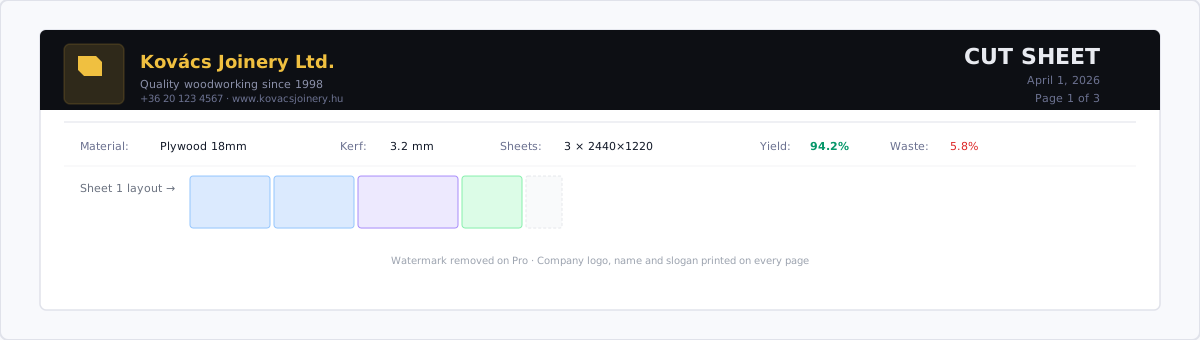
- Company header — logo, company name, and slogan from your Company Branding settings
- Your contact block — address, phone, email and registration number, printed on the left
- Quote number and date — an automatic
Q-YYYYMM-nnnreference and the export date - Valid until — the export date plus the validity you entered (omitted if you set 0 days)
- Bill to — the customer name and address you typed, printed opposite your own details
- Custom field values — project number or any other custom fields you have configured
- Itemized material table — one row per material: description, quantity, unit price, and line total
- Cutting charge (if entered) — the number of cuts in the result multiplied by your per-cut rate
- Labour / setup (if entered) — the flat amount, on its own line
- Margin (if entered) — the markup percentage applied to material + cutting + labour
- Tax — shown as “VAT X%” at the rate you entered
- Grand total — every line above added together
Each charge is a separate line, so the figures on the page always add up to the total the client sees.
Cutting Charges
If you charge clients for the cutting labour itself — as many trade shops and panel processors do — tick Include cutting charges in the export form and set a rate per cut.
CutOptim counts the total number of cuts from the optimization result and multiplies by your rate.
Example: 120 cuts × €0.50 = €60.00 cutting charge
This line appears separately in the PDF above the subtotal, so clients can see the material cost and the cutting cost at a glance.
Important Notes
This is not a legally binding invoice. The Quotation PDF is a client-facing pricing document only. For official invoicing, export your project data as CSV and process it in your accounting software.
The quotation uses the currency configured in your Settings. If you need to produce a quotation in a different currency, update the currency setting before exporting. Supported currencies: EUR, USD, GBP, HUF, RON, PLN, CZK, CHF.