Projects & Cuts
CutOptim organises your work into two levels: projects and cuts. Understanding this hierarchy makes it easy to keep your jobs organised, find past work, and build up a history of material usage over time.
The Project/Cut Hierarchy
Your account
├── Project: Kitchen Renovation — Smith
│   ├── Cut 1: Wall panels (2D)
│   ├── Cut 2: Cabinet carcasses (2D)
│   └── Cut 3: Kickboard trim (1D)
├── Project: Deck — Jones
│   ├── Cut 1: Decking boards (1D)
│   └── Cut 2: Frame timber (Wood)
└── Project: Shop fitting — ABC Retail
    ├── Cut 1: MDF panels (2D)
    ├── Cut 2: Glass shelves (2D)
    └── Cut 3: Aluminium extrusions (1D)
Project — A named container representing a single job, client, or site. A project has a name and a creation date, and holds one or more cuts. There is no notes or description field, so put anything you need to recall into the name.
Cut — A single optimization scenario within a project. A cut has its own stock list, demand list, settings, and results. Cuts can have different modes (2D/1D/Wood).
Creating a Project
- 1
Open the Project Panel
Click the **Projects** icon in the top bar. The Project Panel slides in from the left.
- 2
Click + Project
Click the **+ Project** button at the top of the Project Panel. A dialog opens and asks for the name.
- 3
Name your project
Type the name (e.g. 'Kitchen Reno — Smith') and press Enter, or press Escape to cancel. Use a naming convention that makes projects easy to find: Client Name — Job Type, or Date — Client, are both common. The name is the only field a project has, so make it carry everything you need to recognise the job later.
Use consistent naming conventions for projects. A date prefix (e.g. 2026-03 — Jones Deck) keeps projects sorted chronologically and makes it easy to find recent work.
Creating and Managing Cuts
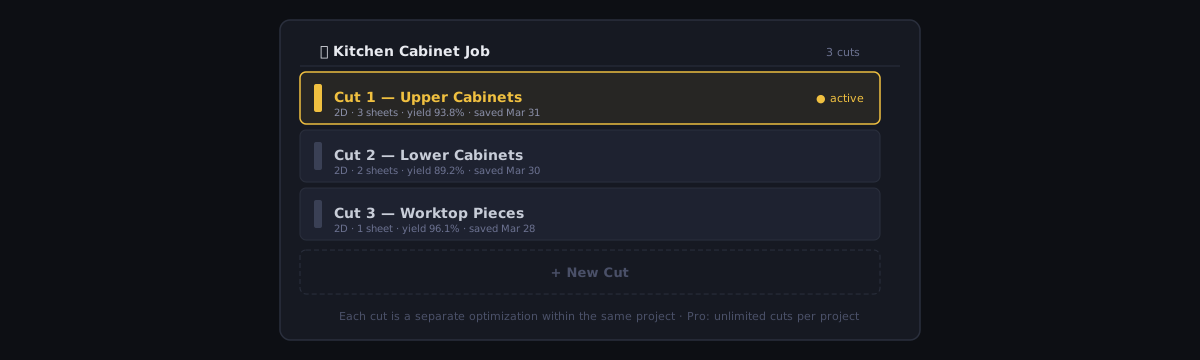
Each project starts with one default cut. You can add, rename, and delete cuts from the Project Panel: expand a project to see its cuts, use + New cut at the bottom of the list to add one, and hover any cut row for its ✏ rename and 🗑 delete buttons.
Adding a Cut
- Open the Project Panel with the Projects button in the top bar
- Expand the project and click + New cut at the bottom of its cut list
- The new cut opens as a blank workspace — add stock and demand as normal
- Rename it with the ✏ button that appears when you hover its row
There is no cap on how many cuts a project can hold. Free and Pro accounts alike can add as many cuts as the job needs in a workspace, and switch between them freely. The free plan’s limits are that it cannot save projects or cuts to the cloud (saving is a Pro feature) and 3 optimization runs per month — never on how many cuts a job may contain.
Renaming a Cut
Hover the cut row in the Project Panel and click the ✏ button. A small dialog asks for the new name — type it and press Enter, or press Escape to cancel. Two cuts in the same project cannot share a name.
Good cut names describe what is being optimised:
Wall panels 18mm MDFFloor joists 90x45 H3Kitchen doors — revised
Switching Between Cuts
Click any cut name in the Project Panel list to switch to it.
CutOptim does not silently save the cut you are leaving. If you have run an optimization that is not yet saved, a dialog appears first and asks what to do — save it, or continue without saving. Choosing continue without saving discards that run, so read the dialog rather than clicking through it.
Reusing a Cut as a Starting Point
There is no duplicate function. To base a new cut on an existing one, open the original, adjust it, then save — the save dialog lets you write the result to a new cut instead of updating the one you opened. The original stays untouched.
Deleting a Cut
Hover the cut row in the Project Panel and click the bin (🗑) button. You will be asked to confirm. Deletion is permanent — there is no undo for cut deletion once confirmed. The last cut of a project cannot be deleted — a project always keeps at least one cut; to remove it, delete the whole project (below).
Deleting a cut also deletes its saved optimization result — the stock list, the parts list, the settings and the layout go with it. Export or save anything you still need before deleting.
Your offcuts are not affected. The Offcut Inventory is a single store on your account, not something held inside a cut — there is no link from an offcut back to the cut it came from. Deleting a cut, or even a whole project, leaves every saved offcut exactly where it was, which is right: the physical piece is still on your rack.
Where Your Projects Live
Saved projects and cuts live on CutOptim’s servers, not in your browser — but saving is a Pro feature. The free plan cannot save projects or cuts to the cloud; a signed-in free user can run optimizations and export results, but not store them on the server. Upgrade to Pro to save an unlimited number of projects, each holding as many cuts as you like.
Saving Is Explicit
CutOptim does not sync as you work. Adding a piece, running an optimization or editing a dimension changes nothing on the server until you save:
- Click Save in the top bar, or press Ctrl+S.
- If you have an unsaved run and click a link out of the app, or switch to another cut, a dialog offers to save first.
- If you close the tab on an unsaved run, the browser’s own “leave site?” prompt warns you first. Even then the run is not lost on that computer: every visitor, guests included, keeps a 7-day local draft of the last run in the browser, and reloading the app offers it back. That draft is local only — it is not a cloud save.
There is no sync status indicator and no cloud auto-save, because there is nothing continuous to report on.
Accessing Projects Across Devices
Because saved projects live on the server, signing in on another device shows everything you saved — and only what you saved. An unsaved run stays on the machine where you made it.
There is no locking. CutOptim will not stop you opening the same project on two devices, and will not warn you when you do. Whichever device saves last overwrites the other.
Working Offline
Installed as an app, CutOptim opens and optimizes without a connection — the panel, bar and wood optimizer runs entirely in your browser, so a cut plan needs no server at all. Nesting is the exception: it is solved on our servers and needs a connection.
Saving does need one. There is no offline queue: a save attempted with no connection fails and tells you so, rather than syncing later by itself. Your work is not lost in the meantime — after every optimization the run is written as a local draft and offered back the next time you open the app, for up to 7 days — but it reaches the cloud only when you save with a connection. The draft lives in that one browser on that one device and holds only the last completed run, so treat it as a recovery net, not as storage.
Saving Is a Pro Feature
The free plan cannot save projects or cuts to the cloud. Every tool the app has is available on Free; what Free cannot do is persist your work to the server. Besides saving, Pro adds unlimited runs (Free has 3 optimizations per month), sharing plans by link — a link is made from a saved cut — and priority support.
- On the free plan, Save is unavailable. You can run optimizations and export the results (PDF, CSV, DXF, and the rest), but nothing is stored on our servers.
- Pro unlocks saving: an unlimited number of projects, each holding as many cuts as you like. The number of cuts inside a project is never capped.
- Trying to save on the free plan does not overwrite anything — the save is refused and you are offered the upgrade.
On the free plan, exporting a CSV or PDF after each run is your way to keep a copy: the CSV can be re-imported to reconstruct a cut. On Pro you can also save the project to the cloud.
Deleting a Project
- Open the Project Panel with the Projects button in the top bar
- Hover the project row — a ✏ and a 🗑 button appear on the right
- Click 🗑
- Confirm in the dialog
Deleting a project removes all its cuts, results, and settings from the server permanently. This action cannot be undone. (Deleting projects is only relevant on Pro, where saving is available — the free plan cannot save projects in the first place.)
Offcuts you saved while working on the project stay in your inventory — they belong to your account, not to the project.
Sharing a plan by link — send a saved plan to a customer as a read-only link.