Getting Started with CutOptim
CutOptim is a browser-based cutting optimization tool that helps woodworkers, metalworkers, glaziers, and fabricators minimize material waste. You describe what stock you have and what pieces you need — CutOptim figures out the most efficient way to cut them.
This guide walks you through your first complete optimization from start to finish.
What CutOptim Does
Every cutting job starts with the same problem: you have large sheets (or bars) of raw material, and you need to cut them into smaller pieces. Cutting inefficiently wastes material and money. CutOptim solves this by calculating the optimal nesting of your required pieces onto your available stock.
Key capabilities:
- 2D Panel Cutting — Rectangular pieces nested onto stock sheets (plywood, MDF, glass, aluminium composite, foam board)
- 1D Linear Cutting — Lengths cut from stock bars (steel rods, timber battens, plastic pipe, cable)
- Wood Cutting Mode — Timber and structural lumber with cross-section matching and grain direction
- Nesting — True-shape nesting of irregular polygon parts (import SVG/DXF), for laser, plasma and waterjet
- Offcut inventory — Save leftover pieces and reuse them in future jobs to compound savings
- Exports — PDF cut sheets, CSV cut lists, SVG/DXF for CNC, label sheets, and quotations
CutOptim runs the panel, bar and wood optimization in your browser. Your cutting data never leaves your machine unless you explicitly save a project or run Nesting (which is solved on our servers) — cloud saving of projects and cuts is a Pro feature (the free plan cannot save).
Who CutOptim Is For
CutOptim is used across a wide range of trades and industries:
| Trade | Typical materials | Mode |
|---|---|---|
| Cabinet makers & joiners | Plywood, MDF, melamine board | 2D Panel |
| Metal fabricators | Steel sheet, aluminium plate | 2D Panel |
| Glaziers | Float glass, laminated glass | 2D Panel |
| Steelwork contractors | Hollow sections, angle, flat bar | 1D Linear |
| Timber framers | Structural lumber, engineered timber | Wood |
| Signage & display | Acrylic, foam PVC, Dibond | 2D Panel |
| Installers & fit-out | Skirting board, architrave, pipe | 1D Linear |
Whether you are a solo tradesperson quoting a bathroom renovation or a production manager scheduling a week of factory cuts, CutOptim scales to your job size.
Plan Comparison
The Free column is a free account. Without an account you get 2 optimizations in total, PDF and CSV export, and the rectangular cutting modes (2D panel, 1D linear and wood); true-shape nesting and the other tools ask you to create a free account.
| Feature | Free | ★ Pro | Description |
|---|---|---|---|
| Optimizations per month | 3 | Unlimited | |
| Parts per run | Unlimited | Unlimited | |
| Cut length (total distance sawn) | ✓ | ✓ | |
| Cuts and saw passes | ✓ | ✓ | |
| Trim per side | ✓ | ✓ | |
| Saved projects (stored in the cloud, any device) | — | Unlimited | |
| Share plans by link | — | ✓ | |
| Support | Standard | Priority | |
| PDF export | Clean, branded (small CutOptim footer line) | Clean, branded, no footer line | |
| CSV export | ✓ | ✓ | |
| SVG / DXF export | ✓ | ✓ | |
| Label sheet (panel labels) | ✓ | ✓ | |
| Edge banding tracking | ✓ | ✓ | |
| Sawing plan (Cutting Sequence) | ✓ | ✓ | |
| Calibration cut | ✓ | ✓ | |
| Excel (.xlsx) workbook export | ✓ | ✓ | |
| Material inventory | ✓ | ✓ | |
| Custom text fields (4) | ✓ | ✓ | |
| Company branding on PDF | ✓ | ✓ | |
| Offcut inventory | ✓ | ✓ | |
| True-shape nesting | ✓ | monthly allowance | Unlimited on Workshop |
| Grain-matched sets | ✓ | monthly allowance | Unlimited on Workshop |
| Max. cutting stages | — | — (Workshop only) | |
| Minimise rotation | — | — (Workshop only) | |
| Quotation PDF export | — | — (Workshop only) | |
| Team workspace (3 members) | — | — (Workshop only) |
You can complete a full optimization on the free plan and download a clean PDF to verify the results before upgrading. There is no watermark: a free-account PDF carries only one small “Generated with CutOptim” line in the footer. Pro and Workshop PDFs have no such line, and neither do the PDFs of a free account that holds pay-as-you-go credits.
Your First Cut: Step-by-Step Walkthrough
The following walkthrough uses 2D Panel Cutting as an example — the most common mode. The same logic applies to 1D and Wood modes.
- 1
Open CutOptim and choose a mode
On the top navigation bar, select the **2D** tab. This activates 2D Panel Cutting mode. Everything you type in lives in the left sidebar, stacked top to bottom: **Stock sheets** (your raw material) and below it **Parts (2D)** (the pieces you need).
- 2
Add your stock sheets
Click **+ Sheet** in the **Stock sheets** section. Enter the sheet width and length in your chosen units (mm by default). Set the quantity to the number of sheets you have available. Optionally, enter a cost per sheet for the quotation export. Repeat for each sheet size you have.
- 3
Add the parts you need
Click **+ Part** in the **Parts (2D)** section. Enter the width and length of each piece you need cut, plus the quantity. Give each piece a label (e.g. 'Side Panel', 'Shelf') so you can identify them on the cut diagram. Add all required pieces.
- 4
Check your settings
**Settings** is the first section of the left sidebar, above **Stock sheets** — there is no separate settings dialog. Verify the kerf width matches your saw blade (typically 3–4 mm for table saw, 2–3 mm for circular saw). Check that units (mm or inch) match your measurements. CutOptim uses guillotine cutting — every cut runs edge-to-edge, so the plan works on a table saw, panel saw, or beam saw.
- 5
Run the optimization
Click the **Run optimizer** button at the very bottom of the left sidebar, or press **Ctrl+Enter** from anywhere. CutOptim calculates the best layout in seconds; the page stays unresponsive until the calculation finishes.
- 6
Review your results
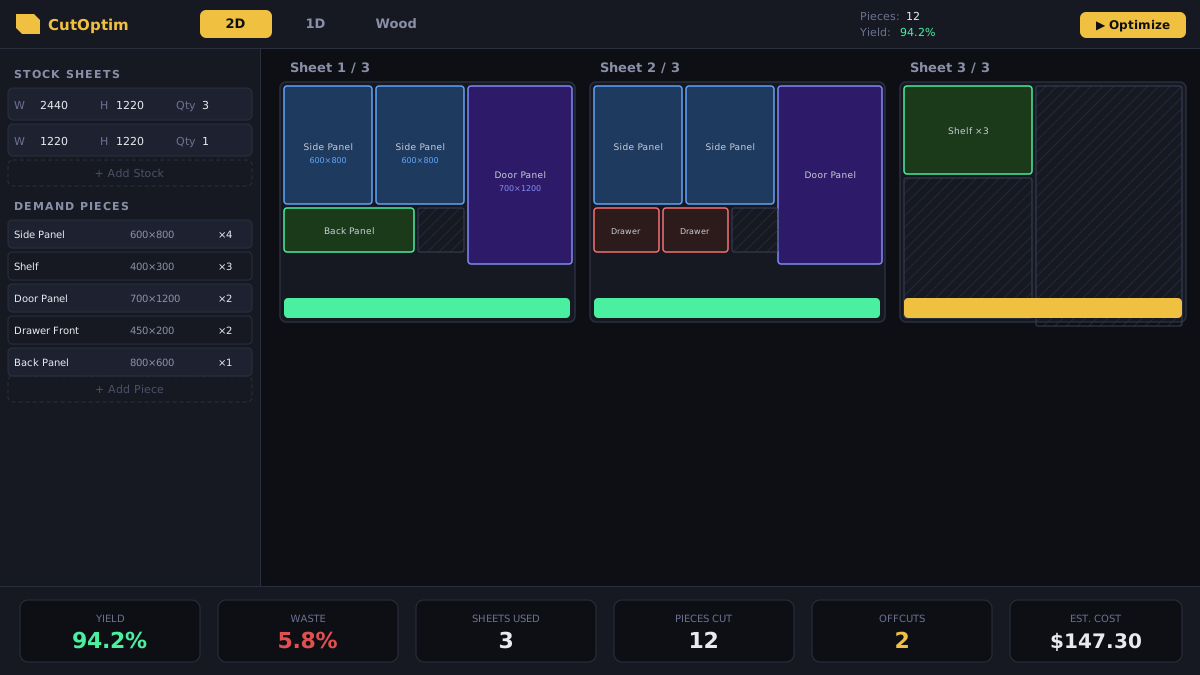
The canvas updates to show the cut layout for each sheet. The results panel shows: sheets used, total yield percentage, waste percentage, and total material cost. Scroll down to see each sheet.
- 7
Export your plan
Open the **Downloads** menu in the top bar. Choose PDF for a printable cut sheet, CSV for your cut list, or DXF to send to a CNC machine (panel labels and the quotation are in the **Share & Print** menu). The PDF includes a dimensioned layout diagram and a cut list table.
Understanding the Results
After running an optimization, the results panel at the bottom of the screen summarizes the job:
| Metric | What it means |
|---|---|
| Sheets used | Number of stock sheets needed to fulfill all demand pieces |
| Yield % | Percentage of material actually used for demand pieces |
| Waste % | Percentage of material that becomes scrap (too small to save as offcut) |
| Offcuts | Pieces larger than the minimum offcut size — these can be saved to inventory |
| Total cost | Estimated material cost based on sheet prices you entered |
A good result for typical woodworking or sheet metal jobs is a yield above 88%. If your yield is lower, try:
- Adding more pieces to fill the sheets (batch cutting)
- Allowing material rotation (if grain direction is not a constraint)
- Moving saved offcuts in from the Offcut inventory (↑) — they are starred automatically and fill before new sheets; with Limited supply you can also add them as rows and star them
- Reducing the kerf width if you are using a thin-kerf blade
Yield percentage reflects how much of the material is used for demand pieces. It does not include offcuts that are saved to inventory — those are considered usable material, not waste.
Next Steps
Now that you have run your first optimization, explore these features to get more out of CutOptim:
- Interface Overview — Learn every panel and button in the UI
- 2D Panel Cutting — Deep dive into sheet optimization options
- Settings & Kerf — Fine-tune blade kerf and units
- Projects & Cuts — Organize your work and save to the cloud
- Importing Data — Paste from Excel or import CSV to skip manual entry
- Exports & Downloads — Generate PDFs, CSVs, and DXF files