Company Branding
Company Branding lets you personalise all PDF, quotation, and label exports with your business identity — logo, company name, slogan, and contact details. This makes exported documents look professionally prepared rather than generic, which is important when presenting cut plans or quotations to clients.
Company Branding is available on every signed-in plan, including Free — guests are asked to create a free account. Configure it in the Dashboard and it applies to all your PDF, quotation, and label exports.
Accessing Branding Settings
Branding settings are managed from the Dashboard, not the main app settings. Open the Dashboard and scroll to the Company details section. Everything is here: the logo (Upload logo / Remove logo, PNG, JPG or SVG, max 1 MB), company name, slogan, phone number, email address, address and registration / VAT number, plus the separate Custom text fields card (up to 4 field labels, each up to 50 characters). One Save button stores the section.
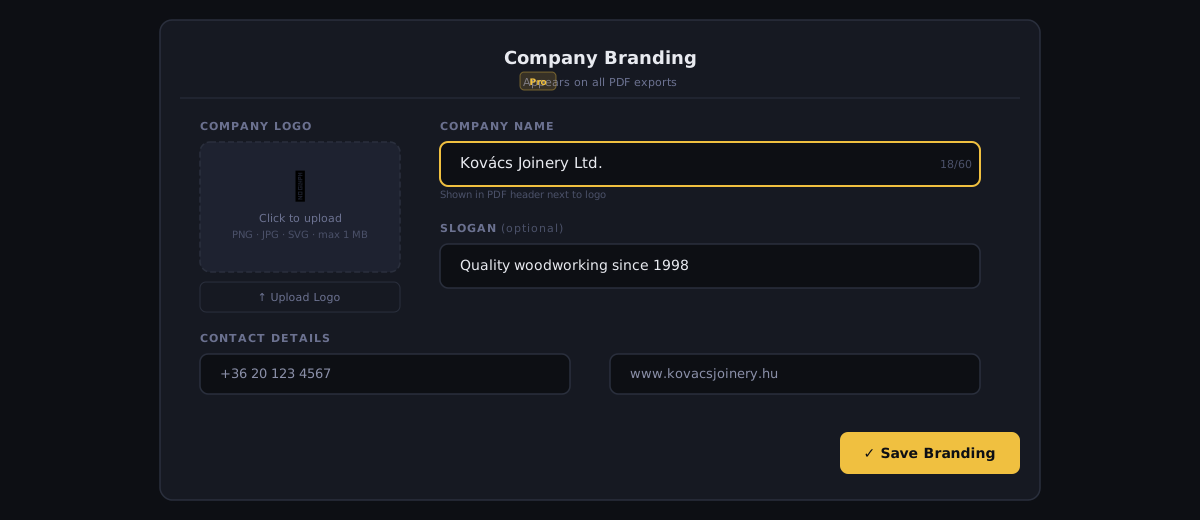
Uploading Your Logo
Your logo appears in the header of every branded PDF export.
- 1
Click Upload logo
In the Company details section, click the Upload logo box. Your file browser opens.
- 2
Select your logo file
Choose a PNG, JPG, or SVG file. Maximum file size is 1 MB. For best quality on printed PDFs, use an SVG or a high-resolution PNG (ideally 400×400 px or larger).
- 3
Check the thumbnail
The uploaded logo appears in the upload box. There is no size setting — the logo is scaled to fit the PDF header automatically.
- 4
Save changes
Click Save. The new logo is applied to all future exports.
Logo File Recommendations
| Format | Best for | Notes |
|---|---|---|
| SVG | Logos with flat colours or gradients | Scales perfectly at any size. Preferred option. |
| PNG | Logos with transparency | Use at least 400 px wide. Transparent background recommended. |
| JPG | Photos or complex gradients | Avoid for logos with text — compression artefacts reduce readability at small sizes. |
Avoid uploading a logo with a white background if your PDF header has a coloured background — the white box will be visible. Use a PNG with transparent background or SVG instead.
Branding Fields
| Feature | Type | Description |
|---|---|---|
| Company name | text | Your business or trading name. Displayed prominently in the PDF header and quotation title. Maximum 100 characters. |
| Slogan | text | A short tagline displayed below the company name in the header. Maximum 200 characters. E.g. 'Precision Cutting Solutions' or 'Quality Timber Supplies Since 1987'. |
| Phone number | text | Business phone number. Appears in the PDF footer and on quotation documents. Maximum 40 characters. |
| Email address | text | Business email address. Appears in the PDF footer and quotation documents. Maximum 120 characters. |
| Address | text | Business address. Appears on quotation documents. Supports multiple lines. Maximum 300 characters. |
| Registration / VAT number | text | Business registration number for quotation legal requirements (VAT, ABN, EIN, etc.). Maximum 60 characters. |
How Branding Appears in Exports
PDF Cut Sheet
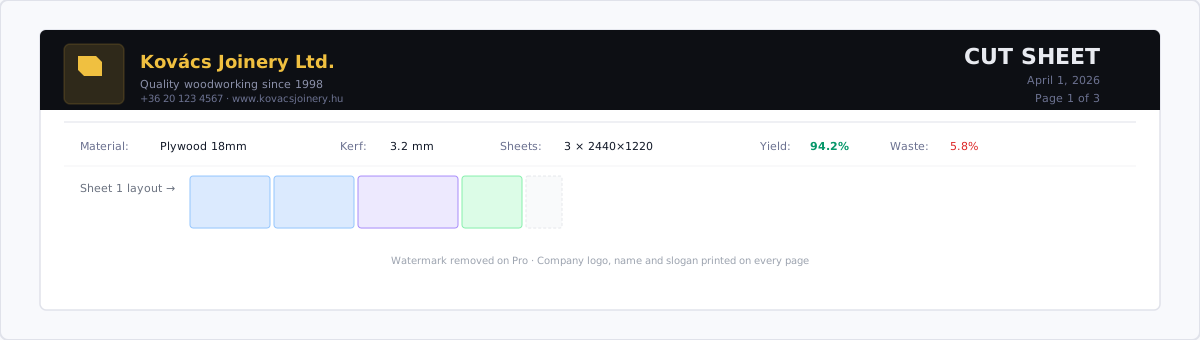
The first page carries a printer-friendly letterhead:
- Logo (left-aligned)
- Company name (bold, large)
- Slogan (below company name, smaller)
- A brand-colour accent rule, with the plan title and date below it
From the second page onward, a thin running header repeats the company name (left) and the plan title (right).
The PDF footer on every page contains:
- Company name, document label, and date (left); page number (right)
- Your phone and email, centered just above that line (when set)
- On a free account without pay-as-you-go credits (and without an account): a small “Generated with CutOptim” upgrade line takes that centered slot instead. Pro, Workshop and credits remove it.
Quotation Export
The quotation document uses branding more extensively:
- Cover area: Full-width company name and logo
- Contact block: All contact details (phone, email, address, registration number)
- Prepared by: Company name
Label Sheet Export
Labels include the company name in the bottom margin of each label, in a small font. This identifies labels as coming from your company when multiple trades are working on the same site.
Checking the Result
The Dashboard has no live PDF preview — the check is a real export.
Generate a test PDF before sending a branded document to a client. Run a plan in the app, open the Downloads menu, create a PDF, and review it in your PDF viewer to check that the logo resolution, text fields, and layout look correct.
Removing or Updating Branding
To change your logo, upload a new file and click Save.
To remove a logo without replacing it, click Remove logo under the logo, then Save.
There is no single reset button: to clear the text fields, empty them and click Save.