Getting Started with CutOptim
CutOptim is a browser-based cutting optimization tool that helps woodworkers, metalworkers, glaziers, and fabricators minimize material waste. You describe what stock you have and what pieces you need — CutOptim figures out the most efficient way to cut them.
This guide walks you through your first complete optimization from start to finish.
What CutOptim Does
Every cutting job starts with the same problem: you have large sheets (or bars) of raw material, and you need to cut them into smaller pieces. Cutting inefficiently wastes material and money. CutOptim solves this by calculating the optimal nesting of your required pieces onto your available stock.
Key capabilities:
- 2D Panel Cutting — Rectangular pieces nested onto stock sheets (plywood, MDF, glass, aluminium composite, foam board)
- 1D Linear Cutting — Lengths cut from stock bars (steel rods, timber battens, plastic pipe, cable)
- Wood Cutting Mode — Timber and structural lumber with cross-section matching and grain direction
- Offcut inventory — Save leftover pieces and reuse them in future jobs to compound savings
- Exports — PDF cut sheets, CSV cut lists, SVG/DXF for CNC, label sheets, and quotations
CutOptim runs the optimization in your browser. Your cutting data never leaves your machine unless you explicitly save a project to the cloud (Pro feature).
Who CutOptim Is For
CutOptim is used across a wide range of trades and industries:
| Trade | Typical materials | Mode |
|---|---|---|
| Cabinet makers & joiners | Plywood, MDF, melamine board | 2D Panel |
| Metal fabricators | Steel sheet, aluminium plate | 2D Panel |
| Glaziers | Float glass, laminated glass | 2D Panel |
| Steelwork contractors | Hollow sections, angle, flat bar | 1D Linear |
| Timber framers | Structural lumber, engineered timber | Wood |
| Signage & display | Acrylic, foam PVC, Dibond | 2D Panel |
| Installers & fit-out | Skirting board, architrave, pipe | 1D Linear |
Whether you are a solo tradesperson quoting a bathroom renovation or a production manager scheduling a week of factory cuts, CutOptim scales to your job size.
Plan Comparison
| Feature | Free | ★ Pro | Description |
|---|---|---|---|
| Stock sheets / bars per cut | Up to 3 | Unlimited | |
| Demand pieces per cut | Up to 20 | Unlimited | |
| Cuts per project | 1 | Unlimited | |
| Cloud project sync | — | ✓ | |
| PDF export | Watermarked | Clean, branded | |
| CSV export | ✓ | ✓ | |
| SVG / DXF export | — | ✓ | |
| Label sheet (panel labels) | — | ✓ | |
| Edge banding tracking | — | ✓ | |
| Cutting sequence animation | — | ✓ | |
| Material library | — | ✓ | |
| Custom text fields (4) | — | ✓ | |
| Company branding on PDF | — | ✓ | |
| Offcut inventory | Local only | Cloud synced | |
| Quotation PDF export | — | — (Business only) | |
| Grain matching groups | — | — (Business only) | |
| Team workspace (3 members) | — | — (Business only) |
You can complete a full optimization on the free plan and download a watermarked PDF to verify the results before upgrading.
Your First Cut: Step-by-Step Walkthrough
The following walkthrough uses 2D Panel Cutting as an example — the most common mode. The same logic applies to 1D and Wood modes.
- 1
Open CutOptim and choose a mode
On the top navigation bar, select the **2D** tab. This activates 2D Panel Cutting mode. You will see two tables: **Stock** (your raw material) on the left and **Demand** (pieces you need) on the right.
- 2
Add your stock sheets
Click **+ Add Stock** in the Stock table. Enter the sheet width and height in your chosen units (mm by default). Set the quantity to the number of sheets you have available. Optionally, enter a cost per sheet for the quotation export. Repeat for each sheet size you have.
- 3
Add your demand pieces
Click **+ Add Piece** in the Demand table. Enter the width and height of each piece you need cut, plus the quantity. Give each piece a label (e.g. 'Side Panel', 'Shelf') so you can identify them on the cut diagram. Add all required pieces.
- 4
Check your settings
Open **Settings** (gear icon, top right). Verify the kerf width matches your saw blade (typically 3–4 mm for table saw, 2–3 mm for circular saw). Check that units match your measurements. Choose **Guillotine** for straight cuts on a table saw, or **Nested** for CNC routing.
- 5
Run the optimization
Click the **Run Optimization** button (or press **Ctrl+Enter**). CutOptim calculates the best layout in seconds. A progress indicator appears briefly for large jobs.
- 6
Review your results
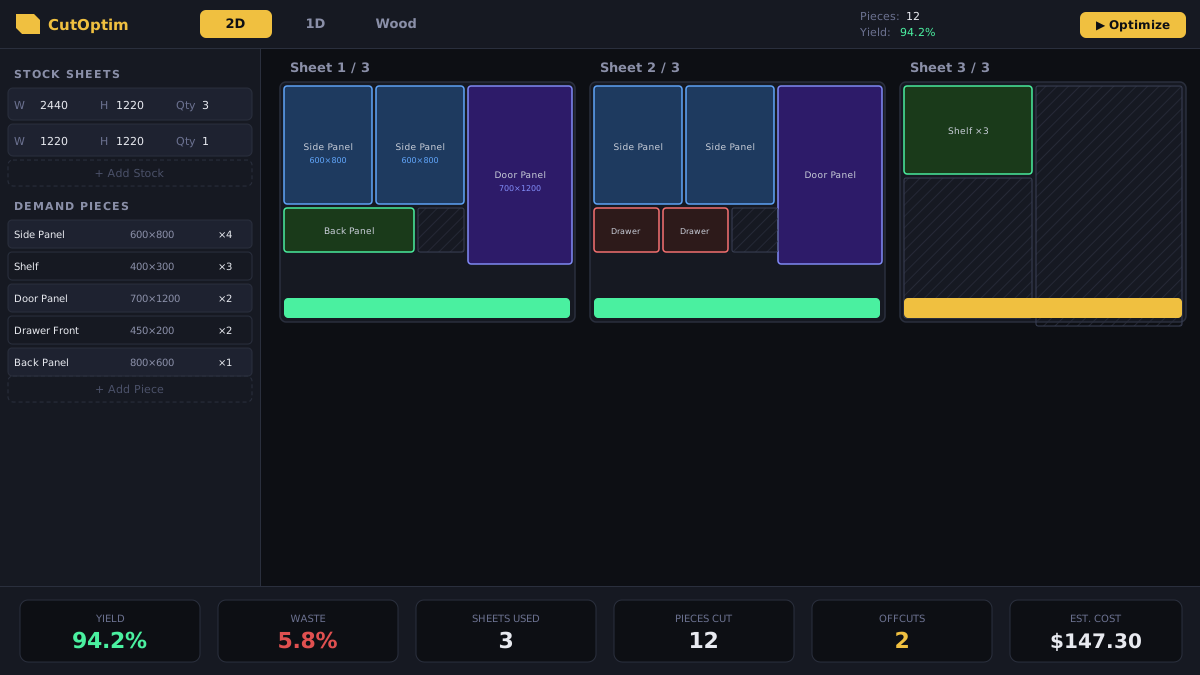
The canvas updates to show the cut layout for each sheet. The results panel shows: sheets used, total yield percentage, waste percentage, and total material cost. Scroll through each sheet using the sheet navigator.
- 7
Export your plan
Click **Export** in the toolbar. Choose PDF for a printable cut sheet, CSV for your cut list, or DXF to send to a CNC machine. The PDF includes a dimensioned layout diagram and a cut list table.
Understanding the Results
After running an optimization, the results panel at the bottom of the screen summarizes the job:
| Metric | What it means |
|---|---|
| Sheets used | Number of stock sheets needed to fulfill all demand pieces |
| Yield % | Percentage of material actually used for demand pieces |
| Waste % | Percentage of material that becomes scrap (too small to save as offcut) |
| Offcuts | Pieces larger than the minimum offcut size — these can be saved to inventory |
| Total cost | Estimated material cost based on sheet prices you entered |
A good result for typical woodworking or sheet metal jobs is a yield above 88%. If your yield is lower, try:
- Adding more pieces to fill the sheets (batch cutting)
- Allowing material rotation (if grain direction is not a constraint)
- Switching from Guillotine to Nested cut type
- Reducing the kerf width if you are using a thin-kerf blade
Yield percentage reflects how much of the material is used for demand pieces. It does not include offcuts that are saved to inventory — those are considered usable material, not waste.
Next Steps
Now that you have run your first optimization, explore these features to get more out of CutOptim:
- Interface Overview — Learn every panel and button in the UI
- 2D Panel Cutting — Deep dive into sheet optimization options
- Settings & Kerf — Fine-tune blade kerf, units, and cut type
- Projects & Cuts — Organize your work and save to the cloud
- Importing Data — Paste from Excel or import CSV to skip manual entry
- Exports & Downloads — Generate PDFs, CSVs, and DXF files