Exports & Downloads
After running an optimization, CutOptim can export your results in multiple formats to suit different downstream needs — from printing a shop floor cut sheet to feeding a CNC controller. This article describes every export format.
Opening the Export Panel
Click Export in the toolbar after running an optimization. The Export panel opens as a side drawer showing all available formats. Formats that require Pro are clearly labelled.
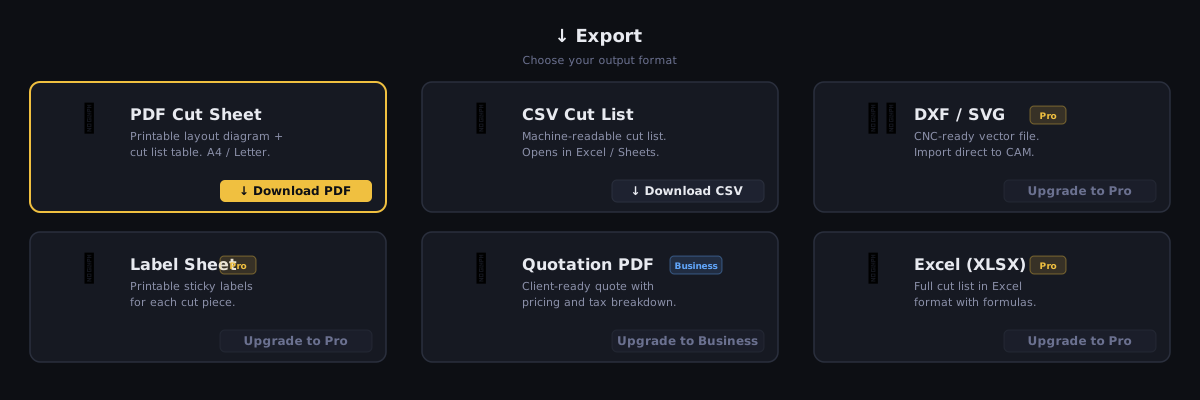
PDF — Printable Cut Sheet
The PDF export produces a multi-page document designed to be printed and used on the shop floor or sent to a client.
What it includes:
- Page 1: Job summary (project name, cut name, date, sheet count, yield %, total cost)
- One page per sheet: Dimensioned layout diagram showing each piece with label, width, and height; offcuts are labelled and hatched
- Final page: Complete cut list table (piece label, dimensions, quantity, assigned sheet)
Options available in the export dialog:
| Option | Description |
|---|---|
| Sheet range | All sheets, or a specific sheet number |
| Include cut sequence | Adds numbered cut steps to each sheet diagram (Guillotine mode only) |
| Include piece dimensions | Show W×H on each piece in the diagram |
| Include offcut dimensions | Label offcut areas with their dimensions |
| Paper size | A4, A3, Letter |
| Orientation | Portrait or Landscape (Landscape recommended for wide sheets) |
Pro Pro: Clean PDF with no watermark. Company branding (logo, name, slogan) appears in the header of every page. See Company Branding.
Free: PDF is generated with a CutOptim watermark across each layout page.
For large jobs (20+ sheets), print the cut list page separately to keep near the saw, and post individual sheet diagrams at each cutting station.
CSV — Cut List Spreadsheet
The CSV export produces a comma-separated values file that can be opened in Excel, Google Sheets, or any spreadsheet application, or imported into workshop management systems.
CSV columns (2D mode):
| Column | Description |
|---|---|
piece_label | Piece name as entered in the Demand table |
width | Piece width |
height | Piece height |
qty | Quantity (one row per individual piece) |
sheet_index | Which stock sheet this piece is cut from (1-based) |
sheet_label | Stock sheet label |
pos_x | X position of piece on the sheet (bottom-left corner) |
pos_y | Y position of piece on the sheet |
rotated | true if the piece was rotated 90° from its input dimensions |
CSV columns (1D mode):
| Column | Description |
|---|---|
piece_label | Piece name |
length | Cut length |
qty | Always 1 per row |
bar_index | Which stock bar this piece is cut from |
bar_label | Stock bar label |
position | Distance from the bar’s start end |
CSV export is available on both free and Pro plans.
The CSV file uses UTF-8 encoding with a BOM for compatibility with Excel on Windows. When opening in Google Sheets, choose File → Import and select UTF-8.
SVG — Vector Diagram Pro
The SVG export produces a scalable vector graphics file for each sheet. SVG files can be:
- Opened in Adobe Illustrator, Inkscape, or any vector editor
- Embedded in design documents or websites
- Used as a reference for manual marking out
SVG structure:
- Each sheet is a separate SVG file (or all sheets in a ZIP)
- Pieces are
<rect>elements with the piece label as theidattribute - Offcuts are grouped separately
- Dimensions are in millimetres (or cm if cm mode is active)
- Piece labels are embedded as
<text>elements
Common use cases:
- Providing a cut plan to a client in vector format
- Using as a template for CNC toolpath generation in a vector editor
- Overlaying on a material photograph for visual verification
DXF — CNC / CAD File Pro
DXF (Drawing Exchange Format) is the standard file format for transferring cut paths to CNC routers, laser cutters, plasma cutters, and waterjet machines, as well as CAD software.
What the DXF contains:
- Each piece as a closed polyline (rectangle) on a separate layer
- Layer names match piece labels
- Offcuts on a separate
OFFCUTSlayer - All dimensions in the active unit (mm or cm)
- Title block with job name and date
Compatibility:
The DXF is exported in DXF R2010 format (AutoCAD 2010), which is compatible with virtually all CNC controller software and CAD applications including:
- AutoCAD 2010 and later
- Fusion 360
- SolidWorks (via import)
- Mach3, Mach4, LinuxCNC
- VCarve, Aspire (Vectric)
- RhinoCAM
DXF export provides the outlines of pieces for nesting reference. It does not include toolpaths, speeds, depths of cut, or G-code. You will need to add toolpaths in your CAM software (e.g. VCarve, Fusion 360 CAM) before sending to a CNC machine.
Label Sheet Export Pro
The Label Sheet export produces a printable sheet of piece labels, one label per demand piece. Labels are designed to be printed on standard A4 label sheets and applied to cut pieces for identification during assembly.
Each label includes:
- Piece label / name
- Dimensions (W × H or length)
- Quantity
- Sheet or bar number the piece comes from
- Custom text field values (if configured — see Custom Text Fields)
Label sheet layout: A4 sheet, 4-column grid — one label per demand piece, designed to be printed and stuck onto cut panels for identification during assembly.
Sort order options:
- By sheet — All labels for Sheet 1 first, then Sheet 2, etc. Best for shop floor use: cut a sheet, immediately label all its pieces before moving on.
- By label — Alphabetical order. Best when assembling from pre-cut stock and working from a project schedule.
Run the optimization first, then generate labels immediately. Print and cut the label sheet before moving material to the saw, so labels are ready the moment each piece is cut.
PDF Preview
Every export in CutOptim goes through a preview step before the file is downloaded. When you click any export button, a preview modal opens with a full-page iframe PDF viewer so you can review the document before committing to the download.
Preview workflow:
- Click any export button (PDF, Labels, Quotation)
- The preview modal opens — scroll through all pages
- Click Download PDF to save the file
- Or close with ✕ to cancel without downloading
This prevents wasted paper from accidentally exporting the wrong job or wrong sheet range.
Quotation Export Business
The Quotation export produces a client-facing pricing document summarising material costs for the job.
What it includes:
- Company branding (if configured — see Company Branding)
- Client/project details (filled from project notes)
- Line items: each stock sheet type with quantity used, unit price, and line total
- Subtotal, optional markup percentage, and total
- Optimisation summary (yield %, waste %, sheets used)
Quotation is not a full invoice. It is designed as a material cost summary to include in a client quote or job costing report. For full invoicing, export the CSV and import it into your accounting software.
| Feature | Type | Description |
|---|---|---|
| Markup % | number | Percentage markup added to the material subtotal. Useful for adding handling, waste, and profit margin. |
| Currency symbol | text | Symbol prepended to all price fields. Default: $. Change to £, €, or any other symbol as needed. |
| Quotation notes | text | Free-text field for terms, validity period, or additional notes. Appears at the bottom of the quotation. |
| Include offcut credit | boolean | When enabled, the estimated value of saved offcuts is shown as a line credit, reducing the net material cost. |