Company Branding Pro
Company Branding lets you personalise all PDF, quotation, and label exports with your business identity — logo, company name, slogan, and contact details. This makes exported documents look professionally prepared rather than generic, which is important when presenting cut plans or quotations to clients.
Company Branding is a Pro feature. Free plan PDFs include a CutOptim watermark and no company branding. Upgrade to Pro to access branding settings.
Accessing Branding Settings
Branding settings are managed from the Dashboard, not the main app settings. Open the Dashboard from the top-left menu, then scroll to the Company Branding section. All branding configuration is here.
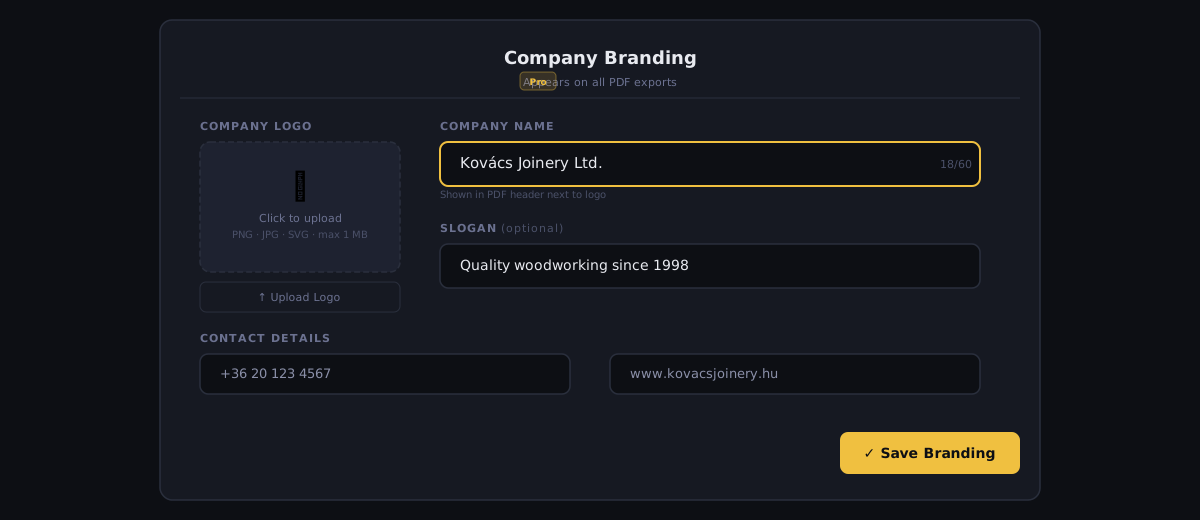
Uploading Your Logo
Your logo appears in the header of every branded PDF export.
- 1
Click the logo upload area
In the Branding tab, click the logo upload box (it shows a placeholder company icon). Your file browser opens.
- 2
Select your logo file
Choose a PNG, JPG, or SVG file. Maximum file size is 1 MB. For best quality on printed PDFs, use an SVG or a high-resolution PNG (minimum 300 DPI, ideally 400×400 px or larger).
- 3
Preview the logo
After uploading, a preview of the PDF header appears below the upload area, showing your logo alongside the company name. Check that the logo looks correct at this size.
- 4
Adjust logo size if needed
Use the size slider to adjust how large the logo appears in the header. Small logos (icon-only) work best at the default size. Full-width horizontal logos may need to be scaled down.
- 5
Save changes
Click Save Branding. The new logo is applied to all future PDF exports immediately.
Logo File Recommendations
| Format | Best for | Notes |
|---|---|---|
| SVG | Logos with flat colours or gradients | Scales perfectly at any size. Preferred option. |
| PNG | Logos with transparency | Use at least 400 px wide. Transparent background recommended. |
| JPG | Photos or complex gradients | Avoid for logos with text — compression artefacts reduce readability at small sizes. |
Avoid uploading a logo with a white background if your PDF header has a coloured background — the white box will be visible. Use a PNG with transparent background or SVG instead.
Branding Fields
| Feature | Type | Description |
|---|---|---|
| Company name | text | Your business or trading name. Displayed prominently in the PDF header and quotation title. Maximum 60 characters. |
| Slogan / tagline | text | A short tagline displayed below the company name in the header. Maximum 80 characters. E.g. 'Precision Cutting Solutions' or 'Quality Timber Supplies Since 1987'. |
| Phone number | text | Business phone number. Appears in the PDF footer and on quotation documents. |
| Email address | text | Business email address. Appears in the PDF footer and quotation documents. |
| Website | text | Business website URL. Displayed as a hyperlink in digital PDFs. E.g. www.example.com. |
| Address | text | Business address. Appears on quotation documents. Supports multiple lines. |
| Registration / ABN / VAT number | text | Business registration number for quotation legal requirements. Label varies by region (ABN, VAT, EIN, etc.). |
How Branding Appears in Exports
PDF Cut Sheet
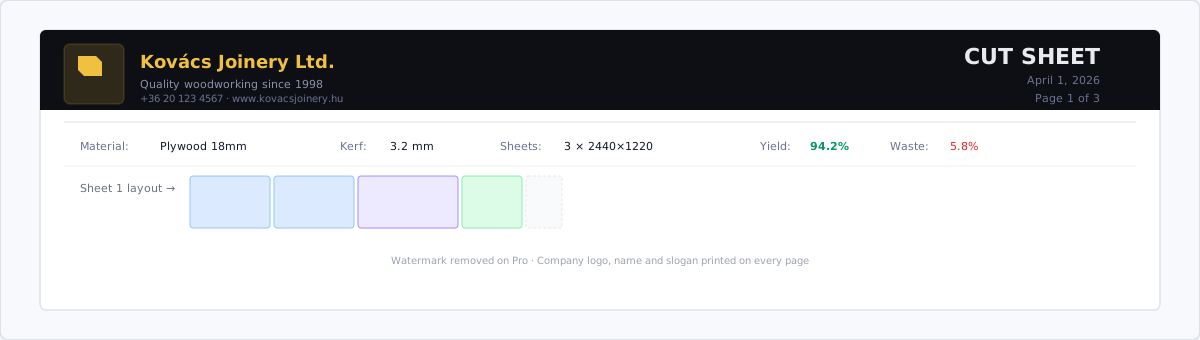
The PDF header on every page contains:
- Logo (left-aligned)
- Company name (bold, large)
- Slogan (below company name, smaller)
- Page number and date (right-aligned)
The PDF footer on every page contains:
- Phone, email, and website
- Optional “Generated with CutOptim” text (can be disabled in Settings → Branding → Show Footer Credit)
Quotation Export
The quotation document uses branding more extensively:
- Cover area: Full-width company name and logo
- Contact block: All contact details (phone, email, address, registration number)
- Prepared by: Company name
- Footer: Website URL
Label Sheet Export
Labels include the company name in the bottom margin of each label, in a small font. This identifies labels as coming from your company when multiple trades are working on the same site.
Branding Preview
The Branding settings tab shows a live preview of how your branding will appear on a PDF. The preview updates as you type or change any field. Use this to verify the layout before generating real documents.
Generate a test PDF before sending a branded document to a client. Open the Export dialog, generate a PDF, and review it in your PDF viewer to check that the logo resolution, text fields, and layout look correct.
Removing or Updating Branding
To change your logo, upload a new file — it replaces the existing logo immediately.
To remove a logo without replacing it, click the Remove Logo button (trash icon) next to the logo preview.
To clear all branding fields, click Reset Branding at the bottom of the Branding tab. This removes the logo and clears all text fields. You will be asked to confirm, as this cannot be undone.