Interface Overview
CutOptim’s interface is designed around a single-page workflow: you enter your materials on the left, the optimized layout appears on the right, and the toolbar across the top gives you quick access to actions and settings. This article explains every area of the interface.
The Three Main Areas
The CutOptim workspace is divided into three regions:
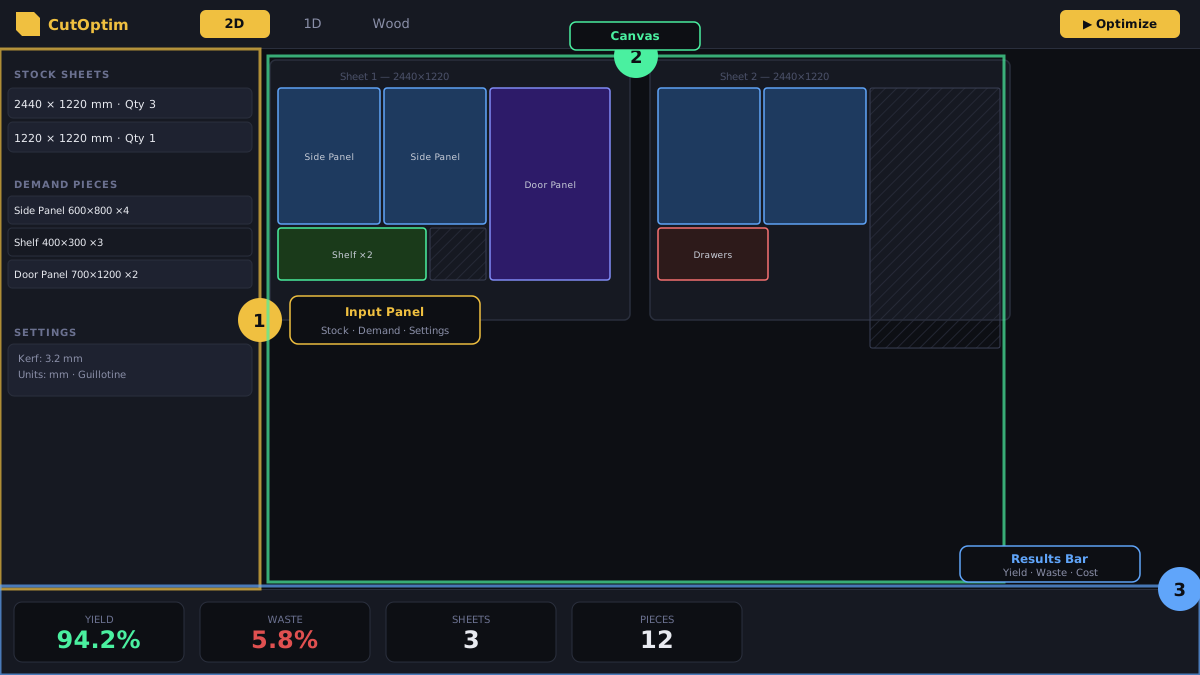
1. Input Panel (Left)
The left panel contains two tables stacked vertically:
- Stock table — Lists your available raw material (sheets, bars, or timber lengths). Each row has fields for dimensions, quantity, and optional price.
- Demand table — Lists the pieces you need cut. Each row has fields for dimensions, quantity, label, and (in Wood mode) cross-section type.
Between the two tables is an Add button for each. You can reorder rows by dragging the handle on the left edge of each row. Right-click any row for options: duplicate, delete, or set as reference piece.
Each row in the Stock table has a ★ priority star on the left — click it to mark that material as first-choice for the optimizer. Above each table is an Import button for bulk data entry via CSV file or paste from Excel/Google Sheets. See Importing Data.
The total material area counter at the bottom of the Stock table and the total demand area counter at the bottom of the Demand table update in real time as you type, giving you an instant sense of whether you have enough material before running.
2. Canvas (Center/Right)
The canvas shows the optimization result as a visual diagram. Each sheet or bar is represented as a rectangle. Pieces are drawn in distinct colors with their label and dimensions overlaid.
Canvas controls:
| Control | Action |
|---|---|
| Scroll wheel | Zoom in / out |
| Click + drag | Pan across the sheet |
| Click a piece | Highlight that piece and show its details in the info panel |
| Sheet navigator (bottom) | Cycle through sheets (← →) |
| Zoom to fit button | Reset zoom to show the full sheet |
When no optimization has been run yet, the canvas shows a placeholder prompt. After running, each sheet tab appears at the bottom of the canvas area.
3. Toolbar (Top)
The toolbar spans the full width of the page and contains:
- Mode tabs —
2D,1D,Wood— switches the active cutting mode - Project name — Click to rename the current project inline
- Cut selector — Dropdown to switch between cuts within the project Pro
- Run button — Triggers optimization (keyboard: Ctrl +Enter )
- Export button — Opens the export panel (PDF, CSV, SVG, DXF, Labels, Quotation)
- Settings — Opens the settings drawer ( Ctrl +, ) — includes Advanced Settings at the bottom for First Cut Direction, Optimization Goal, Detailed Cost Entry, Currency, and more
- Undo / Redo — Step back through changes ( Ctrl +Z / Ctrl +Shift +Z )
- User menu — Account, dark mode toggle, plan details, link to Dashboard
Mode Tabs: 2D, 1D, and Wood
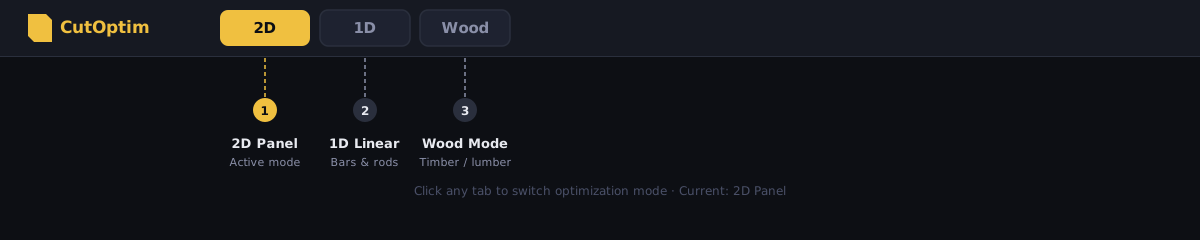
Each mode tab activates a different optimization engine and changes the input fields accordingly:
| Mode | Input fields | Algorithm | Best for |
|---|---|---|---|
| 2D | Width × Height, qty, price | Bin-packing / guillotine | Sheet goods: plywood, glass, metal sheet |
| 1D | Length, qty, price | Linear bin-packing | Bars, pipes, rods, linear profiles |
| Wood | Length × width × thickness, cross-section, qty | Linear + cross-section grouping | Structural timber, dressed lumber |
Switching modes does not delete your data in the other modes. All modes are stored independently within the same cut.
A single project can contain multiple cuts, and each cut can have its own mode. For example, a shop-fitting project might have a 2D cut for the panel sheets and a 1D cut for the aluminium extrusions.
The Project Panel
The Project Panel opens as a slide-over from the left edge when you click the Projects icon (or press Ctrl +P ). It shows:
- All your saved projects (Pro: synced to cloud; Free: local browser storage)
- Each project’s cut count and last-modified date
- Quick actions: rename, duplicate, delete, or open a project
Within a project, the panel expands to show individual cuts as a list. Click any cut to load it into the active workspace. The currently open cut is highlighted.
Pro Pro users see a sync status indicator next to each project. A cloud icon with a checkmark means the project is saved to the cloud. A spinning icon means a sync is in progress.
Results Panel
After running an optimization, a results panel slides up from the bottom of the canvas. It contains two tabs:
Summary tab:
- Sheets used / total available
- Overall yield percentage (material used for demand pieces)
- Total waste percentage
- Offcuts count and total area
- Estimated material cost (if prices were entered)
Pieces tab:
- A table listing every demand piece with its assigned sheet number, position (X, Y), and rotation
- This data matches what appears in the CSV export
The results panel can be collapsed by clicking its header bar to give the canvas more room, or expanded to full-height for detailed inspection.
Keyboard Navigation
CutOptim is fully keyboard-navigable. When focus is in the Stock or Demand table, the following shortcuts apply:
| Key | Action |
|---|---|
| Tab | Move to next field |
| Shift +Tab | Move to previous field |
| Enter | Confirm row and add a new row below |
| Escape | Cancel edit and revert |
| Delete (on row) | Delete selected row |
| Ctrl +D (on row) | Duplicate selected row |
| Ctrl +Enter | Run optimization from anywhere |
See the Keyboard Shortcuts reference for the full list.
Power tip: Press Enter after filling in the last field of a demand row to instantly create a new row below it. This makes bulk data entry much faster than using the mouse.