Quotation PDF Business
The Quotation PDF export lets you produce a polished, client-facing pricing document straight from your optimized cut list. It shows an itemized breakdown of materials, an optional cutting charge, tax, and a grand total — all under your company branding.
A typical use case: a joiner has just finished planning a kitchen job in CutOptim. Before raising the final invoice they want to send the homeowner a clear PDF showing exactly what material is being used and what it will cost. With a single click they can export a branded quotation, ready to email.
Prerequisites
Before exporting a quotation, make sure the following are in place:
| Feature | Type | Description |
|---|---|---|
| Business subscription | required | Quotation PDF is available on the Business tier only. |
| Detailed Cost Entry enabled | required | Enable in Advanced Settings → Detailed Cost Entry. This reveals the price column in the Stock and Demand tables. Requires Pro or Business. |
| Unit prices entered | required | Enter a unit price per sheet or piece in the Stock and/or Demand tables. Without prices the totals will be zero. |
| Quotation Settings configured | required | Set your tax rate, validity period, footer text, and cutting charge in the Dashboard before exporting. |
| Optimization run | required | A quotation is generated from the current optimization result. Run the optimizer before exporting. |
Step 1: Configure Quotation Settings in the Dashboard
Open your Dashboard and scroll to the Quotation Settings section. These settings are global — they apply to every quotation you export across all projects unless you change them.
| Feature | Type | Description |
|---|---|---|
| tax_rate | number | Tax percentage applied to the subtotal. For example: 27 (Hungarian VAT), 20 (UK VAT), 0 (tax-exempt). Displayed on the PDF as 'VAT X%'. |
| validity_days | number | Number of days from the export date that the quotation is valid. The 'Valid until' date on the PDF is calculated automatically. |
| footer_text | string | Custom text printed at the bottom of the quotation. Use this for payment terms, bank details, or a thank-you message. |
| include_cutting_charge | boolean | When enabled, a separate cutting charge line is added to the quotation based on the total number of cuts in the optimization result. |
| cutting_charge_per_cut | number | The amount charged per cut when cutting charges are enabled. For example, 0.50 for €0.50 per cut. |
| currency | string | The currency symbol or code used throughout the quotation. Supported: EUR, USD, GBP, HUF, RON, PLN, CZK, CHF. |
Quotation settings are global. If you work with clients in different currencies or tax jurisdictions, update the relevant settings before each export.
Step 2: Enter Unit Prices
Unit prices come from the Detailed Cost Entry columns in the Stock and Demand tables.
- Go to Advanced Settings and enable Detailed Cost Entry.
- A Price column appears in both the Stock table (per sheet) and the Demand table (per piece).
- Enter the price you pay — or charge — for each material or part.
These prices feed directly into the quotation’s itemized table.
To include client-specific information such as a client name or project number on the quotation, add those as custom text fields. See the Custom Fields article for setup instructions.
Step 3: Export the Quotation
- 1
- 2
- 3
- 4
- 5
What the Quotation Includes
Every exported quotation PDF contains the following sections:
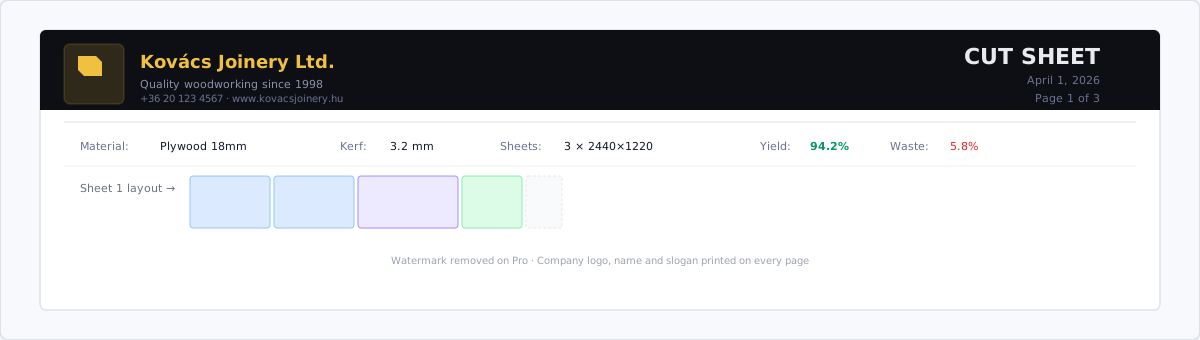
- Company header — logo, company name, and slogan from your Company Branding settings
- Custom field values — client name, project number, or any other custom fields you have configured
- Date — the date the quotation was exported
- Valid until — calculated as export date plus the configured validity period
- Itemized material table — one row per material: description, quantity, unit price, and line total
- Cutting charge line (if enabled) — total cuts multiplied by the per-cut rate, shown as a separate line item
- Subtotal — sum of all material and cutting charge lines before tax
- Tax — displayed as “VAT X%” using your configured rate
- Grand total — subtotal plus tax
- Footer note — your custom footer text (payment terms, bank details, etc.)
Cutting Charges
If you charge clients for the cutting labor itself — as many trade shops and panel processors do — enable Include Cutting Charge in Quotation Settings and set a rate per cut.
CutOptim counts the total number of cuts from the optimization result and multiplies by your rate.
Example: 120 cuts × €0.50 = €60.00 cutting charge
This line appears separately in the PDF above the subtotal, so clients can see the material cost and the cutting cost at a glance.
Important Notes
This is not a legally binding invoice. The Quotation PDF is a client-facing pricing document only. For official invoicing, export your project data as CSV and process it in your accounting software.
The quotation uses the currency configured in your Settings. If you need to produce a quotation in a different currency, update the currency setting before exporting. Supported currencies: EUR, USD, GBP, HUF, RON, PLN, CZK, CHF.