Exploded View Drawing for Furniture: Cut List to Assembly
Quick answer
CutOptim draws an exploded view of your furniture from the same model that makes the cut list. Insert a furniture template or import a SketchUp file, switch the results to Assembly, and every part appears pulled apart with the number and place letter it carries on the cutting plan and on its label. A bookshelf comes to 9 parts, 4 build steps and a 7-page printable Build Pack, which grows to 10 pages once you mark its pocket holes.
A cutting plan tells you how to cut the boards. It does not tell you which of two identical-looking panels goes on the left, which way a shelf faces or in what order the carcass goes together. That is the job of an exploded view, the drawing in which every part is pulled out along the line it is assembled on, and it is what the printed manuals of flat-pack furniture are made of. This guide shows how to get one for your own piece from the model CutOptim already holds, and what to check before you trust it. Every number below was measured on the bookshelf template with its default sizes.
What you’ll learn
- What an exploded view needs, and where the model comes from
- How to read the drawing: numbers, place letters, groups and the slider
- What the build steps and the model check add
- How to mark holes, print the hole sheets and download the Build Pack
An exploded view drawing of furniture is an isometric picture in which each part is moved away from its place along its assembly direction, with a guide line back to where it belongs and a number on every part.
What does an exploded view need?
A position for every part, not only a size. A cut list has widths, lengths and quantities, and nothing about where each panel sits in the finished piece. The model CutOptim builds adds that: every part is an axis-aligned box in space, with the face that will be seen, its visible edges and the direction of its grain. The five furniture templates, TV stand, Bookshelf, Wardrobe, Kitchen base cabinet and Box / crate, produce the model together with the cut list, and a SketchUp file produces one on import, as the SketchUp import guide explains.
The model keeps the sizes of the cut list exactly. For the bookshelf the template gives 9 parts of 4 kinds in the Parts table: Top, Bottom, Side and Shelf, with the back panel left out of the table unless you insert it. The model has all nine, back included, in three groups of parts: the carcass, the shelves and the back panel.
The limits come from the same simplicity. Parts are straight boxes, so an angled part is not drawn, and a door is a flat panel without a swing. The drawing shows what goes where and in which order, and it does not simulate the furniture.
How do you get the Assembly view?
Insert a template or import a model
In 2D mode open the template window, pick Bookshelf and set the values; a live preview of the exploded drawing redraws as you change them. Insert it and the parts land in the Parts table. For a SketchUp file click SketchUp in the header of the Parts (2D) section instead.
Switch the results to Assembly
A switch under the results header changes from Cutting plan to Assembly. It exists only while the job is 2D and has a model, and everyone can use it, a guest included.
Pick a group and pull the parts apart
The tabs are the overview and one tab per group. The Pull apart slider sets how far the parts move. A group other than the carcass is drawn coming out of a faint outline of the carcass: shelves and fronts out of the front, the back panel off the back, the plinth down.
The table under the drawing lists the parts of the view with their tags, names, sizes and materials, and a click on a row finds that part in the drawing.
How do you read the drawing?
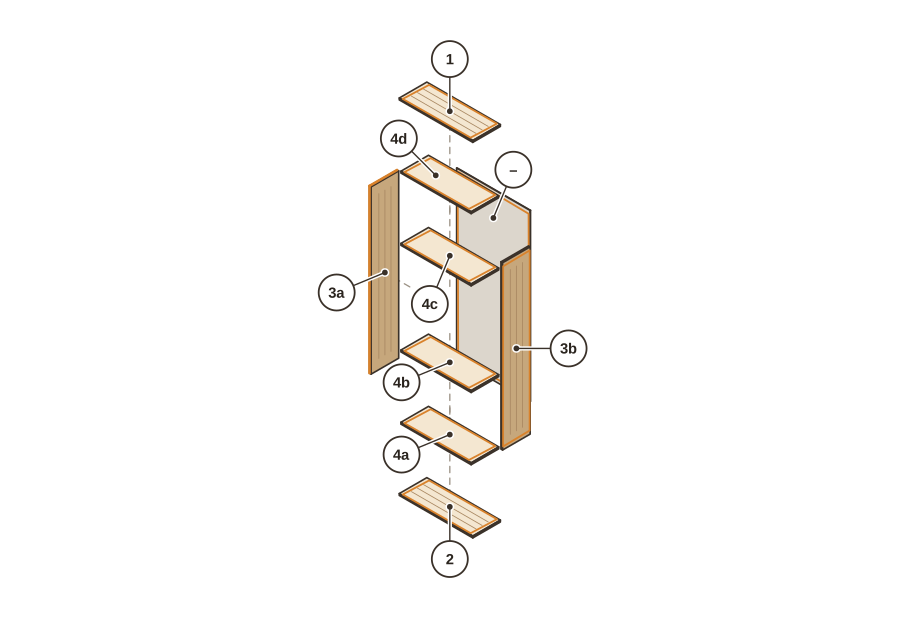
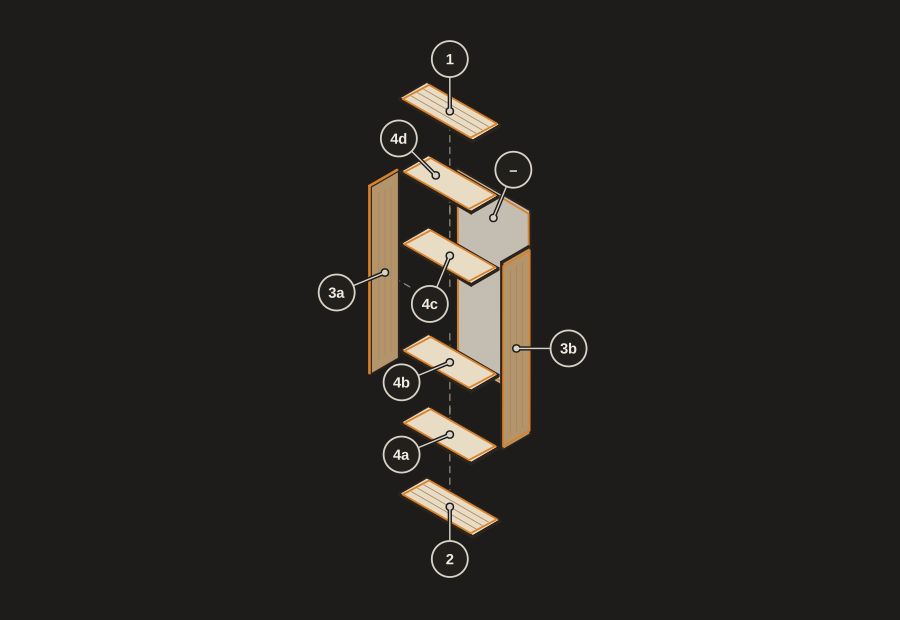
The view is isometric, seen from the front, the right and above, with three flat tones for the top, the front and the side of each panel. Each part moves along its own thickness direction, which is the direction it is fastened on, and a dashed line leads back to its place. Parts that hide each other are painted in the order a viewer expects, so a covered edge is never seen through a panel.
On every part sits a round tag, a leader and a dot. The tag is the number of the part’s row in the Parts table, the same number as on the cutting plan and on the part’s label, and where several parts share a number, a place letter follows: 3a and 3b are the two sides, 4a to 4d the four shelves, and the top is a plain 1. Letters run group by group, bottom to top and then left to right. The back panel in the figure carries a dash, because a template does not put the back panel in the table unless you insert it.
Find a piece is the search box above the drawing. Type 4 and it lights every shelf, 4b and it lights that one shelf, b and it lights every part with the letter b. It marks the same pieces on the cutting plan, and if the plan has not been run it says so and tells you to run the optimizer to see where the piece is cut. Names in the table come from your own rows, and the sizes there are the current table sizes: a part edited after the insert is starred with a note, while the drawing keeps the size the template inserted.
What do the steps and the model check add?
The Drawing | Steps switch beside the group tabs turns the drawing into a build order. For the bookshelf there are four steps: the frame of the carcass with the bottom and the two sides, then the carcass top, then the back panel and then the four shelves. Each step is a card with its own small exploded detail, the parts to fit as tags and the count of parts already in place, and the new parts are highlighted wherever parts of the group are already built. A kitchen base cabinet gets six steps, because the plinth comes first and a front comes last, and a drawer box is its own series: walls, bottom and lid.
For a template the order is fixed by the construction. For an imported model it is read from the geometry: a unit standing on the floor with another above it is the plinth step, each remaining unit is a cabinet, and inside a cabinet its own panels come first, then brackets and supports, the back, shelves, units such as drawers and a bar last. Treat it as a starting order and adjust it to your own method.
The Model check box under Find a piece asks whether the model can be built before any board is cut. For the bookshelf it reports no problems found: no parts overlap, nothing floats and nothing sticks out. Across 1,255 template models, the five templates at their defaults, at their minimum and maximum corners and in 250 random valid sets each, it reported nothing, so any finding on a template comes from an edit you made. A finding is an overlap of two parts, a part or group that does not touch the rest, a part that sticks out of its cabinet, a small overlap of an imported model that is probably a joint, a mark that lies under another part, or one identical part that is attached to fewer parts than its siblings. Click a finding and the parts light up in the drawing. The box says in plain words what it cannot do: it looks at the part boxes only and cannot tell which way a door opens.
How do you mark holes and get a hole sheet?
CutOptim does not guess hardware. You mark it, and the marks are the single source for the drawing, the labels and the hole sheets. Turn on the Marking switch in the Assembly view, then click a part in the drawing, or use the small hole button on a row of the table, and a side panel opens for that part. The kinds are a pocket hole, a 35 mm hinge cup, a 32 mm shelf-pin row, runner screws, a free hole and a groove, each with the usual hardware sizes as the defaults.
For a mark you choose the face, Seen side or Hidden side, the reference corner and the X and Y distances in your working unit, with Middle and To the edge buttons to snap an axis. Every identical part applies a mark to all copies at once, both sides or all shelves, and Only this part keeps it to one copy; Mirrored on the twin part puts it on the left and right sides as a mirror pair. The panel checks every field as you type, in words, and refuses a mark that cuts through the board, runs into the edge or lies where a pocket hole has nothing to hold: a pocket must leave through an edge that touches another part, so a pocket out of a shelf’s open front edge is refused. Undo has a stack of 50 steps, and Esc closes the panel.
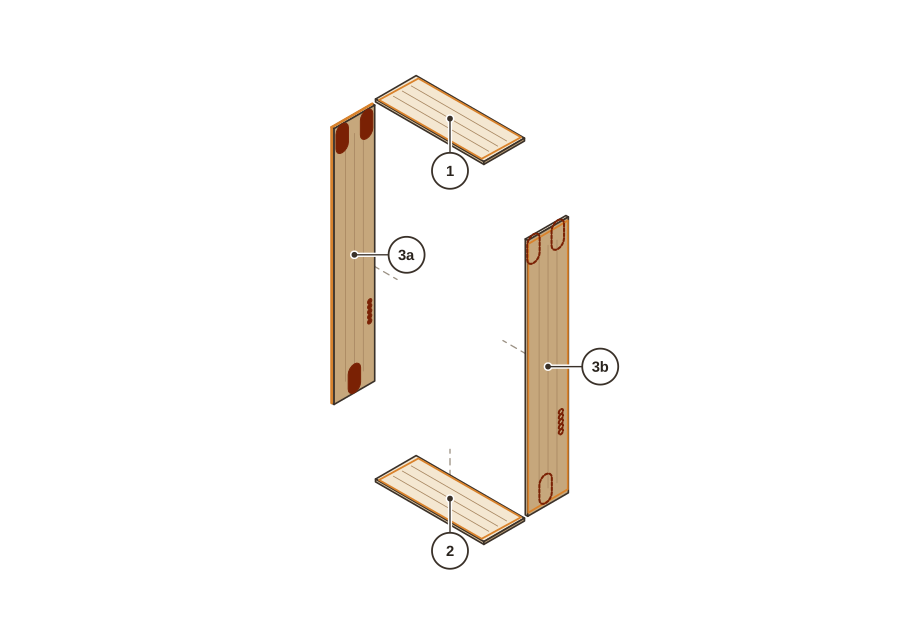
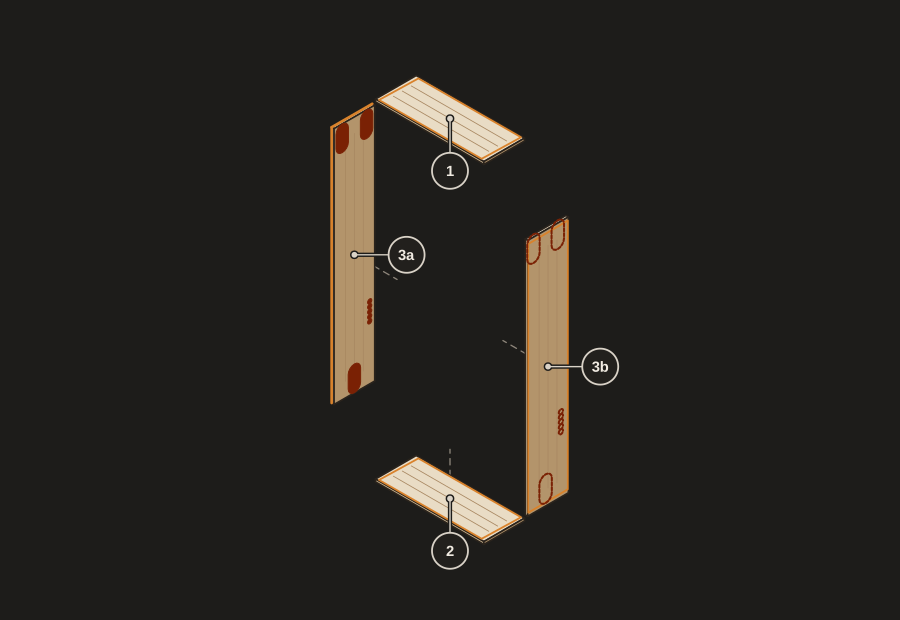
On the bookshelf the example marks are 14 pocket holes, two at the ends of every shelf and three on each side, and a row of five 32 mm shelf-pin holes on the inside of each side. That is 6 marks that become 24 holes on 6 parts. A mark on the seen face is drawn solid and a mark on a face turned away dashed, in a deep red that reads on both themes. The labels of those parts then say, for example, Drilling: 8 this side for a side and Drilling: 2 this side for a shelf.
The hole sheet is the page you take to the drill press. There is one for each marked face, drawn as the face looks from outside, in the furniture, never mirrored. It says which face it is, tells you how to lay the panel on the table, names every corner and edge in furniture words such as bottom back corner, and gives each mark a numbered row with kind, corner or edge, X, Y, diameter, depth and count. Parts whose sheets would be identical share one: the four shelves share a single sheet, 4a to 4d, and the two sides get one each, because they are mirror images. The bookshelf gets 3 hole sheets. Every sheet ends with the same warning: check every position against your hardware’s own drilling template before you drill.
What is in the Build Pack PDF?
The Build Pack is an A4 document made from the model in the language of the app. The Export menu calls it Build Pack (PDF). It starts with a cover that shows the assembled piece, an overview page with the front view and the groups with their part numbers, and a page on how to read the pack. Then comes one page for each group, with its exploded drawing, a small front view that shows where the group sits, and its parts with sizes and materials. After them come the material list, with the board, the back panel, the drawer material, the net areas and the length of edge banding, which is the length of the visible edges, and the parts table. Each hole sheet follows.
The default bookshelf gives 7 pages: cover, overview, how to read, the carcass, the shelves, the back panel, and the material list with the parts table. With the 6 marks of the example it gives 10 pages, the 3 hole sheets added. Sizes print in millimetres, centimetres, or inches with sixteenths as fractions, and the tables print the current size of a part, starred where you edited it after the insert.
Anyone can look at the Assembly view; the PDF needs you to be signed in with an account, and it is not an optimization run, so it takes nothing from a free account’s monthly count. It is also not a replacement for the cut list: print the cutting plan, the labels and the Build Pack from the same run, because the numbers follow the Parts table. The guide on labelling furniture parts shows what the labels carry.
Common mistakes and limits
- Reading the drawing as a size source. Sizes are in the table. The drawing keeps the sizes the template inserted and is a picture of how the parts go together.
- Trusting hole positions blindly. Marks are yours. Check each against the hardware’s own template, which is what the sheets say.
- Printing the pack from an old run. Numbers follow the table at the run. Print all documents from the same plan.
- Expecting angled or curved parts. The model is made of straight boxes; an angled part from an import stays in the cut list but not in the drawing.
- Large models. A model whose data would pass about 500 KB cannot be saved in a project, and the import then keeps the cut list only.
- Doors. The model check cannot see which way a door opens. Look at the drawing and your hinges.
Open a furniture template and see the exploded view
2 free runs without an account, then 3 a month with a free account
Open the appFrequently asked questions
How do I get an exploded view of a cabinet in CutOptim?
What do the numbers and letters on the drawing mean?
Can I print it?
Does it show where to drill?
What does the model check catch?
What if I change a part size after inserting the template?
Is the order of the build steps something I can edit?
Related
Ready to optimize your cuts?
2 free runs without an account, then 3 a month with a free account
Open App