DXF for CNC and CAM: Layers, Onion Skin and Sheet Origin
Quick answer
CutOptim’s DXF carries geometry only, but you can shape it once: a parts layer name, an onion-skin layer for small parts, the sheet origin, a WASTE layer, and the tool gap as the kerf. Set them in Settings, More, Export & drawing, DXF for CNC / CAM, and every later export arrives sorted the way your CAM wants it. With all options at their defaults you get the plain three-layer file.
Every cabinet job starts the same way in the CAM program: open the drawing, select the part outlines and move them to the through-cut layer, move the small ones to the onion-skin layer, then hide the sheet outline so it does not become a toolpath. Done by hand, that is repeated work before any real work begins, and it comes back for every sheet and every job. The same steps can be built into the file.
This guide explains what the DXF contains, how the CNC options work, how the gap between parts and the sheet origin fit in, and an import routine that suits Aspire-style CAM, with the mistakes that cost the most.
What you’ll learn:
- What is in the DXF, and what is not (toolpaths, G-code)
- One drawing or one file per sheet, and what changes in CNC mode
- The options: parts layer, small-parts layer, sheet origin, WASTE layer (with its tool diameter), part-label size
- Layer-name rules, kerf as bit plus gap, and a step-by-step import
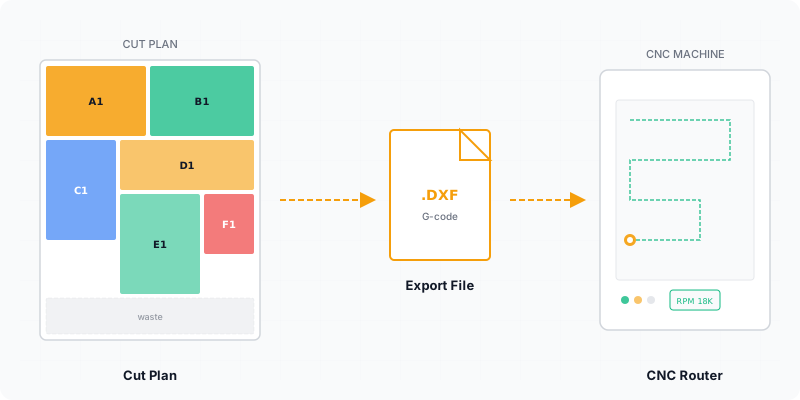
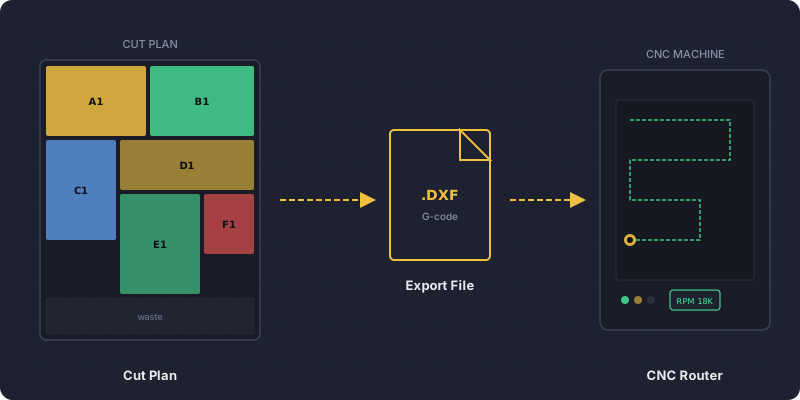
A cut-plan DXF is a drawing of the sheets and the parts placed on them, written in the R12 format that almost every CAD and CAM program reads. It describes outlines and text, never how the machine should cut them.
What does the DXF contain?
The DXF contains closed outlines of every stock sheet on the STOCK layer, closed outlines of every cut part on the PARTS layer, and all text on the LABELS layer. It holds no toolpaths, feeds, depths or G-code, so the machining is still defined in your CAM software.
- Outlines. Each sheet and each part is a closed polyline, so a CAM program can select it and put a profile toolpath on it.
- Text. Part names, sizes and sheet captions sit on
LABELS. Switch that layer off in CAD or CAM and only geometry remains. With grain matching, the position after the name (for example Door A2) is on the same layer. - Units. The file declares its drawing unit in the header (
$INSUNITS), millimetres or inches. A plan made in centimetres is written in millimetres, because that is what CAD and CAM read reliably; only the text captions stay in cm.
The setting Part dimension text on drawings changes the on-screen plan, the PDF and the Excel pictures. The DXF is unchanged by it. The Part labels sized to the part (like the PDF) checkbox is on by default. In the 2D DXF each part’s text is sized to the part, as on the screen: along the long side, turned on tall parts, as large as the part allows up to the screen’s maximum at that sheet’s scale (about 40 mm on a 2770 mm sheet instead of the old fixed 12 mm), and centred on the part, so a sheet preview (for example in Vectric) is readable. Off, the old fixed 12 mm text is written. The text itself, the part name (with the set position for grain-matched sets), is unchanged. The 1D and Wood DXF and the Engine API’s DXF are unchanged.
One drawing or one file per sheet?
Use the single DXF (CNC) when every sheet in one drawing suits your workflow, and DXF — one file per sheet (ZIP) when your CAM program takes one sheet per job. The ZIP is available in 2D Panel mode, with the same layers and the same R12 format.
Each file in the ZIP is named after its sheet: number, material and size. Vectric Aspire and VCarve import one sheet per job, so the ZIP saves you from cutting a combined drawing apart by hand. With CNC mode (free placement) switched on, the plan is a free layout for a router, and the same DXF items carry that layout. The guide on nesting panels for a CNC router explains when that mode pays off.
How do the layer options work?
Four options reshape the layers and the origin of the DXF, and two more settings tune the WASTE line and the text size. They live under Settings, More, Export & drawing, DXF for CNC / CAM, apply to the single file and the ZIP alike, and are remembered in your browser. Every option starts at its default.
| Option | What it does | Default |
|---|---|---|
| Parts layer | Renames the layer of the parts, for example thrucut. Also used in 1D and Wood DXFs. | PARTS |
| Small-parts layer | Receives parts under the limits, so your CAM can give them hold-down tabs or an onion skin. | onion_skin (only once a limit is set) |
| Sheet origin | Bottom-left puts the sheet in the positive quarter; Top-left hangs it below 0, as many post-processors expect. | Bottom-left |
| WASTE layer | One vertical and one horizontal line per sheet, one kerf beyond the last part, so the offcut is cut away in one pass. With a tool diameter the line is the toolpath centre, see below. | Off |
The small-parts layer has three limits: Small if narrower than, Small if lower than and Small if area under. A part moves to the small-parts layer when it is under the width limit or the height limit (whichever you set) and under the area limit, if you set one. An empty or 0 limit takes no part. Width and height are measured as the part lies on the sheet, a part exactly on a limit stays on the parts layer, and the limits use your working unit (mm, cm or in; area in mm², cm² or in²).
The WASTE line is left out on an edge the parts already reach. Under the WASTE checkbox there is a Tool diameter field. With a tool diameter the line is the toolpath centre: it sits a tool radius plus the allowance from the last part (kerf minus half the tool, the kerf being tool plus allowance), never closer than the radius. For example, a 6 mm bit + 3 mm allowance is a 9 mm kerf, so the line is 6 mm from the part (3 mm radius + 3 mm allowance), not 9. If the field is empty, the tool diameter typed under CNC / router: tool + allowance is used; with neither, the line stays one full kerf from the part. The limits, the origin and the WASTE layer apply to 2D sheets only; in 1D and Wood only the parts layer name applies. The Engine API’s DXF has no such options and is unchanged.
Which layer names are accepted?
Layer names may use only the letters A to Z and a to z, the digits 0 to 9 and the characters _, $ and -, because that is what a DXF R12 file allows. Spaces and other plain ASCII characters are removed from a name.
A name is refused outright, and the default applies, if it contains any other character (an accented or non-Latin letter, an emoji, an invisible character), ends up empty, is longer than 31 characters, or is STOCK, LABELS or WASTE in any capitalisation. So thru cut becomes thrucut, while a name with an accented letter is replaced by PARTS.
How do tool gap and sheet origin fit together?
The gap between parts is the blade kerf field, set to the bit diameter plus the free space you want; the origin decides where the sheet sits relative to 0. Together they decide whether the outlines land on your machine where you expect.
For a router, type the total once as the kerf, or open CNC / router: tool + allowance under the field and enter Tool diameter and Allowance separately. The examples in the help pages are a 6 mm bit plus 3 mm giving 9 mm, and a 3/8 in bit plus 1/16 in giving 7/16 in. The total is written into the kerf field, so the plan is the same as one made by typing the total.
The sheet origin follows your machine. Bottom-left places the sheet from 0 up to the sheet height. Top-left places it from 0 down to minus the sheet height, with the parts where they are on the screen and in the PDF, so the drawing starts at the sheet’s top-left corner.
How do you import it into Aspire-style CAM?
Import one sheet at a time, check the unit and one dimension, hide the sheet and text layers, then assign toolpaths per layer. The routine below is generic, so adapt the menu names to your CAM package.
- In CutOptim, set the options once and press the Downloads item that suits your CAM: the ZIP for one sheet per job, or DXF (CNC) for one drawing.
- Import the first sheet’s DXF and check the unit with one known dimension.
- Hide the
STOCKlayer (the sheet outline) and theLABELSlayer, or keepSTOCKvisible only to place the sheet. - Select all vectors on your parts layer and apply the profile toolpath, outside the outline.
- Select the vectors on the small-parts layer and apply the toolpath with tabs or an onion skin.
- Run a test cut on scrap, measure one finished part, then process the remaining sheets the same way.
Which mistakes cost the most?
Most failures come from a unit mismatch, an origin that does not match the machine, or a gap added twice. Each pair below gives the mistake and the fix.
- Reading millimetres as inches. Check one known dimension right after import; the file declares its unit in the header, but a CAM default can override it.
- Wrong sheet origin. If parts appear shifted or hang off the sheet, change the Sheet origin option in CutOptim and export again, instead of moving the drawing in CAM every time.
- Adding the gap twice. The gap between parts is already in the layout. Enter bit plus free space once as the kerf, and do not add it again to the part sizes in CAM.
- Typing a layer name with a space or an accent. The space is dropped and an accent makes the name invalid, so the default applies. Use letters, digits,
_,$and-. - Expecting toolpaths. The DXF is geometry only; feeds, depths and G-code come from the CAM.
When is Nesting mode the better tool?
Use the separate Nesting mode when the parts are not rectangles. CNC mode and the DXF options described here work on rectangular panels; curved or irregular outlines belong in Nesting, which works from SVG or DXF outlines. The full list of options is on the exports help page, and the general workflow is in the guide on exporting a cut plan to CNC.
Ready to optimize your cuts?
2 free runs without an account, then 3 a month with a free account
Open App — FreeFrequently asked questions
Does CutOptim's DXF contain toolpaths or G-code?
Which layers does the DXF have?
How do I get small parts onto an onion-skin layer?
Which layer names are accepted?
Should I use one DXF for all sheets or one file per sheet?
Do I add the tool gap again in my CAM software?
Related
Ready to optimize your cuts?
2 free runs without an account, then 3 a month with a free account
Open App