Best Free Cut List Software in 2026: Top Tools Compared
Quick answer
The best free cut list software depends on what you cut. CutOptim is the strongest all-rounder — panels, bars and lumber in one browser tool, with a published benchmark behind its numbers. CutList Optimizer allows the most free runs, five a day, but handles sheet goods only. OpenCutList fits SketchUp users.
Picking a cut list optimizer shouldn’t require a research project, but here we are — dozens of tools across the G2 Cutting Software category, vague feature lists, and “free” labels that mean wildly different things. Whether it is sold as a cut list optimizer, a panel optimizer or cutting optimization software, the job is the same: arrange your parts on the stock you have with as little waste as possible. We compared five popular options on what they actually let you do for free. Below is what we found, ranked by overall usefulness for someone who doesn’t want to pay unless they have to.
This comparison covers free tiers and free tools only. We ranked each option on four things: what it can cut (panels, bars, lumber), what you can export (PDF, spreadsheet, DXF/SVG for CNC), how much the free tier allows, and whether its quality can be checked. Feature coverage was checked against each product’s own site and documentation; the check date is next to the comparison table.
We deliberately publish no yield percentage for any tool here, including our own. A yield figure from a single test job depends on the parts, the stock, the kerf and the settings, and we cannot re-run other companies’ software under controlled, repeatable conditions. For CutOptim the measured numbers are public and per job on the benchmark page; for everything else, run one of your own past jobs through the tool and compare.
1. CutOptim — Best Overall Free Option
CutOptim is a browser-based optimizer that handles both 1D (linear) and 2D (panel) cutting. The free tier allows 3 optimizations per month with no limit on how many parts a job contains, so you can run a real project end to end — a full kitchen, a run of handrail, a set of shelves — rather than a cut-down sample.
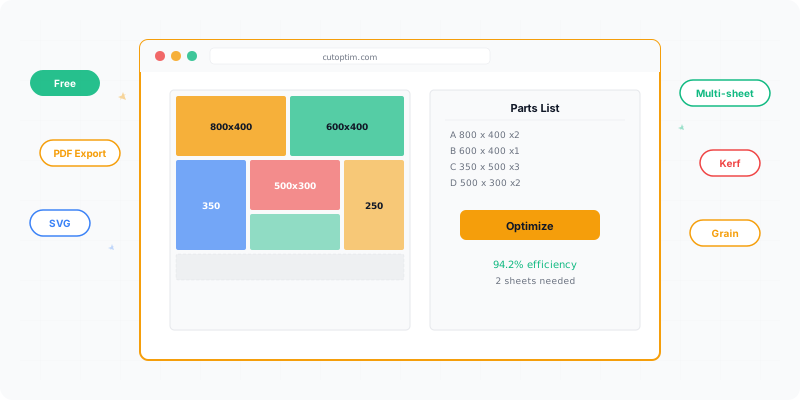
The workflow is four steps: enter stock sizes, list parts, set kerf, click optimize. The result is a visual layout with numbered parts.
Where it stands out: kerf is a first-class setting (not buried in advanced options), the visual layout is easy to read, and it runs in any browser with no install. It also supports grain direction for veneered panels — you can lock rotation per part on the free tier. Grain matching — cutting a set of fronts side by side from one piece of board, one saw gap apart, so the figure runs on — needs a free account: Free within its monthly runs, Pro with a monthly allowance, Workshop unlimited.
Four things here have no equivalent elsewhere in this list:
- Panels, bars and lumber in one standalone tool. Most options on this page optimize sheets only; OpenCutList also cuts dimensional lumber to length, but only inside SketchUp. CutOptim has three modes — 2D panel, 1D linear (bar, tube, profile, rebar) and a wood mode that groups by cross-section — so a job with plywood carcasses and a run of 50×100 framing doesn’t need two programs.
- Furniture and fence templates. Five furniture templates (TV stand, bookshelf, wardrobe, kitchen base cabinet, box/cube) generate the whole part list from the outside dimensions, including the
inner = height − 2 × thicknessarithmetic that people get wrong by one board thickness; three fence templates (picket fence, horizontal fence, post-and-rail) do the same for 1D bar jobs. They’re free on every tier. - A shareable result link. On Pro, a saved plan gets its own URL you can send to a shop, a client or your own phone. Nothing to install and no account needed at the other end.
- A published benchmark, not a claim. Our benchmark page lists 1,259 public test jobs one by one, including the academic instances where the optimum is known. On those, 87.5 % of panel jobs (484 of 553) land on the theoretical lower bound or within a single sheet of it, and 100 % of bar jobs (134 of 134) finish within 5 % of the minimum possible length. The raw results are downloadable under CC BY 4.0. No other tool in this comparison publishes anything you can check.
Where it falls short on the free tier: 3 optimizations a month go quickly if you iterate on a design. Every cutting tool is included on the free tier once you create a free account — CNC export (DXF/SVG), the edge banding calculator, the inventories, cost mode and the rest. Pro adds unlimited runs, saving projects to the cloud, share links and priority support. If you’re a hobbyist building one project at a time, the free tier is genuinely sufficient. Production shops running several jobs a week will hit the monthly limit and should evaluate the paid plans.
2. CutList Optimizer — Most Generous Free Tier
CutList Optimizer is the best-known browser-based panel optimizer, with a companion Android app. If your work is entirely sheet goods and you optimize several times a week, its free tier is the most generous here by a wide margin: 5 calculations per day (roughly 150 a month) against CutOptim’s 3 a month. Credit where it’s due — for a hobbyist iterating on one design over a weekend, that difference is the whole ballgame.
The feature set is mature. Kerf thickness, edge banding, grain direction, per-material grouping and panel labels are all in the free options panel, and you can steer the algorithm with an optimization priority (least wasted area, fewest cuts, or smaller stock sheets first) and a preferred cut direction. Units go from millimetres through fractional inches to decimal feet and inches, and the interface ships in 17 languages. Results include used area, wasted area, total cuts and total cut length.
Where it stops: it is a panel optimizer and only a panel optimizer. Every input is a length × width rectangle; there is no linear, bar or lumber mode. If your project mixes sheet goods with framing timber, tube or profile, this tool covers half of it. Exports are PDF and image only — no CSV, no spreadsheet, and no DXF or SVG, so there is nothing to hand a CNC operator. Saved items are capped at 5 on the free tier, and paid plans run $15/month (Silver) or $25/month (Gold), with a $4.90 one-time option that unlocks Silver features for three days.
Feature coverage above was checked against the live product on 9 August 2026. Like every entry here, it carries no yield figure — we would rather leave a cell blank than publish a number we did not measure.
3. OpenCutList (SketchUp Plugin)
OpenCutList is a free, open-source plugin for SketchUp. If you already model your projects in SketchUp, this is a strong choice because it pulls part dimensions directly from your 3D model — no re-entering measurements.
It computes cutting diagrams for sheet goods and, for dimensional lumber, cuts to length from standard lengths or offcuts, with blade thickness and trimming settings. Cutting diagrams export to DXF or SVG and part lists to CSV or XLSX. It is open source under the GPLv3 licence.
The catch: you need SketchUp installed (the free web version works, but the plugin runs best on the desktop edition). If you don’t use SketchUp, OpenCutList isn’t practical — there’s no standalone mode, and the parts come from your 3D model rather than a typed list.
4. MaxCut Community Edition (Windows)
MaxCut is a desktop program for Windows, and its Community Edition is free. It is the option to pick if you specifically want software installed on a PC rather than a tool in the browser.
It produces sheet cutting layouts and reports aimed at cabinet and panel shops — cut lists, supplier order lists and labels — and it can cost a job from materials, cutting charges and edging length. Paid editions add more; see the vendor’s pricing page for the current line-up.
The catch: it runs on Windows only, so Mac, Linux and Chromebook users are out, and we did not verify bar or lumber (1D) cutting — treat that as unknown until you have tried it.
5. Excel / Google Sheets Templates
Spreadsheet templates aren’t optimizers — they’re calculators. Unlike tools that implement bin packing algorithms, you manually arrange parts and the spreadsheet tracks remaining material. Several free templates circulate online with varying quality.
When they work: if you have fewer than 8–10 parts and one stock size, manually placing rectangles in a spreadsheet is sometimes faster than learning new software. It’s also fully customizable — you control every formula.
When they don’t: anything beyond a trivial job. Spreadsheets can’t algorithmically test thousands of arrangements, and every revision means placing the parts again by hand. The gap grows with every part you add.
| Feature | CutOptim | CutList Optimizer | OpenCutList | MaxCut Community | Excel / Sheets |
|---|---|---|---|---|---|
| Platform | Browser (any device), installable | Browser + Android | SketchUp plugin | Windows desktop | Desktop / browser |
| 2D panel optimization | Yes | Yes | Yes | Yes | Manual only |
| 1D bar / lumber optimization | Yes | No | Yes (dimensional lumber) | — | Manual only |
| Furniture templates | Yes (5 furniture + 3 fence, free) | No | No | — | No |
| Kerf setting | Yes (adjustable) | Yes | Yes | — | Manual formula |
| Grain direction | Yes | Yes | Yes | — | No |
| Edge banding | Yes | Yes | Yes | Yes (edging cost) | No |
| CNC export (DXF/SVG) | Yes | No | Yes (cutting diagrams) | — | No |
| Spreadsheet export (CSV/XLSX) | Yes | No | Yes (parts list) | — | Native |
| Shareable result link | Yes (Pro) | No | No | — | No |
| Published benchmark data | 1,259 public jobs | Not published | Not published | Not published | n/a |
| Free tier limit | 3 jobs/month, unlimited parts | 5 jobs/day, unlimited parts | Free (open source) | Free Community Edition | Unlimited |
| Paid plan | 9 €/month | $15–25/month | Free | Paid editions | Free |
Feature coverage checked on 25 September 2026 against each product’s own site and documentation; “—” means we could not verify it, not that the feature is missing.
Do You Need to Download It? Web vs PC vs Mac
Many people search for a “free download for PC”. For most cut list jobs you do not need one: a browser tool runs the same on Windows, Mac, Linux and a Chromebook, and there is nothing to install or update.
| You use… | No-download option | Installed program |
|---|---|---|
| Windows PC | CutOptim or CutList Optimizer in the browser | MaxCut Community (free) · CutList Plus fx (paid, one-time licence) |
| Mac | CutOptim or CutList Optimizer in the browser | OpenCutList inside SketchUp |
| Linux or Chromebook | CutOptim or CutList Optimizer in the browser | — |
| Phone or tablet | CutOptim in the mobile browser | CutList Optimizer Android app |
CutOptim runs in the browser and can also be installed from it as an app (the install prompt, or the browser’s own install option), so it opens from your desktop or home screen like a program. It is not a native Windows or Mac program, so if your workshop PC must work without a browser, choose a desktop tool.
If you want a program on the PC, MaxCut Community Edition is free for Windows. CutList Plus fx is another Windows option — it is paid, but as a one-time licence (Silver $89, Gold $249, Platinum $499 at the time of checking) rather than a subscription, with a free trial.
On a Mac there is no Windows-only program to install; use a browser tool, or OpenCutList if you already model in SketchUp.
Which Should You Choose?
Start with CutOptim if your work isn’t only sheets. It is the only standalone tool here that optimizes panels, bars and lumber, starts you from a furniture template instead of a blank table, hands you a link you can send to the shop, and publishes the benchmark behind its own claims. The free tier handles most hobby and small-shop jobs.
Choose CutList Optimizer if you cut sheet goods and nothing else, and you want the most free runs. Five calculations a day beats 3 a month, and the panel feature set is complete. You’ll need a second tool the day a job includes framing timber or profile, and a different one again if anyone asks for a DXF.
Choose OpenCutList if you already design in SketchUp and want automatic part extraction from your 3D models. It’s a natural fit for that workflow, and it exports DXF/SVG diagrams too.
Choose MaxCut Community if you want a free program installed on a Windows PC rather than a browser tool.
Stick with spreadsheets only if your jobs are trivially small (under 8 parts, one stock size) or you need a format that integrates with existing business spreadsheets.
Test any optimizer on a real past project where you know the outcome. Compare the software’s yield against what you actually achieved. That tells you more than any feature list.
When Does a Free Tool Stop Being Enough?
Usually not because the optimization is worse, but because the work around it starts costing more than the licence would.
Free tiers rarely differ from paid ones in how well they pack a sheet — the same algorithm runs either way. What they limit is everything that makes the result reusable: how often you can run it, whether the job survives closing the tab, what you can hand to somebody else, and whether the offcut you kept last month is still known to the software.
| What starts to hurt | Why free tiers limit it | When it actually matters |
|---|---|---|
| How many jobs per month | Runs are the cheapest thing to meter | Once you are quoting, not just building |
| Saved projects | Storage is a real cost per user | When a job comes back for a revision |
| Export formats | PDF is cheap, DXF and spreadsheets are integrations | When somebody else has to machine the parts |
| Offcut tracking | It needs an account and a database, not a browser tab | When the leftovers are worth more than the licence |
| Edge banding totals | It is costing, not geometry | When you are pricing a job rather than cutting one |
The honest test is not which features are locked but which of them you have already worked around this month. Re-entering the same cabinet three times because the tab closed is a cost; exporting a PDF and retyping it into a quote is a cost. If neither has happened, the free tier is doing its job.
For reference on the tool this site publishes: every cutting tool is included in the free account — offcut inventory, edge banding and all export formats. The free tier allows 3 optimizations per month and puts no limit on the number of parts in a job, so an entire kitchen can be planned on it. It does not save projects to the cloud; the paid Pro plan adds unlimited runs, cloud-saved projects, share links and priority support.
See how your cut list performs with real optimization.
No install, no account required for basic use. · 2 free runs without an account, then 3 a month with a free account
Try CutOptim FreeFrequently asked questions
Is free cut list software good enough for professional use?
What should I look for when choosing cut list software?
Do free cut list tools limit how many parts you can enter?
Can free cut list software apply edge banding?
Is browser-based cut list software safe for confidential designs?
Is there a free cut list optimizer for PC?
Is there a free alternative to CutList Optimizer?
Related
Ready to optimize your cuts?
2 free runs without an account, then 3 a month with a free account
Open App