Cut List Optimizer vs Excel: Why Spreadsheets Fall Short
Quick answer
A cut list optimizer algorithmically tests thousands of arrangements and returns the layout needing the fewest sheets; a spreadsheet only records the layout you worked out by hand. Excel is fine for a bookshelf or a single cabinet — past roughly ten unique parts across two or three sheet sizes it starts costing material, not just time.
Most woodworkers and fabricators start the same way: open Excel, list your parts, add up the numbers, and hope you bought enough material. It works fine for a bookshelf or a single cabinet. But the moment you scale past 10 unique parts across 2 or 3 different sheet sizes, that spreadsheet becomes a liability. You spend more time rearranging cells than actually cutting wood. This guide breaks down exactly where the spreadsheet approach falls apart and when a dedicated cut list optimizer earns its keep.
What you’ll learn in this guide:
- What Excel handles well for material planning
- The specific failure points when projects scale up
- How optimization algorithms differ from manual layout
- A decision framework for choosing the right tool
What Excel Does Well
Give credit where it’s due. Excel is a fantastic tool for organizing data, and a cut list is data. You can build a parts table with columns for length, width, quantity, material type, and edge banding. Sorting, filtering, and summing quantities is trivial. For a weekend project with 5-8 parts from a single sheet size, a spreadsheet gives you everything you need. You already know Excel, it’s already on your computer, and the learning curve is zero.
Excel also integrates well with purchasing workflows. Many shops keep a master spreadsheet that doubles as an order form for their panel supplier. That habit is hard to break, and honestly, it doesn’t need to break for the inventory-tracking side of things. The problem isn’t the list. It’s what happens after you finish the list.
Where Excel Breaks Down
A cut list tells you what you need. It does not tell you how to cut it. That second question is an operations research problem, and Excel has no built-in mechanism to solve it.
No optimization algorithm. Excel cannot test thousands of part arrangements to find the layout that wastes the least material. As spreadsheet error research has shown, manual spreadsheet work is also prone to formula and data-entry mistakes. You’re left dragging cells around or sketching on graph paper, hoping you stumble onto a good arrangement.
Manual kerf accounting. Every saw blade removes 3-4 mm of material per cut. Forget to add that to even one dimension and your final piece comes up short. Multiplied across dozens of cuts, small kerf errors cascade into unusable offcuts.
No visual output. You can stare at a table of numbers, but you can’t hand a spreadsheet to a saw operator and say “cut this.” Without a diagram showing which piece goes where on which sheet, mistakes on the shop floor multiply.
Scaling is brutal. A kitchen remodel might involve 40+ unique panels across melamine, plywood, and MDF. In Excel, arranging those parts across multiple stock sizes manually can take hours. Change one dimension and you start over.
What a Dedicated Optimizer Does Differently
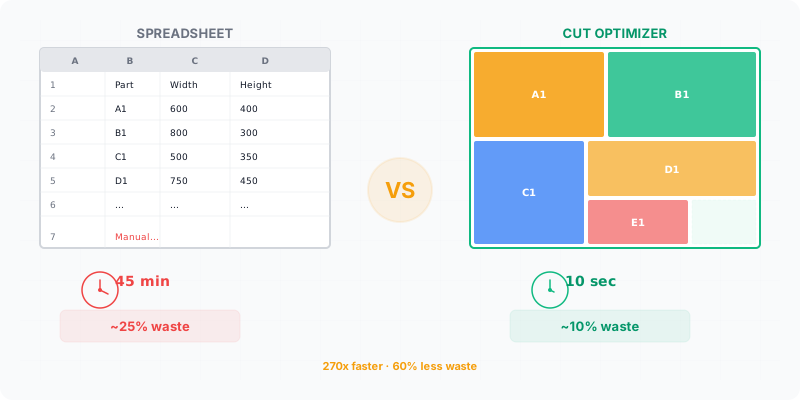
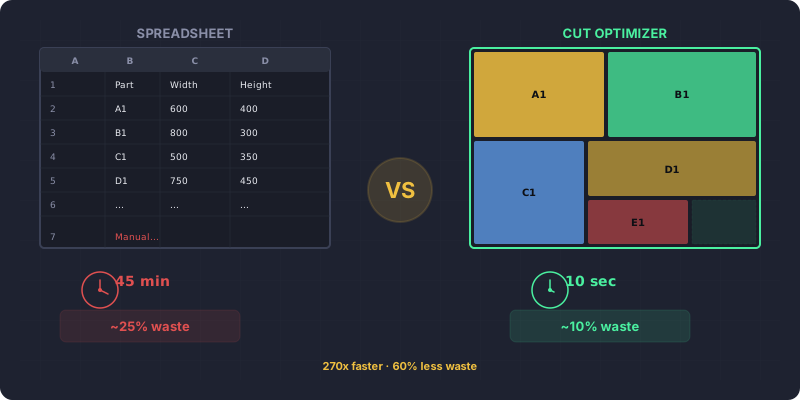
A cut list optimizer takes your parts list and stock dimensions as input, then runs a bin-packing algorithm to find the arrangement that minimizes waste. The output is a visual cutting diagram you can print and carry to the saw.
Algorithmic nesting. The software tests thousands of permutations per second. A job that takes you 45 minutes to lay out by hand gets solved in under a second, usually with less waste.
Automatic kerf deduction. You set your blade kerf once (typically 3-4 mm for a standard panel saw blade), and the optimizer subtracts it from every cut. No more mental math, no more short pieces.
Visual cut maps. Each stock sheet gets a diagram with labeled parts, cut sequence, and dimensions. Hand it to an operator. Done.
Offcut management. Leftover pieces get tracked. The next job can pull from existing offcuts before cutting into new stock. Over a year, this alone can save 10-15% on material costs.
DXF/PDF export. For CNC shops, optimizers export cutting plans directly to machine-ready formats.
faster — an optimizer evaluates hundreds of layouts while you're still formatting column B
| Feature | Excel | Cut List Optimizer |
|---|---|---|
| Part list entry | Manual columns/rows | Structured input with validation |
| Optimization algorithm | None — manual arrangement | Bin-packing with kerf deduction |
| Kerf accounting | Manual per-cut math | Automatic across all cuts |
| Visual cutting diagram | Not available | Printable per-sheet layout |
| Grain direction support | Manual notes only | Automatic constraint in algorithm |
| Offcut tracking | Separate tracking sheet | Built-in with reuse in next job |
| DXF/CNC export | Not available | Native export support |
| Cost per project | Free (with Office license) | Free tier available, Pro for large jobs |
When to Use Each
Here’s a simple decision tree:
Stick with Excel if:
- Your project has fewer than 8 unique parts
- You’re cutting from a single stock size
- You don’t need a visual cutting diagram
- The project is a one-off and won’t repeat
Switch to an optimizer if:
- You have 10+ unique parts or multiple stock sizes
- You need to account for kerf, grain direction, or edge banding
- You want a printable cut map for the shop floor
- You reuse offcuts across projects
- You run CNC equipment and need DXF output
The crossover point is smaller than most people think. Once you hit 5 unique parts from the same sheet, the time spent manually arranging in Excel exceeds the time it takes to enter those parts into an optimizer and click “calculate.”
If you’re cutting more than 5 unique parts from the same sheet, the setup time for Excel exceeds the time saved. Switch to an optimizer at that threshold.
What Does the Spreadsheet Still Do Better?
Everything that is not packing — which is most of the paperwork around a job.
It is worth being honest about this, because the answer is not “nothing” and pretending otherwise is how tool recommendations lose credibility. An optimizer replaces one task: deciding where the parts go. The spreadsheet keeps the rest, and in a small shop the rest is where the hours are.
| Task | Better in a spreadsheet | Why |
|---|---|---|
| Pricing and quoting | Yes | Rates, margins and VAT are arithmetic you own and can audit line by line |
| Sending something to a client | Yes | Everyone can open it, and nobody needs an account to read it |
| Keeping a job history | Yes | A folder of sheets is a record; it does not depend on a service still existing |
| Sorting, filtering, ad-hoc totals | Yes | Ten seconds of work that no purpose-built tool will do as flexibly |
| Deciding where the parts go | No | The number of arrangements grows far faster than any formula can search |
The practical arrangement most workshops land on is not one tool or the other. The parts list starts in a spreadsheet because that is where the quantities and prices already live, gets exported as CSV into the optimizer to answer the one question the spreadsheet cannot, and the resulting sheet count goes back into the quote. Nothing is retyped, and each tool does the part it is actually good at.
The failure mode worth avoiding is the reverse: trying to make the optimizer do the costing, or the spreadsheet do the packing. Both are possible and both are worse than the split.
There is a second reason to keep the spreadsheet in the loop, and it has nothing to do with features. A quote you produced yourself, from rates you can point at, is one you can defend when a client asks why a job costs what it does. A number that came out of a tool is harder to stand behind, not because it is wrong but because you cannot walk somebody through it. For anything customer-facing, owning the arithmetic is worth more than automating it.
The dividing line, then, is not difficulty. It is whether the task has one right answer you need to find, or a set of judgements you need to be able to explain. Packing a sheet is the first kind and a search does it better than a person. Pricing a job is the second, and there the spreadsheet is not a fallback — it is the correct tool.
Stop arranging parts by hand
No signup required. Paste your cut list and get a diagram in seconds.
Try the free optimizer