Nesting Panels for a CNC Router: Free vs Saw Layouts
Quick answer
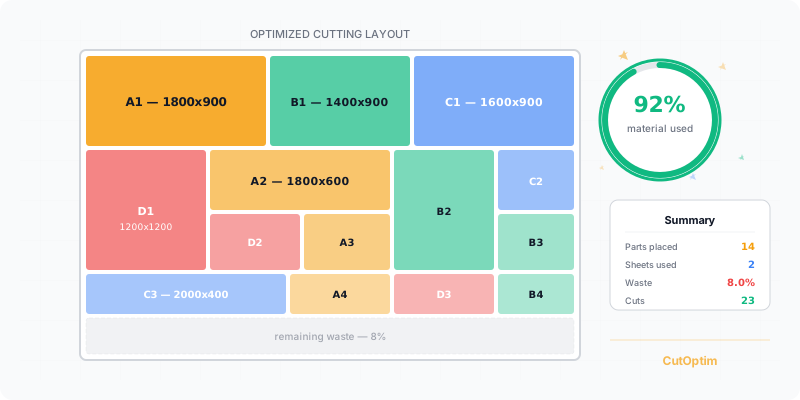
CNC mode places the same rectangles freely instead of with edge-to-edge saw cuts, so a router, laser or waterjet can use gaps a saw plan has to leave empty. On the one job measured below, with unlimited stock a saw plan needed 3 sheets and CNC mode 2; with limited stock both fitted all 23 parts on the same 3 sheets. That is one job, not a promise: your own list decides.
Twenty of twenty-three parts fit. That was the saw plan for a run of laminated chipboard parts, on exactly the sheets that were in the rack: one full board and two narrow ones. The last three parts had no place to go, and no amount of reordering changed it. The shop cuts these parts on a router, though, and a router does not need edge-to-edge cuts.
This guide explains the difference between a saw layout and a free one, when the free layout is worth switching to, how to set CNC mode up for a cabinetmaker’s or joiner’s router, and what it cannot do.
What you’ll learn:
- What a guillotine (saw) layout allows and what free placement allows
- Which jobs gain from CNC mode: tight stock, decor that cannot turn, offcut strips
- The settings that matter on a router: bit gap, edge margin, limited stock, grain
- What the plan, PDF and DXF contain, and where CNC mode stops
A guillotine layout is one in which every cut runs from one edge of the sheet, or of the piece left after the previous cut, to the opposite edge. Free placement puts each part anywhere on the sheet, and the router follows the outline of each one.
What is the difference between a saw layout and free placement?
A panel saw can only make a straight cut that crosses the whole piece, so a saw plan is a tree of edge-to-edge cuts. A CNC router cuts each part around its own outline, so the parts only have to avoid each other. The wider guide on guillotine versus free-cut nesting covers the theory; here is what changes in practice.
| Saw (guillotine) plan | CNC mode (free placement) | |
|---|---|---|
| Machine | Panel saw, beam saw | CNC router, laser, waterjet |
| Every cut runs edge to edge | Yes | No |
| Gap between parts | Blade kerf | Bit diameter + free space |
| Cutting sequence | Numbered saw cuts | None; the router follows outlines |
| Cut length | Saw cuts | Total outline length of the parts |
| Cuttable on a panel saw | Yes | No |
When does CNC mode pay off?
CNC mode pays off when the saw constraint is what stops parts from fitting: tight or fixed stock, decor that cannot be turned, and narrow offcut strips. With plenty of material and parts that can rotate, the two plans are often close.
- Tight or limited stock. When the quantities are hard limits, a part that does not fit means a new sheet or a delayed job. Free placement can use gaps that edge-to-edge cuts cannot reach.
- Decor that cannot turn. Laminated chipboard with a wood grain or a directional pattern has to keep its direction. Without rotation as an escape, the layout leans entirely on how well the parts tile.
- Offcut strips. A narrow strip left from an earlier job is hard to use with full-width saw cuts. A router can place parts into whatever area is free.
The common thread is that every one of these jobs is limited by geometry rather than by material price. If the saw plan already fits everything with little left over, CNC mode has little to add, and the simpler saw plan is the safer choice.
What did one real job show?
On one real job the same list needed one sheet less in CNC mode when stock was unlimited (2 instead of 3); with limited stock both fitted all parts on the same 3 sheets. The job: 23 laminated chipboard parts, no rotation because of the decor, a 9 mm gap between parts (6 mm bit plus 3 mm), 0 edge margin.
| Stock | Saw (guillotine) plan | CNC mode (free placement) |
|---|---|---|
| Limited: 1 × 2770×1400 mm + 2 × 2770×610 mm | All 23 parts fit on the same 3 sheets, 85.5% utilization (since 14 October 2026; before: 20 of 23) | All 23 parts fit on the same 3 sheets, 85.5% utilization |
| Unlimited full 2770×1400 mm sheets | 3 sheets | 2 sheets |
Read it as a single measurement. A different parts list, a smaller gap or parts that may rotate can narrow the difference, and we do not offer an average. The practical lesson is to compare, not to assume: run the list once with CNC mode off and once with it on, and let the numbers on your own job decide.
How do you set CNC mode up for a router?
Tick the CNC mode checkbox, enter the bit gap as the kerf, set the edge margin, switch the stock to Limited if you hold exact sheets, and set the grain on both rows. The settings below are the ones that change the result.
| Setting | What to enter | Why |
|---|---|---|
| Settings: CNC mode (free placement) | Tick the checkbox | Saved with the project; off gives the normal saw plan |
| Blade kerf | Bit diameter + free space, for example 6 + 3 = 9 mm | It is the gap between two parts; the CNC / router: tool + allowance link types the two numbers separately |
| Settings, More: Trim per side | The edge margin you want; 0 lets parts touch the edge | Sets how close parts may sit to the sheet edge |
| Stock box: Limited | Switch on | Uses exactly the sheets you entered; quantities become hard limits |
| Grain icon on the sheet row and the part row | Set on both | A part's grain only locks it when its sheet has a grain too |
Then run the optimizer as usual. The full list of settings is on the CNC mode help page.
What does a CNC plan contain?
A CNC plan contains the sheet layouts, a detailed cut list with the position of every part, labels, edge banding and the offcut list, but no saw cutting sequence. The summary, PDF and Excel say “CNC plan” or “CNC mode: On” so nobody mistakes it for a saw plan.
- PDF. The title reads “CNC PLAN — 2D SHEETS (FREE PLACEMENT)” and the page shows “Part gap” in place of the kerf. A detailed cut list gives the x and y position of every part.
- Cut length. It is the total outline length of the parts, which is the router’s path, not a count of saw cuts.
- DXF (CNC). Every sheet goes into one drawing with the part names. Your CAM software, for example Aspire, adds the toolpaths.
- Labels, edge banding and offcuts. They work as before.
- Which sheet? In CNC mode it compares free layouts and is marked “CNC mode”.
What are the common mistakes?
Most mistakes come from carrying saw habits over to a router. Each pair below is a mistake, why it hurts and what to do instead.
- Typing only the bit diameter as the kerf. The parts then touch, and the tool rubs the neighbouring edge. Enter the bit diameter plus the free space you want between parts.
- Setting the grain on the part but not on the sheet. A part’s grain only locks its direction when its sheet has a grain too, so the part still turns. Set the icon on both rows.
- Leaving the stock on unlimited when you own exact sheets. The plan then assumes more material than you have. Switch the stock box to Limited.
- Expecting a cutting sequence. There are no saw cuts in a CNC plan, so none is shown. The cut list with x/y positions is what the operator uses.
When should you not use CNC mode?
Leave CNC mode off if you cut on a panel saw, table saw or track saw: a free layout cannot be cut edge to edge. Several things also stay outside it.
- Grain matching (sets) works in CNC mode too. Each set is placed as one block, freely like any other part, so fronts whose grain must run across several parts stay together.
- Saw-only settings are dimmed and have no effect. These are first cut direction, max cutting stages, minimise rotation, cut order, speed versus density and cost per cut.
- Irregular shapes are not covered. CNC mode packs rectangles; curved or irregular outlines belong in the separate Nesting mode.
- It counts as a run. A CNC mode run counts like any other 2D run.
Ready to optimize your cuts?
2 free runs without an account, then 3 a month with a free account
Open App — FreeFrequently asked questions
What is CNC mode in CutOptim?
Does free placement always fit more parts than a saw plan?
Can I cut a CNC mode plan on a panel saw?
What gap should I enter between parts?
How do I stop decor parts from turning in CNC mode?
Does CNC mode handle irregular shapes?
Related
Ready to optimize your cuts?
2 free runs without an account, then 3 a month with a free account
Open App